> ## Documentation Index
> Fetch the complete documentation index at: https://octanist.com/docs/llms.txt
> Use this file to discover all available pages before exploring further.
# DNS setup
> Use a custom subdomain to serve the Octanist pixel from your own domain.
Custom DNS is optional. Most websites can use the default Octanist pixel domain. Use custom DNS when you want the pixel script to load from a short subdomain of your own website, such as `c.example.com`.
## How it works
1. You choose a short custom subdomain in Octanist.
2. Octanist gives you a CNAME record.
3. You add that CNAME record at your DNS provider.
4. Octanist verifies the DNS record.
5. Octanist issues SSL for the custom domain.
6. Your pixel script uses the custom domain instead of the default Octanist domain.
## Create the custom domain
1. Open Octanist.
2. Go to **Settings > DNS Setup**.
3. Choose a suggested subdomain or enter your own.
4. Click **Create DNS setup**.
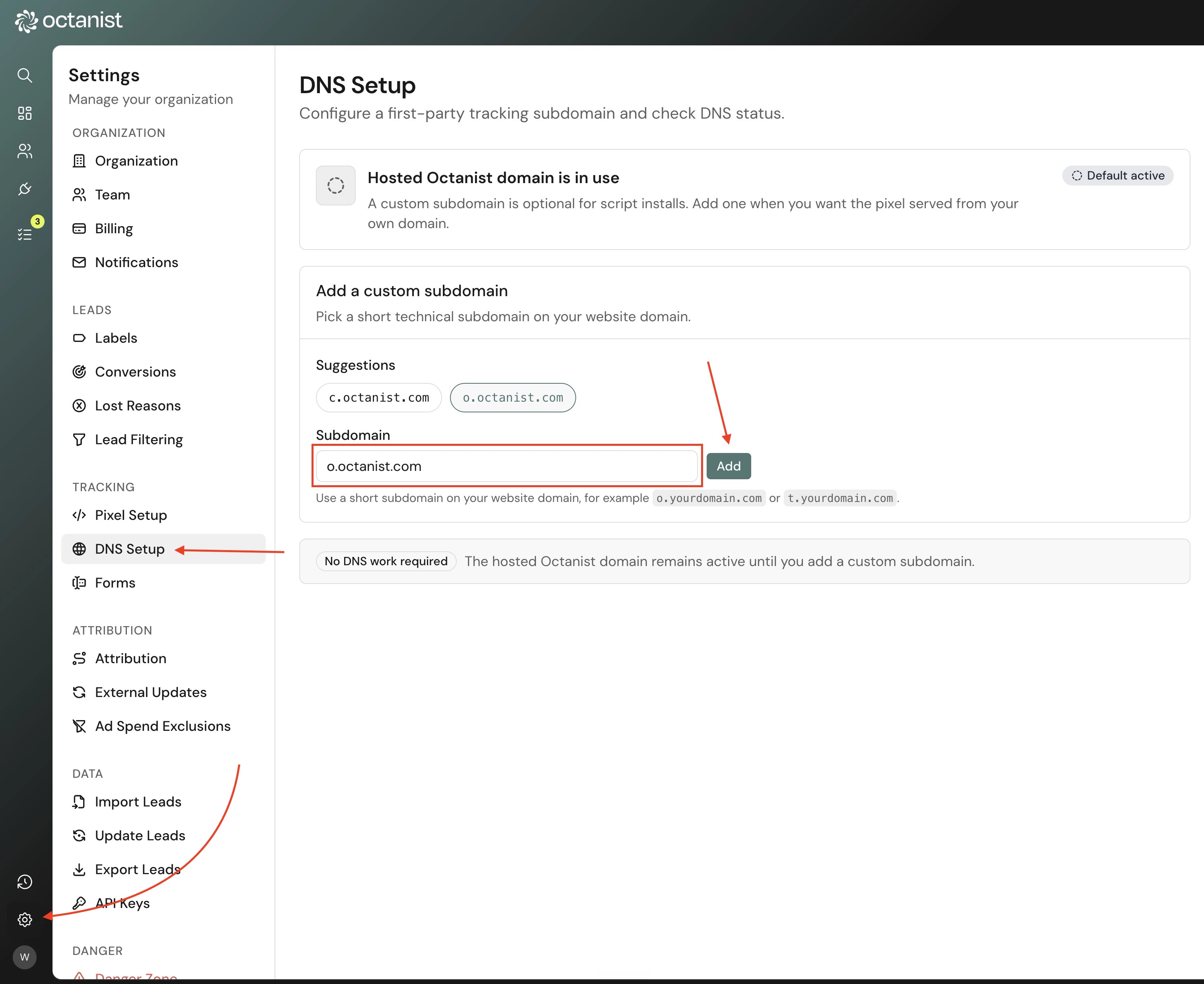 Use a short subdomain that is not already used by another tool. We recommend one-letter subdomains because they do not clearly describe what the subdomain is used for.
* `c.example.com`
* `o.example.com`
* `x.example.com`
## Add the DNS record
Octanist shows the exact DNS record to add.
| Field | Value |
| ------ | ------------------------------------------------ |
| Type | `CNAME` |
| Name | The subdomain label, such as `c`, `o`, or `x`. |
| Target | The Octanist target shown in the DNS setup page. |
Add the record at the DNS provider for the website domain. This is usually where the domain's nameservers are managed.
Use a short subdomain that is not already used by another tool. We recommend one-letter subdomains because they do not clearly describe what the subdomain is used for.
* `c.example.com`
* `o.example.com`
* `x.example.com`
## Add the DNS record
Octanist shows the exact DNS record to add.
| Field | Value |
| ------ | ------------------------------------------------ |
| Type | `CNAME` |
| Name | The subdomain label, such as `c`, `o`, or `x`. |
| Target | The Octanist target shown in the DNS setup page. |
Add the record at the DNS provider for the website domain. This is usually where the domain's nameservers are managed.
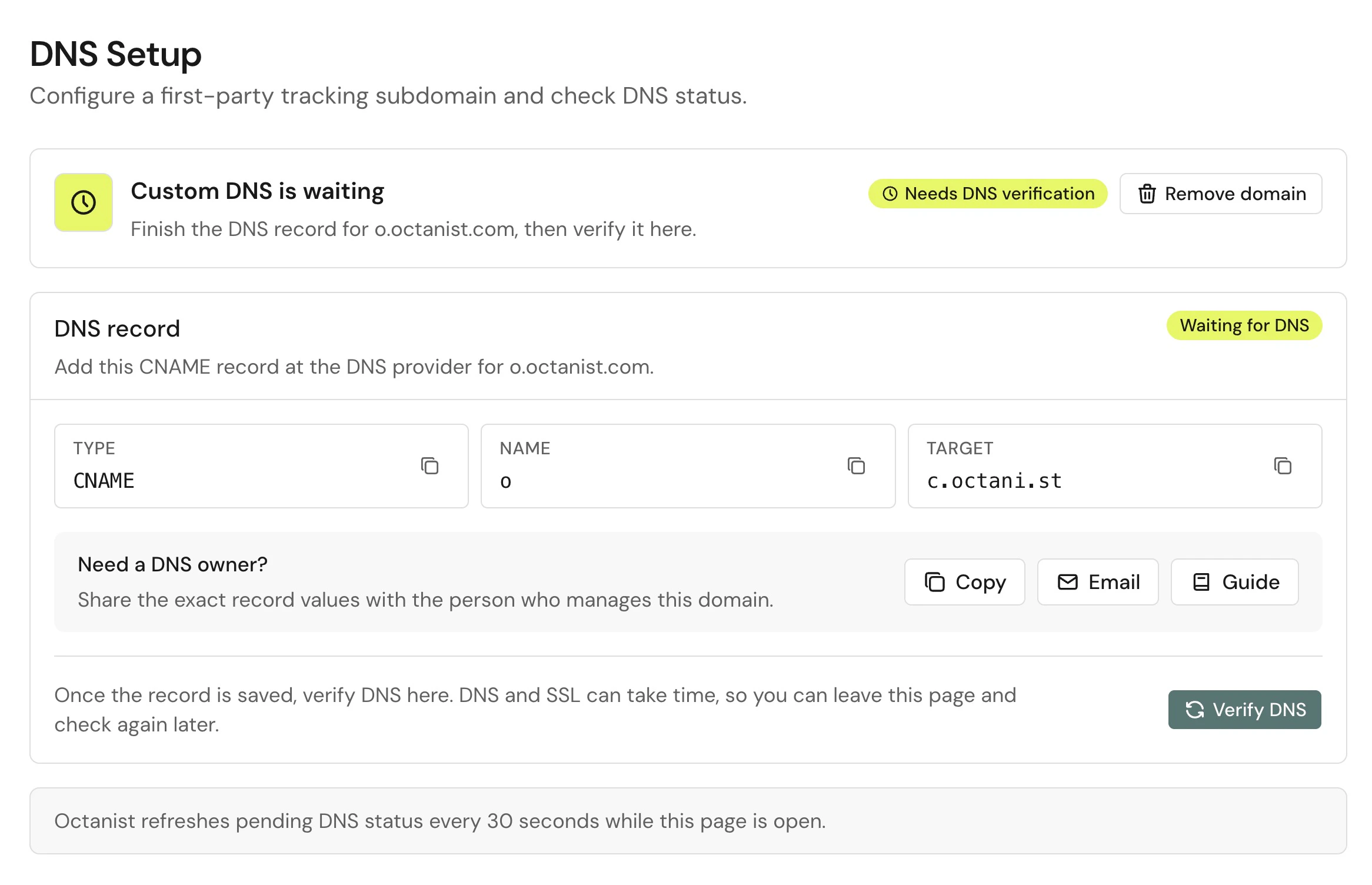 If someone else manages DNS, use the copy or email action in Octanist to send them the exact record values.
## Verify DNS
After the record is saved, click **Verify DNS** in Octanist.
DNS changes can take time. Octanist also refreshes pending DNS status while the DNS setup page is open.
The usual states are:
| State | Meaning |
| --------------- | ----------------------------------------------------------------------- |
| Default active | No custom domain is configured. The hosted Octanist domain is active. |
| Waiting for DNS | Octanist is waiting until the CNAME points to the Octanist target. |
| Verifying | DNS was found and SSL is being prepared. |
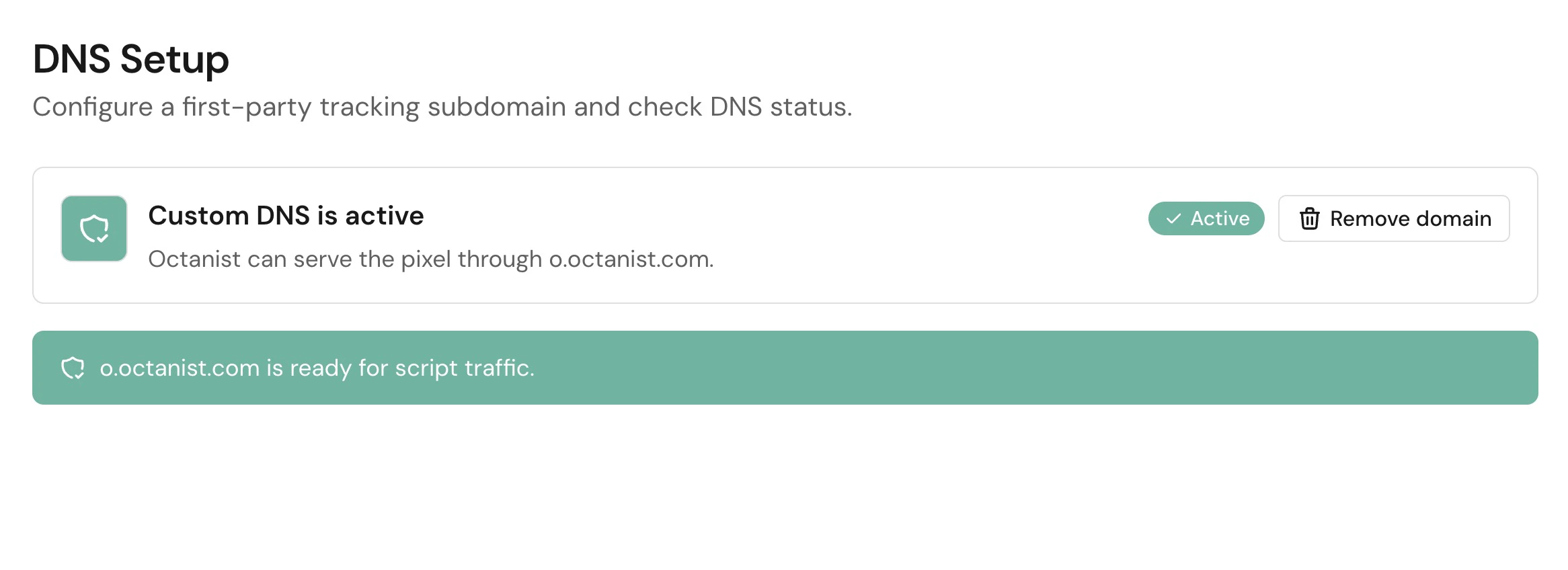
| Active | The custom domain is ready for pixel traffic. |
| Failed | Octanist could not verify the record. Check the name and target values. |
If someone else manages DNS, use the copy or email action in Octanist to send them the exact record values.
## Verify DNS
After the record is saved, click **Verify DNS** in Octanist.
DNS changes can take time. Octanist also refreshes pending DNS status while the DNS setup page is open.
The usual states are:
| State | Meaning |
| --------------- | ----------------------------------------------------------------------- |
| Default active | No custom domain is configured. The hosted Octanist domain is active. |
| Waiting for DNS | Octanist is waiting until the CNAME points to the Octanist target. |
| Verifying | DNS was found and SSL is being prepared. |
| Active | The custom domain is ready for pixel traffic. |
| Failed | Octanist could not verify the record. Check the name and target values. |
 ## Update the pixel script
When custom DNS is active, copy the pixel script from **Settings > Pixel Setup** again. The script should now use your custom domain.
Do not manually edit the script URL unless support tells you to. Copy the script exactly as shown in Octanist.
## Troubleshooting
* Check that the record type is `CNAME`.
* Check that the name is only the subdomain label when your DNS provider expects that format.
* Check that the target matches Octanist exactly.
* Remove extra spaces or punctuation.
* Wait and try again if the record was created recently.
* Confirm the subdomain is not already used by another DNS record.
* Remove existing `A`, `AAAA`, or `CNAME` records for the same subdomain before adding the Octanist CNAME.
* If the provider asks for a fully qualified name, use the full domain shown in Octanist.
* Go back to **Settings > Pixel Setup**.
* Copy the script again after DNS is active.
* Replace the old script on the website.
* Clear website, CDN, and tag manager cache if needed.
## Update the pixel script
When custom DNS is active, copy the pixel script from **Settings > Pixel Setup** again. The script should now use your custom domain.
Do not manually edit the script URL unless support tells you to. Copy the script exactly as shown in Octanist.
## Troubleshooting
* Check that the record type is `CNAME`.
* Check that the name is only the subdomain label when your DNS provider expects that format.
* Check that the target matches Octanist exactly.
* Remove extra spaces or punctuation.
* Wait and try again if the record was created recently.
* Confirm the subdomain is not already used by another DNS record.
* Remove existing `A`, `AAAA`, or `CNAME` records for the same subdomain before adding the Octanist CNAME.
* If the provider asks for a fully qualified name, use the full domain shown in Octanist.
* Go back to **Settings > Pixel Setup**.
* Copy the script again after DNS is active.
* Replace the old script on the website.
* Clear website, CDN, and tag manager cache if needed.