> ## Documentation Index
> Fetch the complete documentation index at: https://octanist.com/docs/llms.txt
> Use this file to discover all available pages before exploring further.
# WordPress
> Install the Octanist WordPress plugin and connect your WordPress forms to Octanist.
Use the Octanist WordPress plugin when your website runs on WordPress. It is the easiest way to install Octanist and capture leads from popular WordPress form plugins.
The normal setup is:
1. Install the Octanist plugin in WordPress.
2. Copy the WordPress setup code from Octanist.
3. Paste the setup code into the plugin settings.
4. Submit a test form and check Octanist.
The legacy WordPress backend endpoint returns Octanist's internal lead UUID, but does not accept an external lead ID. The current pixel form capture flow can store an order number, quotation number, or another customer-owned identifier when the field is mapped to **External lead ID** in [form mapping](/docs/incoming-integrations/form-mapping).
## Install the plugin
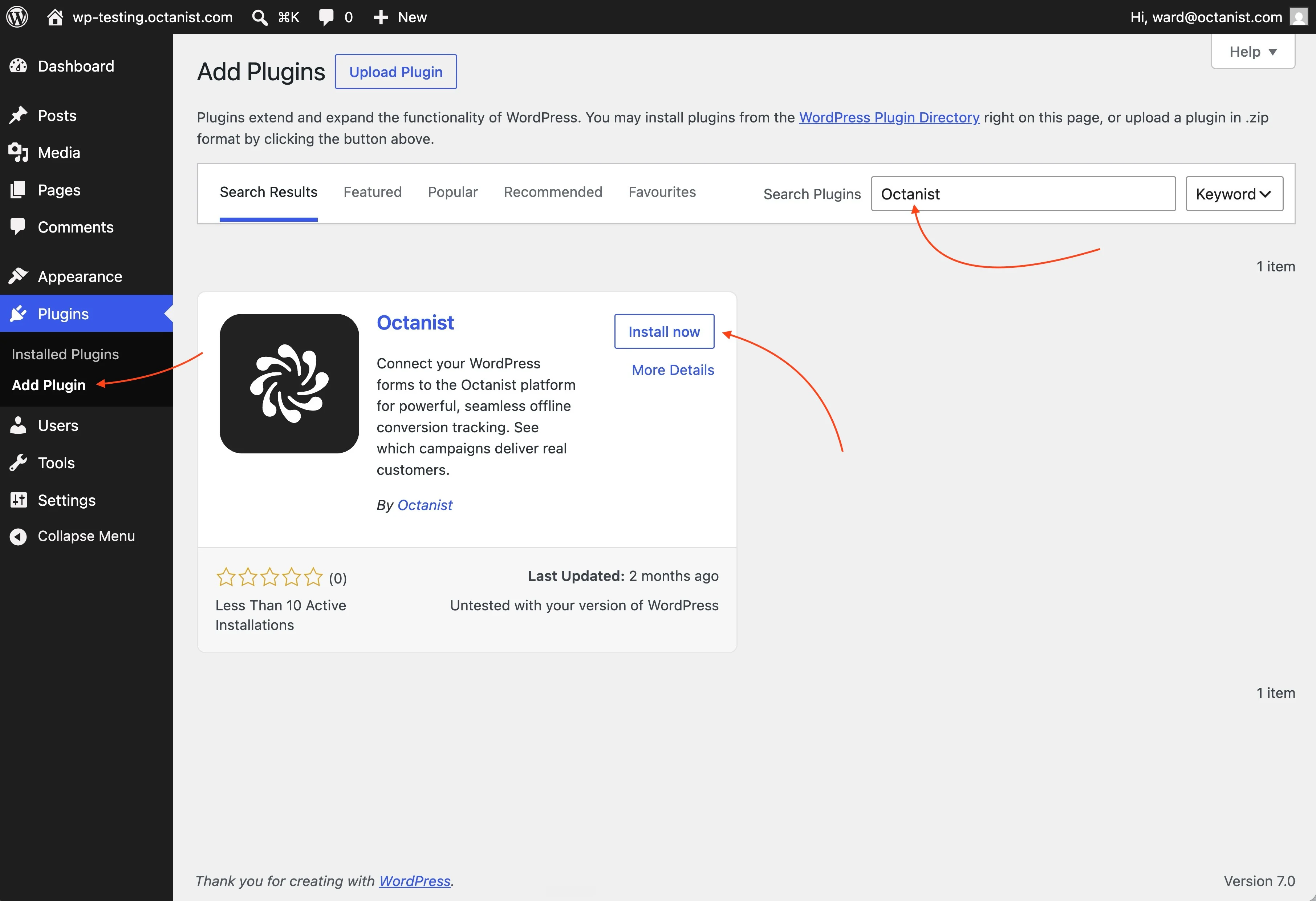
1. Open your WordPress admin.
2. Go to **Plugins > Add New**.
3. Search for **Octanist**.
4. Click **Install Now**.
5. Click **Activate**.
 If you received a plugin ZIP file from Octanist, upload it through **Plugins > Add New > Upload Plugin** instead.
## Get your setup code
1. Open Octanist.
2. Go to **Settings > Pixel Setup**.
3. Select **WordPress** as the install method.
4. Choose your consent mode.
5. Select the form plugin used on your website.
6. Copy the setup code.
If you received a plugin ZIP file from Octanist, upload it through **Plugins > Add New > Upload Plugin** instead.
## Get your setup code
1. Open Octanist.
2. Go to **Settings > Pixel Setup**.
3. Select **WordPress** as the install method.
4. Choose your consent mode.
5. Select the form plugin used on your website.
6. Copy the setup code.
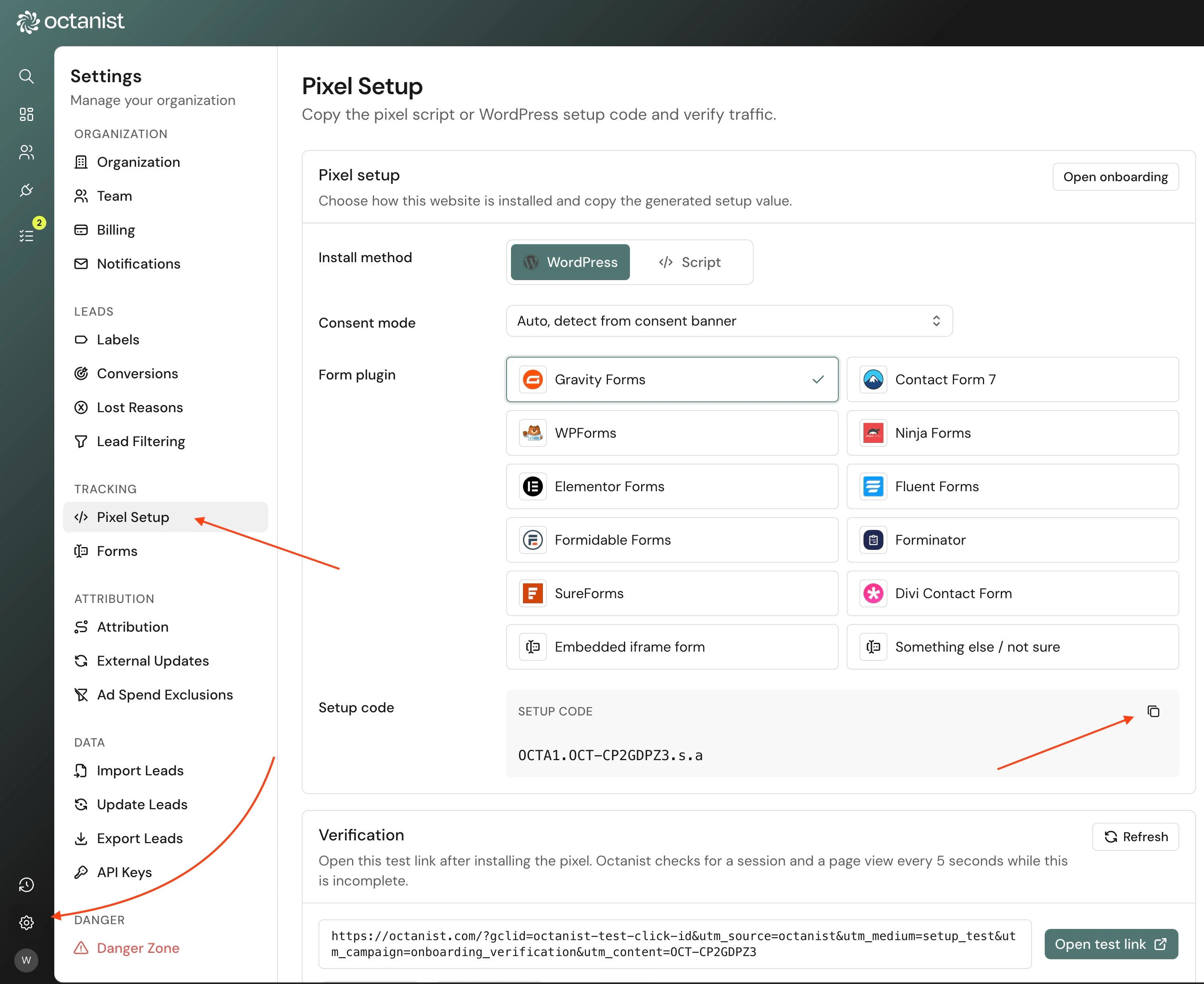 The setup code looks like this:
```text theme={null}
OCTA1.OCT-XXXXXXXX.s.a
```
Use the setup code from your own Octanist organisation. Do not use a code from another account.
## Configure WordPress
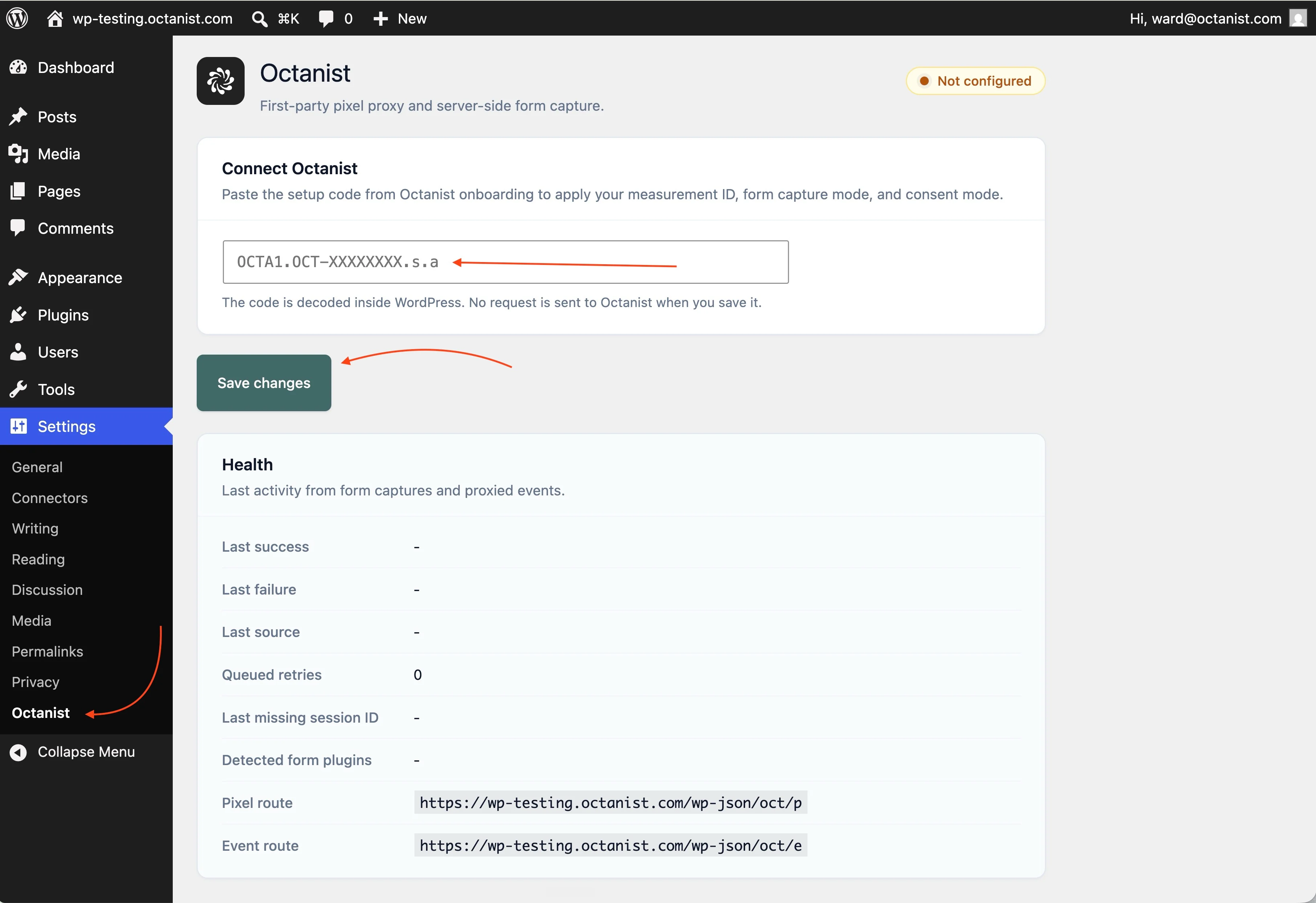
1. In WordPress, go to **Settings > Octanist**.
2. Paste the full setup code.
3. Click **Save Changes**.
The setup code looks like this:
```text theme={null}
OCTA1.OCT-XXXXXXXX.s.a
```
Use the setup code from your own Octanist organisation. Do not use a code from another account.
## Configure WordPress
1. In WordPress, go to **Settings > Octanist**.
2. Paste the full setup code.
3. Click **Save Changes**.
 The plugin is now active.
## Supported form plugins
The WordPress plugin supports these form plugins:
*
The plugin is now active.
## Supported form plugins
The WordPress plugin supports these form plugins:
*  **Gravity Forms**
*
**Gravity Forms**
*  **Contact Form 7**
*
**Contact Form 7**
*  **WPForms**
*
**WPForms**
*  **Ninja Forms**
*
**Ninja Forms**
*  **Elementor Forms**
*
**Elementor Forms**
*  **Fluent Forms**
*
**Fluent Forms**
*  **Formidable Forms**
*
**Formidable Forms**
*  **Forminator**
*
**Forminator**
*  **SureForms**
*
**SureForms**
*  **Divi Contact Form**
If you use an iframe form or another form plugin, choose **Something else / not sure** in Octanist and contact support if the test lead does not appear.
## Test the setup
1. Open your live website in a new browser session.
2. Submit a test form with a name, email, phone number, or another useful field.
3. Open Octanist and check whether the lead appears.
4. In WordPress, open **Settings > Octanist** and check the health panel if the lead does not arrive.
## Consent mode
Use **Auto** unless your consent setup requires a different mode.
| Mode | When to use it |
| ------- | ---------------------------------------------------------------------------- |
| Auto | Recommended. Octanist tries to detect consent from your consent banner. |
| Granted | Use only when the plugin loads after consent is already granted. |
| Denied | Use when you need cookieless tracking and no marketing or analytics consent. |
For more detail, see [Consent mode](/docs/user-consent/consent-mode).
## Troubleshooting
* Confirm the setup code is saved in **Settings > Octanist**.
* Clear your website cache, page cache, and CDN cache.
* Refresh the page where the form is shown.
* Submit a new test form after clearing the cache.
* Confirm the submitted form contains at least one useful field, such as name, email, phone, or custom data.
* Check the health panel in the plugin settings.
* Clear your WordPress caching plugin cache.
* Clear any server-side cache from your hosting provider.
* Clear CDN cache if you use Cloudflare, Vercel, or another CDN.
* Open the website in an incognito window and test again.
* Make sure the same form is not also sent through GTM, Zapier, or a custom API integration.
* If you also installed the normal tracking pixel, remove form capture from one of the two setups.
* Choose **Something else / not sure** in Octanist.
* Submit a test form.
* If the lead does not appear, contact support at [support@octanist.com](mailto:support@octanist.com).
## Technical notes
The plugin installs Octanist through WordPress and sends supported form submissions to Octanist from the WordPress backend. This is usually more reliable than relying only on browser-side form detection.
The plugin also helps serve tracking through your WordPress website, so most WordPress sites do not need a separate tracking subdomain.
If Octanist is temporarily unreachable, the plugin can queue failed form submissions and retry them with WP-Cron.
Existing settings from older Octanist plugin versions are preserved during the update. Old field mappings, debug mode, AJAX mode, and dataLayer options are no longer used by the new setup.
## Next steps
After WordPress tracking is active, connect your outgoing integrations:
* [Google Ads](/docs/outgoing-integrations/google-ads)
* [Google Analytics](/docs/outgoing-integrations/google-analytics)
* [Meta](/docs/outgoing-integrations/meta)
* [Microsoft Ads](/docs/outgoing-integrations/microsoft-ads)
**Divi Contact Form**
If you use an iframe form or another form plugin, choose **Something else / not sure** in Octanist and contact support if the test lead does not appear.
## Test the setup
1. Open your live website in a new browser session.
2. Submit a test form with a name, email, phone number, or another useful field.
3. Open Octanist and check whether the lead appears.
4. In WordPress, open **Settings > Octanist** and check the health panel if the lead does not arrive.
## Consent mode
Use **Auto** unless your consent setup requires a different mode.
| Mode | When to use it |
| ------- | ---------------------------------------------------------------------------- |
| Auto | Recommended. Octanist tries to detect consent from your consent banner. |
| Granted | Use only when the plugin loads after consent is already granted. |
| Denied | Use when you need cookieless tracking and no marketing or analytics consent. |
For more detail, see [Consent mode](/docs/user-consent/consent-mode).
## Troubleshooting
* Confirm the setup code is saved in **Settings > Octanist**.
* Clear your website cache, page cache, and CDN cache.
* Refresh the page where the form is shown.
* Submit a new test form after clearing the cache.
* Confirm the submitted form contains at least one useful field, such as name, email, phone, or custom data.
* Check the health panel in the plugin settings.
* Clear your WordPress caching plugin cache.
* Clear any server-side cache from your hosting provider.
* Clear CDN cache if you use Cloudflare, Vercel, or another CDN.
* Open the website in an incognito window and test again.
* Make sure the same form is not also sent through GTM, Zapier, or a custom API integration.
* If you also installed the normal tracking pixel, remove form capture from one of the two setups.
* Choose **Something else / not sure** in Octanist.
* Submit a test form.
* If the lead does not appear, contact support at [support@octanist.com](mailto:support@octanist.com).
## Technical notes
The plugin installs Octanist through WordPress and sends supported form submissions to Octanist from the WordPress backend. This is usually more reliable than relying only on browser-side form detection.
The plugin also helps serve tracking through your WordPress website, so most WordPress sites do not need a separate tracking subdomain.
If Octanist is temporarily unreachable, the plugin can queue failed form submissions and retry them with WP-Cron.
Existing settings from older Octanist plugin versions are preserved during the update. Old field mappings, debug mode, AJAX mode, and dataLayer options are no longer used by the new setup.
## Next steps
After WordPress tracking is active, connect your outgoing integrations:
* [Google Ads](/docs/outgoing-integrations/google-ads)
* [Google Analytics](/docs/outgoing-integrations/google-analytics)
* [Meta](/docs/outgoing-integrations/meta)
* [Microsoft Ads](/docs/outgoing-integrations/microsoft-ads)