> ## Documentation Index
> Fetch the complete documentation index at: https://octanist.com/docs/llms.txt
> Use this file to discover all available pages before exploring further.
# Zapier
> Receive, qualify, and send leads using Zapier and Octanist.
The Zapier integration allows you to:
* **Send leads** to Octanist
* **Qualify leads** based on Zapier triggers
* **Receive (qualified) leads** from Octanist and pass them to your own databases, CRMs, or channels
This integration enables highly customisable lead flows, while Octanist automatically formats the data correctly for your marketing channels.
***
## Table of Contents
1. [Setup Video](#setup-video)
2. [Octanist](#1-octanist)
3. [Zapier](#2-zapier)
***
## Setup Video
*Coming soon.*
***
## 1. Octanist
1. Go to [octanist.com](https://octanist.com/) and navigate to **Integrations**.
2. Click **Zapier**.
Once you click on Zapier, you will be redirected to the [Zapier website](https://zapier.com/apps/octanist/integrations), where you can create a Zap that communicates with Octanist.
***
## 2. Zapier
### Send Leads to Octanist
To send leads to Octanist using Zapier:
1. Create a new Zap and start with a trigger (e.g., an incoming email in Gmail).
2. Add **Octanist** as your next step.
3. Select the action event: **Create Lead**.
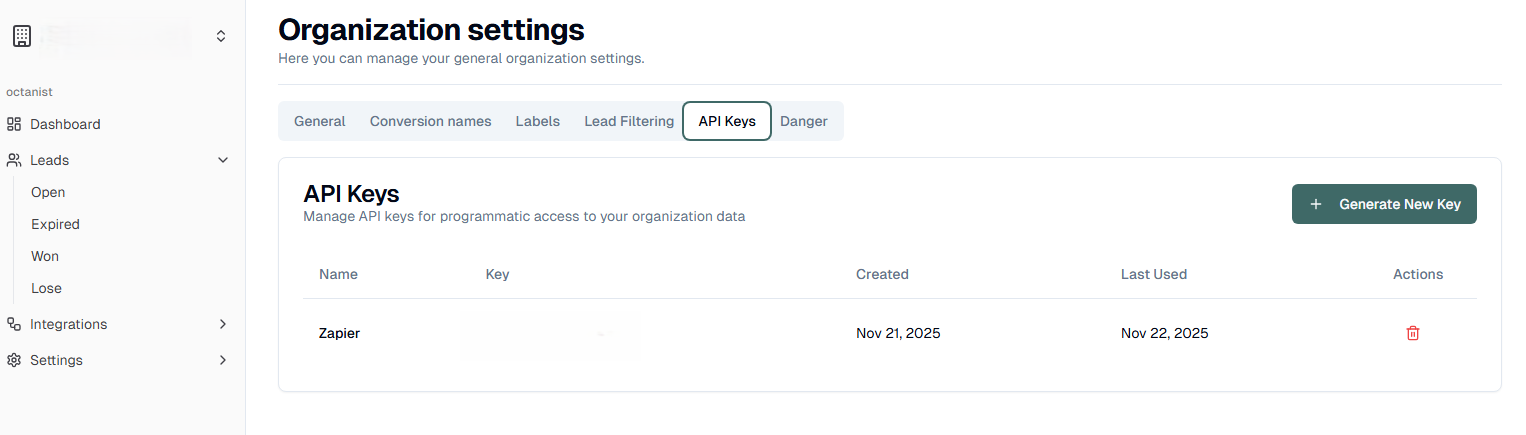
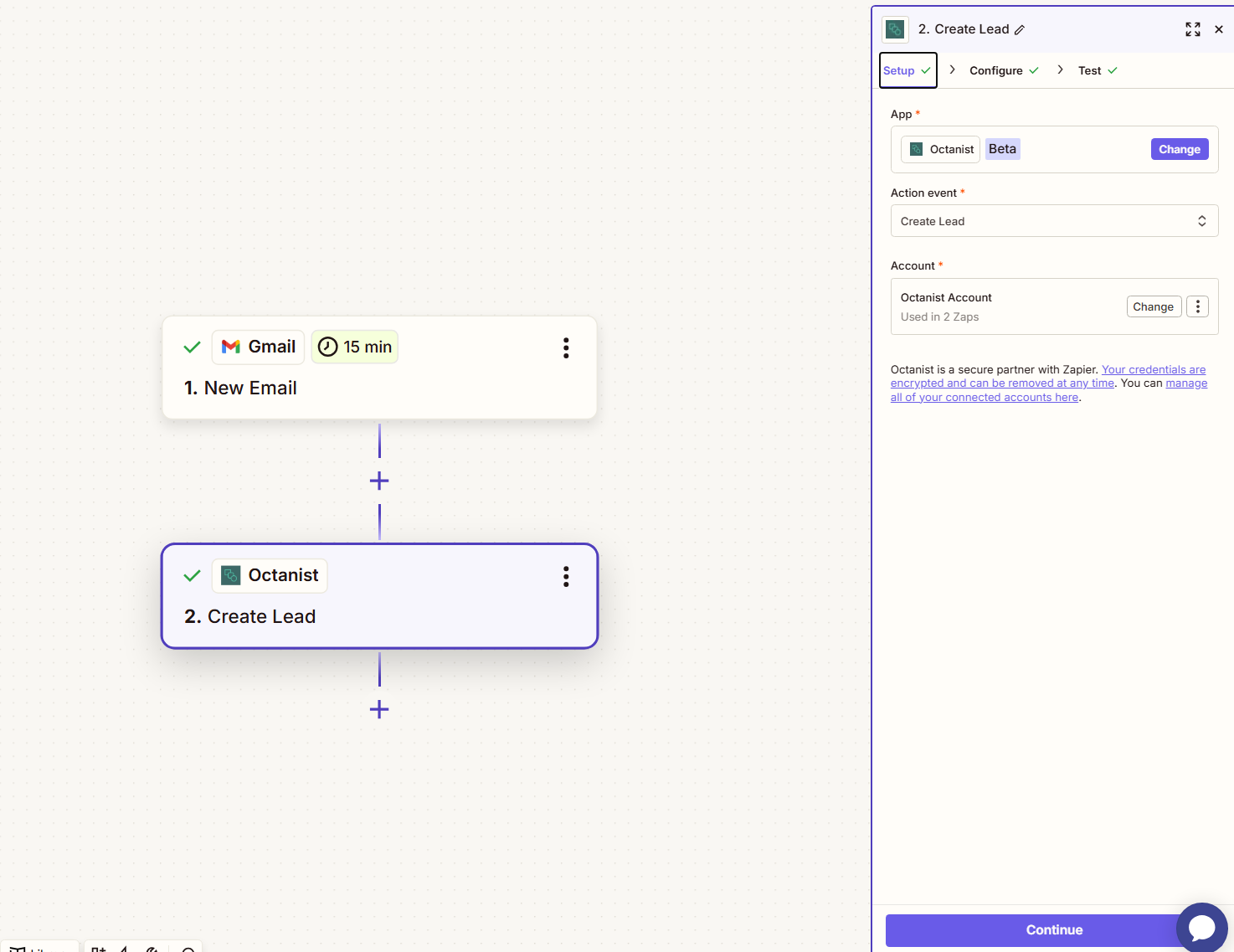 4. Under **Account**, connect your Octanist account.\
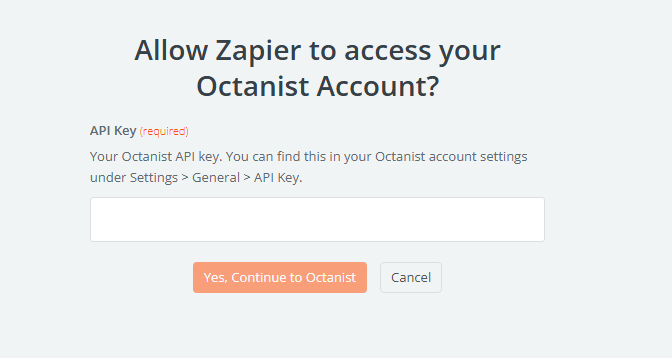
You will be prompted to enter your API key.
* You can find this in **Octanist → Settings → General → API Key**.
* Create a new API key and give it a clear and descriptive name.
4. Under **Account**, connect your Octanist account.\
You will be prompted to enter your API key.
* You can find this in **Octanist → Settings → General → API Key**.
* Create a new API key and give it a clear and descriptive name.
 5. Return to Zapier and paste the API key.
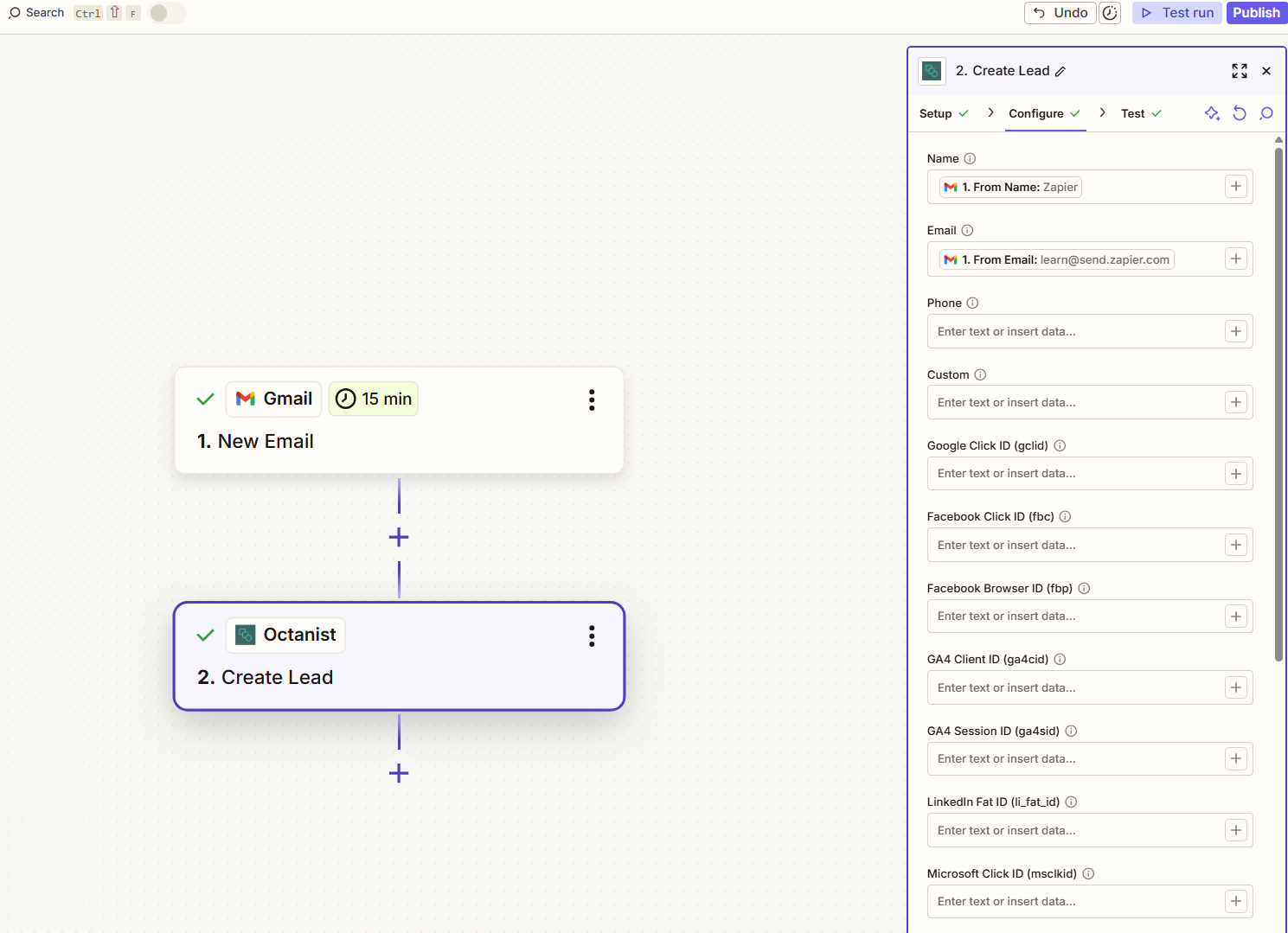
 Once connected, go to the **Configure** tab.
Here you can map the fields you want to send to Octanist. These fields come from your trigger step.\
You can insert values easily by typing `/` to search for the Zapier variables.
**Example:**\
If your trigger is "New Gmail Email," you might map the Gmail **From Name** to the Octanist **Name** field.
We also recommend adding **UTM parameters** to ensure proper source attribution.
Once connected, go to the **Configure** tab.
Here you can map the fields you want to send to Octanist. These fields come from your trigger step.\
You can insert values easily by typing `/` to search for the Zapier variables.
**Example:**\
If your trigger is "New Gmail Email," you might map the Gmail **From Name** to the Octanist **Name** field.
We also recommend adding **UTM parameters** to ensure proper source attribution.
 ***
### Testing the Lead
After configuring your fields:
1. Go to the **Test** tab in Zapier.
2. Run the test to send a lead to Octanist.
3. Check Octanist to confirm that your lead was received correctly.
If something looks wrong, verify the following:
* An **email address** is present
* A **phone number** is present (if available)
* A **name** is present
* Custom fields and UTM values are correctly included
These values, especially the email address, are important for qualifying and sending leads to other channels.
When everything works as expected, publish your Zap.
***
### Testing the Lead
After configuring your fields:
1. Go to the **Test** tab in Zapier.
2. Run the test to send a lead to Octanist.
3. Check Octanist to confirm that your lead was received correctly.
If something looks wrong, verify the following:
* An **email address** is present
* A **phone number** is present (if available)
* A **name** is present
* Custom fields and UTM values are correctly included
These values, especially the email address, are important for qualifying and sending leads to other channels.
When everything works as expected, publish your Zap.
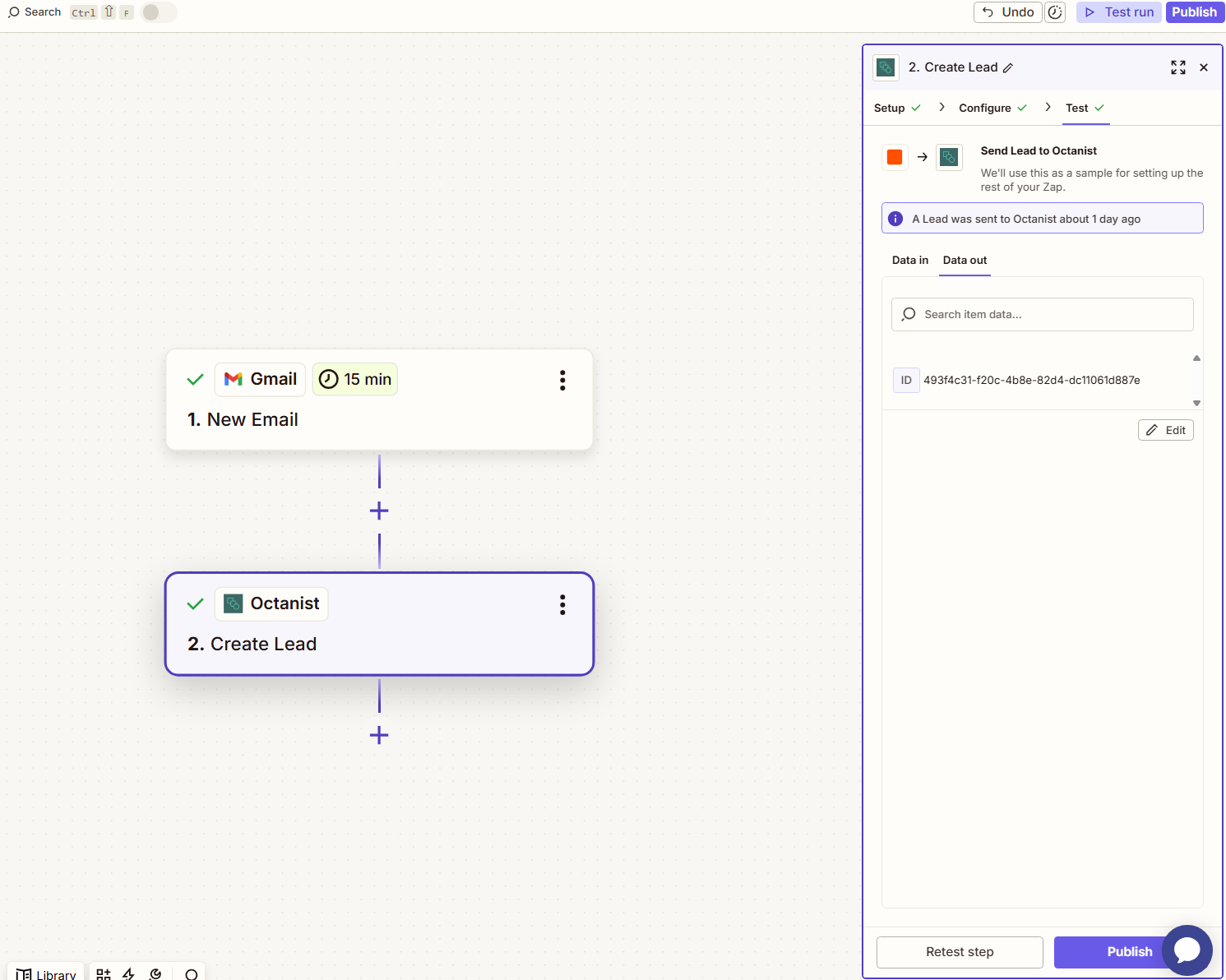 You are now ready. All incoming leads will be automatically delivered to Octanist.
***
### Update Leads in Octanist
To update lead statuses:
1. Create a new Zap or duplicate your existing one.
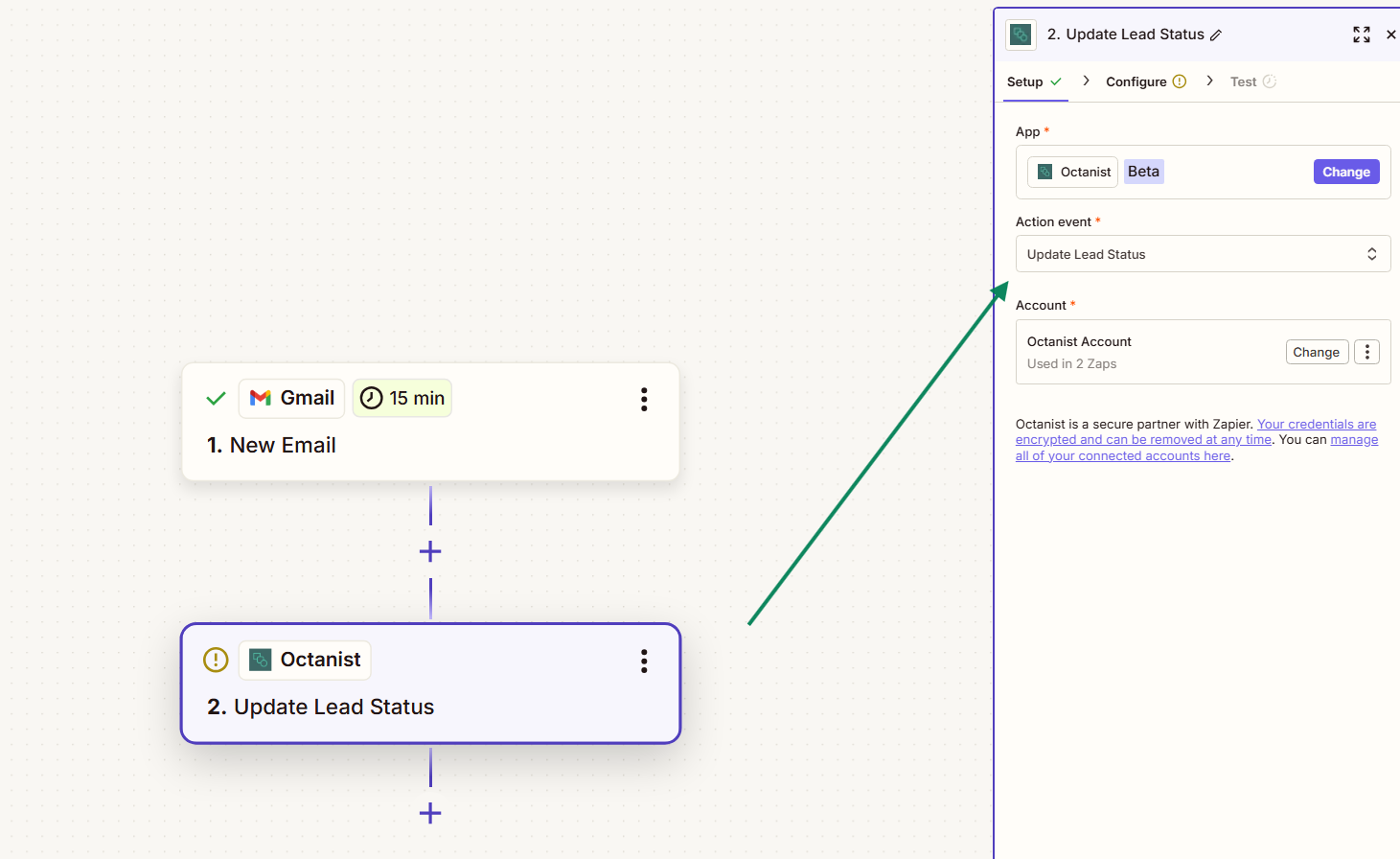
2. Choose **Update Lead Status** instead of **Create Lead**.
You are now ready. All incoming leads will be automatically delivered to Octanist.
***
### Update Leads in Octanist
To update lead statuses:
1. Create a new Zap or duplicate your existing one.
2. Choose **Update Lead Status** instead of **Create Lead**.
 3. Note:
> A lead must already exist in Octanist before it can be updated.
4. In the **Configure** tab, map the email field and any other values from your trigger.
3. Note:
> A lead must already exist in Octanist before it can be updated.
4. In the **Configure** tab, map the email field and any other values from your trigger.
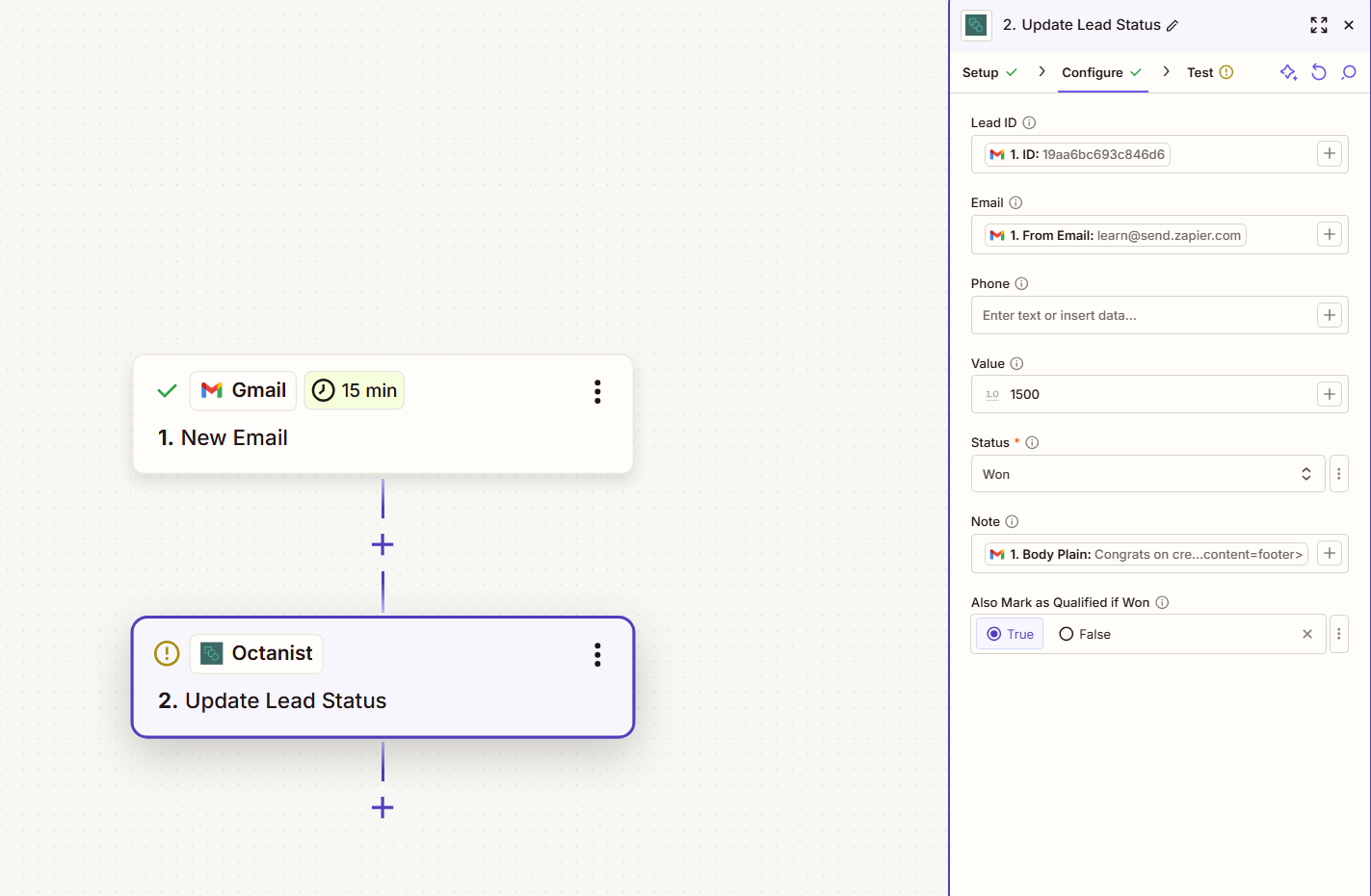 Test the Zap and then publish it.
***
### Triggering Actions for Won Leads
Octanist can also **send won leads to Zapier**.
1. Create a new Zap.
2. Select **Octanist** as the trigger.
Test the Zap and then publish it.
***
### Triggering Actions for Won Leads
Octanist can also **send won leads to Zapier**.
1. Create a new Zap.
2. Select **Octanist** as the trigger.
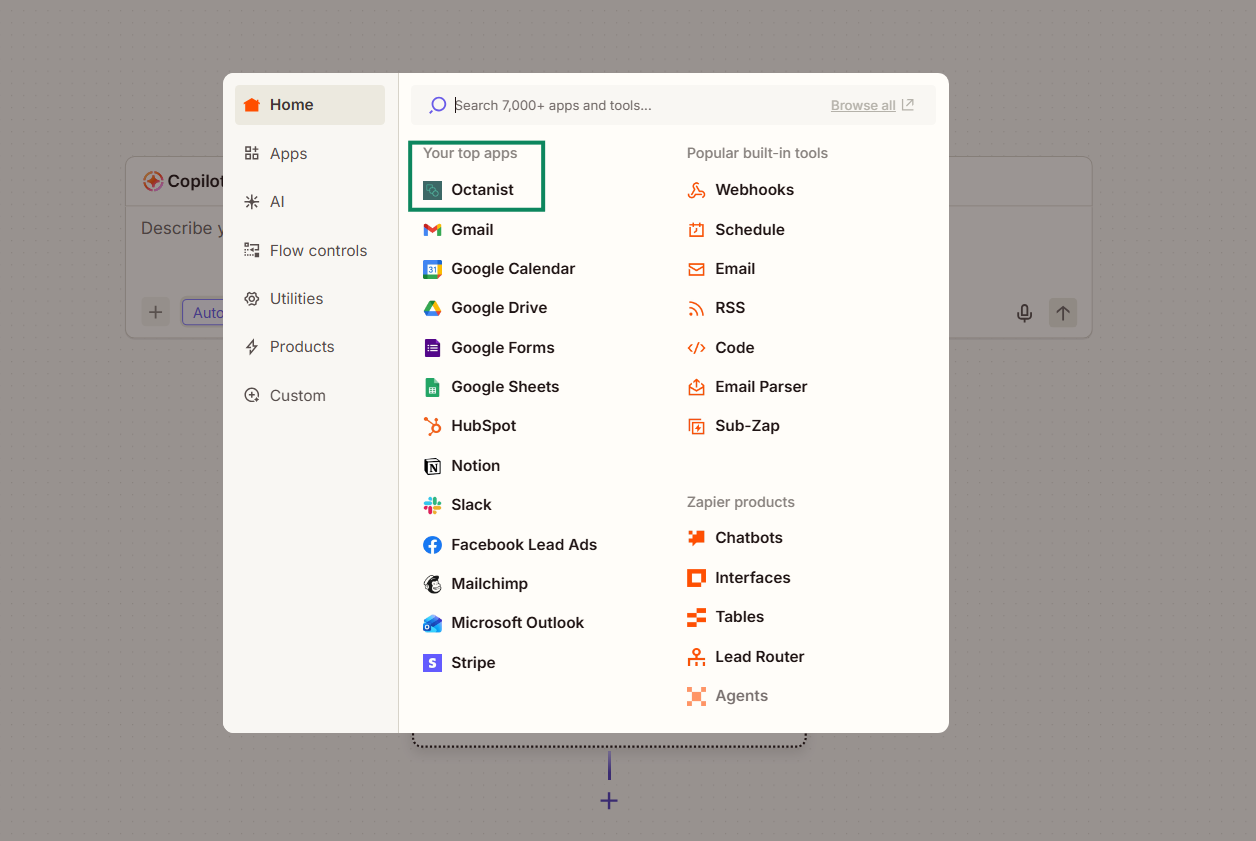 3. Choose **New Won Lead**.
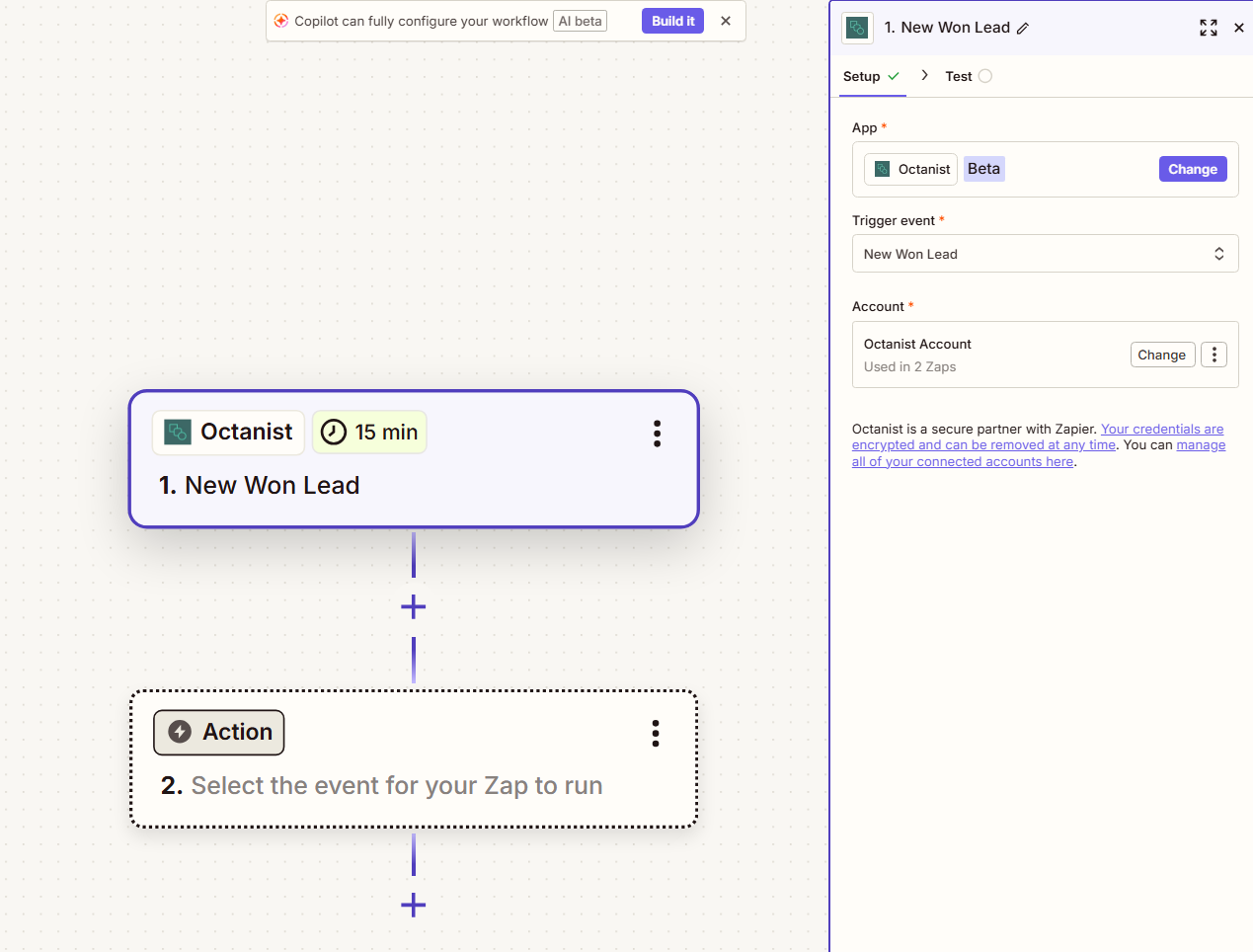 4. Add your preferred follow-up action, for example, sending an email notification.
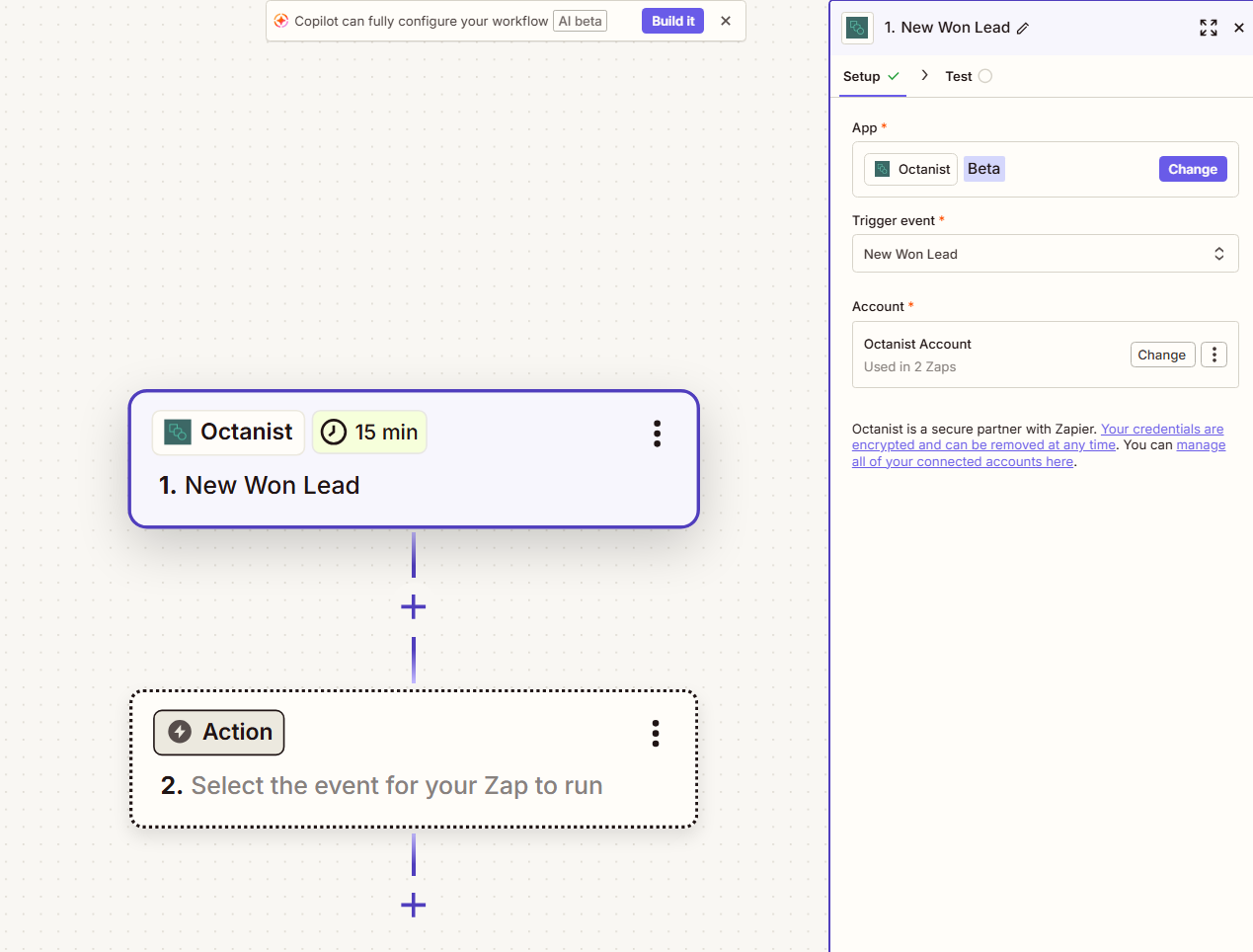 In this example, we use the lead's name in the email body.
Test your Zap and publish it.
***
## Conclusion
Zapier enables you to build flexible lead workflows with Octanist.\
You can send leads to Octanist, qualify them inside or outside Octanist, and trigger follow-up actions when leads change status.
Octanist ensures your data is captured correctly, enriched, and translated into the right format for your marketing channels.
In this example, we use the lead's name in the email body.
Test your Zap and publish it.
***
## Conclusion
Zapier enables you to build flexible lead workflows with Octanist.\
You can send leads to Octanist, qualify them inside or outside Octanist, and trigger follow-up actions when leads change status.
Octanist ensures your data is captured correctly, enriched, and translated into the right format for your marketing channels.