> ## Documentation Index
> Fetch the complete documentation index at: https://octanist.com/docs/llms.txt
> Use this file to discover all available pages before exploring further.
# Quickstart
> Get started with Octanist.
## Table of Contents
1. [Create an Octanist Account](#create-an-octanist-account)
2. [Website Installation](#website-installation)
3. [Configure Organisation Settings](#configure-organisation-settings)
4. [General](#general)
5. [Features](#features)
6. [Data](#data)
7. [Advanced](#advanced)
***
## Create an Octanist Account
1. **Sign Up**
* Visit [octanist.com](https://octanist.com/) and [create a free account](https://docs.octanist.com/getting-started/).
* After creating an account, set up an organisation by entering your business name.
2. **Install tracking**
* Install website tracking before connecting ad platforms, so new leads can be linked to sessions and attribution.
* Use the [website installation](#website-installation) section to choose the right setup.
3. **Choose a Subscription**
* Select a subscription plan that fits your business needs.
* Octanist offers a **free trial** with a limited number of leads you can collect and qualify, allowing you to explore the tool.
4. **Connect outgoing integrations**
* Once tracking is active, connect Octanist to platforms such as [Google Ads](/docs/outgoing-integrations/google-ads), [Meta](/docs/outgoing-integrations/meta), or [Google Analytics](/docs/outgoing-integrations/google-analytics).
***
## Website Installation
Choose one website installation method for each website. Do not send the same form submission through multiple Octanist capture methods.
| Setup | Use when |
| ---------------------------------------------- | -------------------------------------------------------------- |
| [Tracking pixel](/docs/incoming-integrations/pixel) | You can add the Octanist script directly to the website. |
| [GTM Pixel](/docs/incoming-integrations/gtm-pixel) | You want Google Tag Manager to load the Octanist pixel. |
| [GTM DataLayer](/docs/incoming-integrations/gtm) | Your website already pushes lead data into the GTM dataLayer. |
| [WordPress](/docs/incoming-integrations/wordpress) | The website runs on WordPress and can use the Octanist plugin. |
The normal recommendation is [Tracking pixel](/docs/incoming-integrations/pixel) for custom websites and [WordPress](/docs/incoming-integrations/wordpress) for WordPress websites. Use [GTM Pixel](/docs/incoming-integrations/gtm-pixel) when GTM is the only practical place to install scripts.
Optional setup pages:
* [DNS setup](/docs/incoming-integrations/dns-setup) for custom tracking subdomains.
* [Form mapping](/docs/incoming-integrations/form-mapping) for detected forms that need field mapping.
* [Server-side form capture](/docs/incoming-integrations/server-side-capturing) when browser-side form capture is unreliable.
* [Client-side API](/docs/incoming-integrations/client-side-api) for custom browser-side form submissions.
* [Octanist Debugger](/docs/troubleshooting/octanist-debugger) for checking installs in Chrome.
***
## Configure Organisation Settings
Navigate to **Settings** (cog icon in the bottom-left menu).
***
## General
Under **General**, you can configure essential options:
**Organisation:**
* Your measurement ID, used by the [tracking pixel](/docs/incoming-integrations/pixel) and [WordPress plugin](/docs/incoming-integrations/wordpress)
* Your website
* Billing
**Team:**
* Current invited members and pending invitations
* Manage users and their roles:
* **Admin**: Can manage users and integrations
* **Member**: Can manage leads
**Billing:**
* **Usage Statistics**: Your current usage and how much is still available in your monthly billing period
* **Billing History**: A brief overview of your invoices
**Notifications:**
* **Weekly Summary**: A summary of your weekly lost, won, and qualified leads
* **Lead Expiry Digest**: An email is sent to specific users when a lead is about to expire and can no longer be tied back to an advertisement. Qualify these as soon as possible.
***
## Features
**Labels:**
* Manage labels to attach to specific leads based on your business needs.
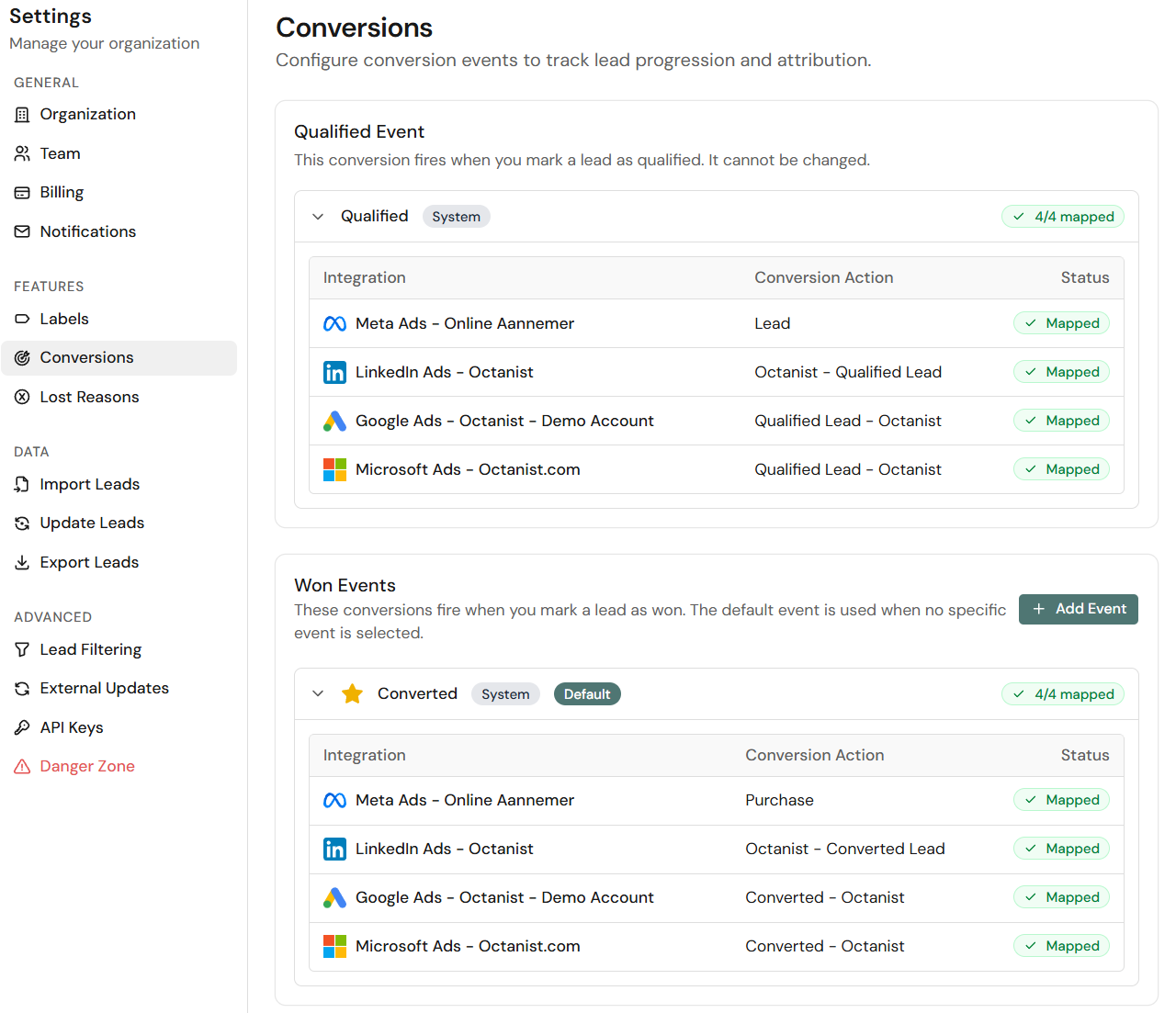
**Conversions:**
* **Qualified Events**: Here you can see which conversion names are being used for qualified leads as a stage for your advertising platforms, or have been marked as conversions.
* **Won Events**: Here you can find the conversion names for won events across every platform.
 **Lost Reasons:**
* Enter your standard reasons for when a lead is lost. This can help you gain insights into why leads haven't converted.
***
## Data
**Import Leads:**
Here you can import leads that you have previously collected or that did not come through an online channel.
Follow our [data import documentation](https://docs.octanist.com/incoming-integrations/import) to set this up.
**Update Leads:**
* Perform a manual bulk upload to update leads. You can identify rows by Octanist lead ID, external lead ID, email, or phone.
**Export Leads:**
* Export your leads and their data to a CSV or Excel file. External lead ID is available as an export field and can be imported again without changing the identifier.
***
## Advanced
* **Lead Filtering**: Used to only receive leads from a specific domain.
* **Tracking**: Used to install the Octanist pixel, configure a custom tracking domain, and verify setup.
* **External Updates**: Used to determine how to handle errors and qualifications of leads when using APIs or updating integrations.
* **API Keys**: Used for external tooling and [Zapier](https://docs.octanist.com/integrations/zapier) to qualify leads automatically.
* **Danger Zone**: Here you can delete your organisation.
**Lost Reasons:**
* Enter your standard reasons for when a lead is lost. This can help you gain insights into why leads haven't converted.
***
## Data
**Import Leads:**
Here you can import leads that you have previously collected or that did not come through an online channel.
Follow our [data import documentation](https://docs.octanist.com/incoming-integrations/import) to set this up.
**Update Leads:**
* Perform a manual bulk upload to update leads. You can identify rows by Octanist lead ID, external lead ID, email, or phone.
**Export Leads:**
* Export your leads and their data to a CSV or Excel file. External lead ID is available as an export field and can be imported again without changing the identifier.
***
## Advanced
* **Lead Filtering**: Used to only receive leads from a specific domain.
* **Tracking**: Used to install the Octanist pixel, configure a custom tracking domain, and verify setup.
* **External Updates**: Used to determine how to handle errors and qualifications of leads when using APIs or updating integrations.
* **API Keys**: Used for external tooling and [Zapier](https://docs.octanist.com/integrations/zapier) to qualify leads automatically.
* **Danger Zone**: Here you can delete your organisation.