> ## Documentation Index
> Fetch the complete documentation index at: https://octanist.com/docs/llms.txt
> Use this file to discover all available pages before exploring further.
# Recruitee
> Connect Recruitee to Octanist to track candidate movement and lead conversions automatically.
The Recruitee integration allows you to synchronise candidate pipeline movements with Octanist, enabling automated lead qualification and offline conversion tracking.
## Table of Contents
1. [Create the Integration in Octanist](#1-create-the-integration-in-octanist)
2. [Configure the Webhook in Recruitee](#2-configure-the-webhook-in-recruitee)
3. [Complete the Setup in Octanist](#3-complete-the-setup-in-octanist)
***
## 1. Create the Integration in Octanist
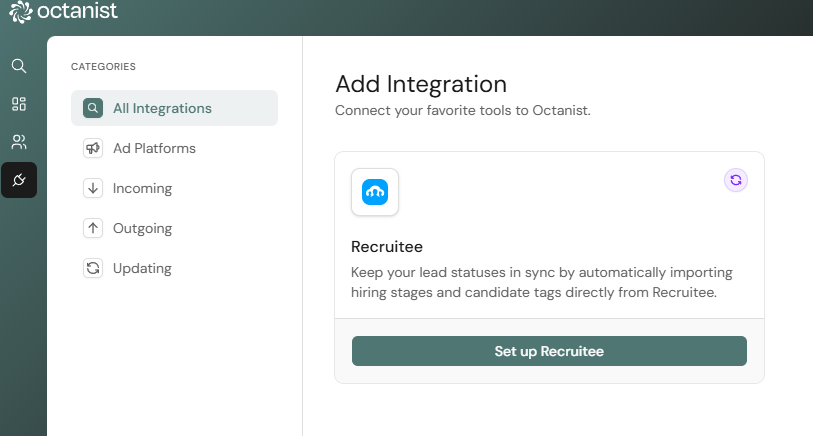
1. Go to [Octanist](https://octanist.com/) and navigate to **Integrations > Updating > Add New**.
2. Choose **Recruitee** and click **Set up Recruitee**.
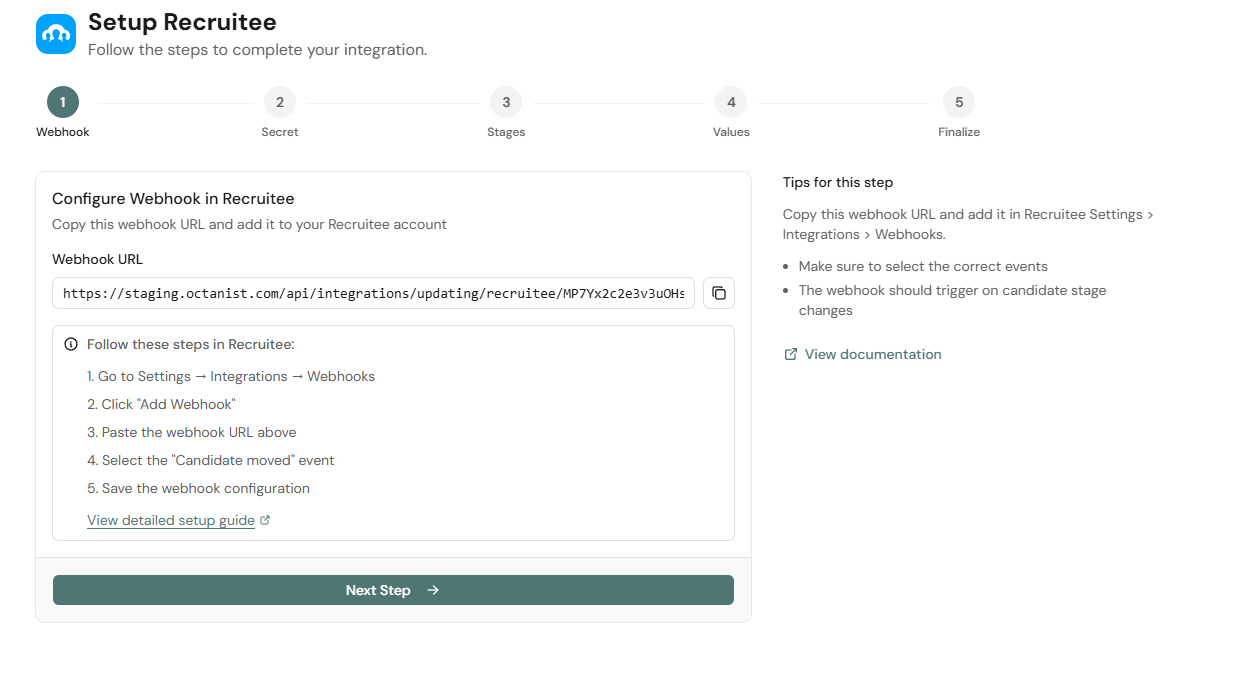
 3. Copy the **POST URL**, you will need this in the next step.
 ***
## 2. Configure the Webhook in Recruitee
1. Go to [Recruitee](https://app.recruitee.com/) and log in.
***
## 2. Configure the Webhook in Recruitee
1. Go to [Recruitee](https://app.recruitee.com/) and log in.
 2. Click the **Settings** icon in the top-right corner.
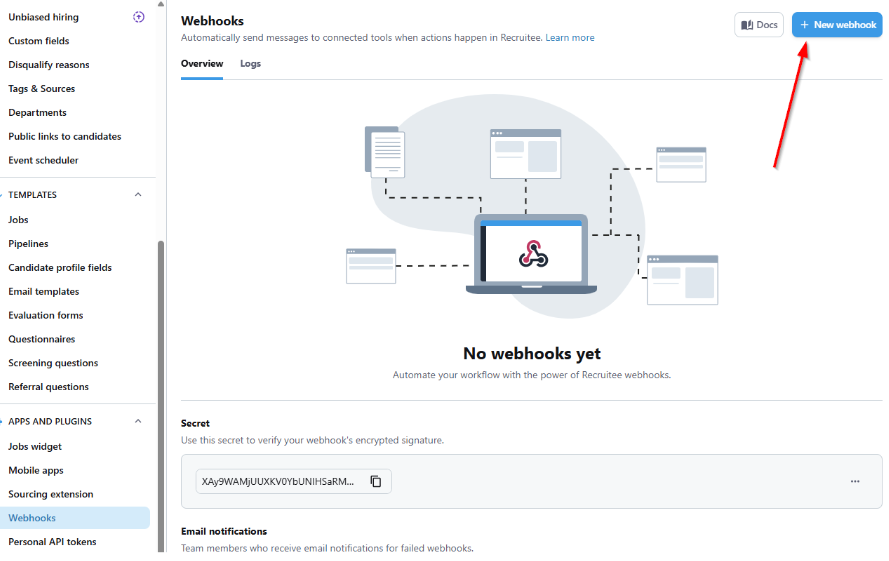
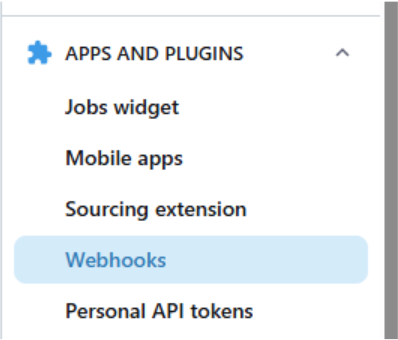 3. In the left sidebar, scroll down to **Apps and Plugins** and click **Webhooks**.
4. Find the **Secret** and click **Show Secret**.
3. In the left sidebar, scroll down to **Apps and Plugins** and click **Webhooks**.
4. Find the **Secret** and click **Show Secret**.
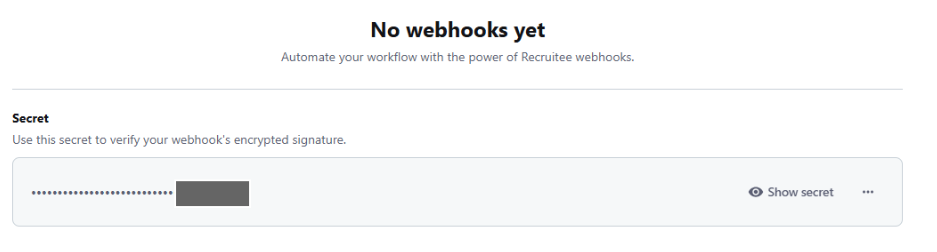 You may be asked to verify your identity before revealing the secret.
5. After verification, **copy the Webhook Secret**, you will need this in the next step.
6. Click **New Webhook**.
You may be asked to verify your identity before revealing the secret.
5. After verification, **copy the Webhook Secret**, you will need this in the next step.
6. Click **New Webhook**.
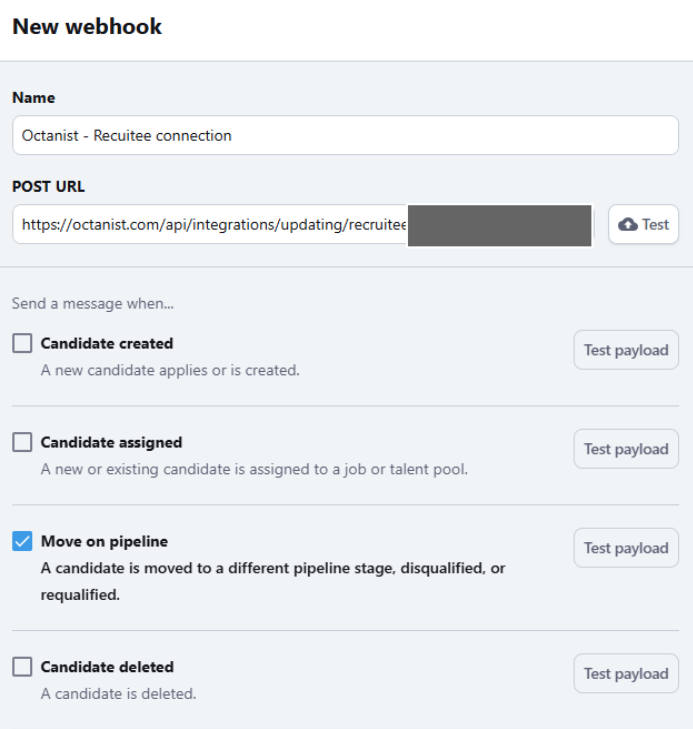
 7. Fill out the fields:
* **Name**: for internal use only (e.g., *Octanist - Your Organisation Name*)
* **URL**: paste the **POST URL** copied from Octanist
* **Event**: select **Only the Move on pipeline**
7. Fill out the fields:
* **Name**: for internal use only (e.g., *Octanist - Your Organisation Name*)
* **URL**: paste the **POST URL** copied from Octanist
* **Event**: select **Only the Move on pipeline**
 8. Click **Verify and Create**.
***
## 3. Complete the Setup in Octanist
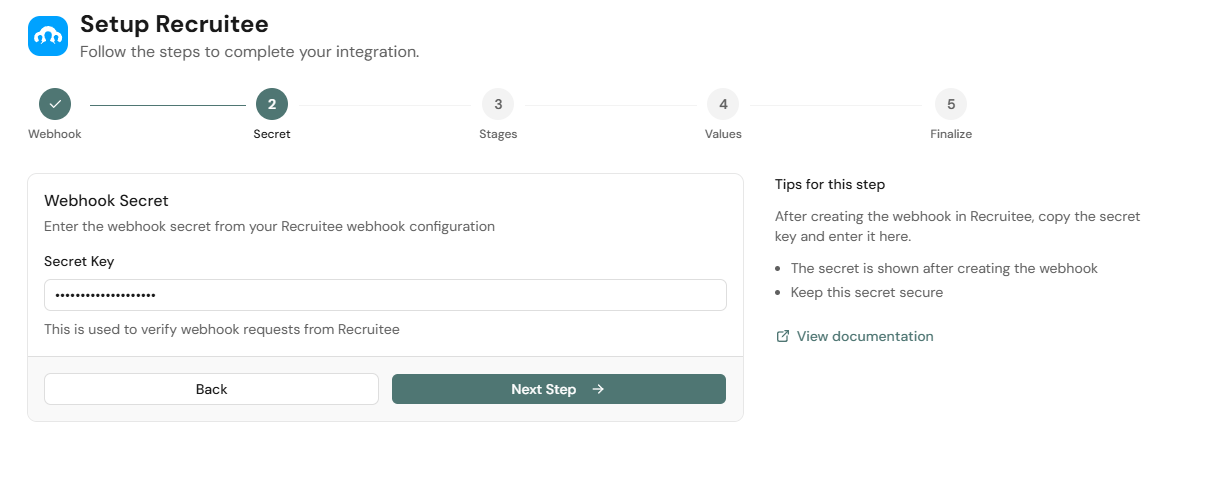
1. Return to Octanist and paste the **Webhook Secret** into the corresponding field.
8. Click **Verify and Create**.
***
## 3. Complete the Setup in Octanist
1. Return to Octanist and paste the **Webhook Secret** into the corresponding field.
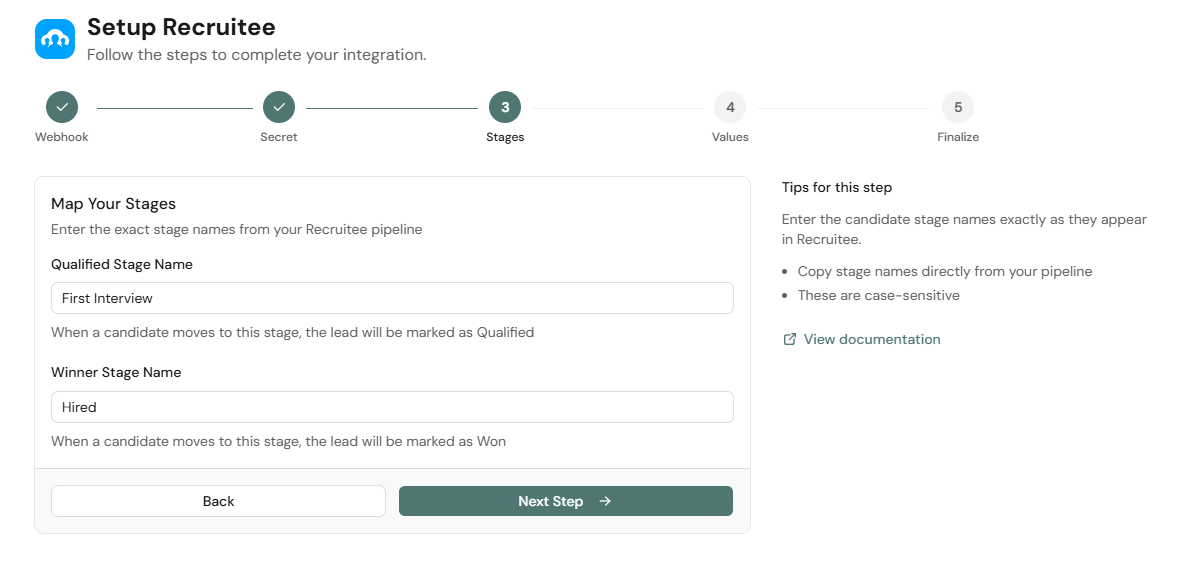
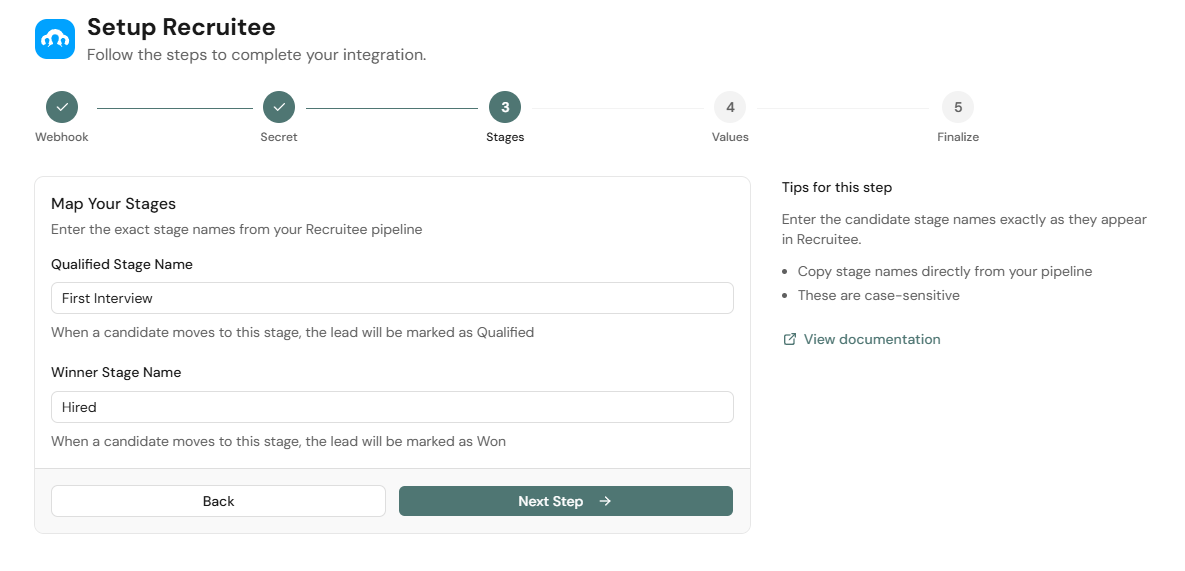
 2. Click **Next** and configure the deal stages. Select the Recruitee stage that corresponds to each of the following:
* **Lead is Qualified**: e.g., *First Interview*
* **Lead is Won**: e.g., *Hired*
The stage name must **exactly match** the stage name in Recruitee.
2. Click **Next** and configure the deal stages. Select the Recruitee stage that corresponds to each of the following:
* **Lead is Qualified**: e.g., *First Interview*
* **Lead is Won**: e.g., *Hired*
The stage name must **exactly match** the stage name in Recruitee.
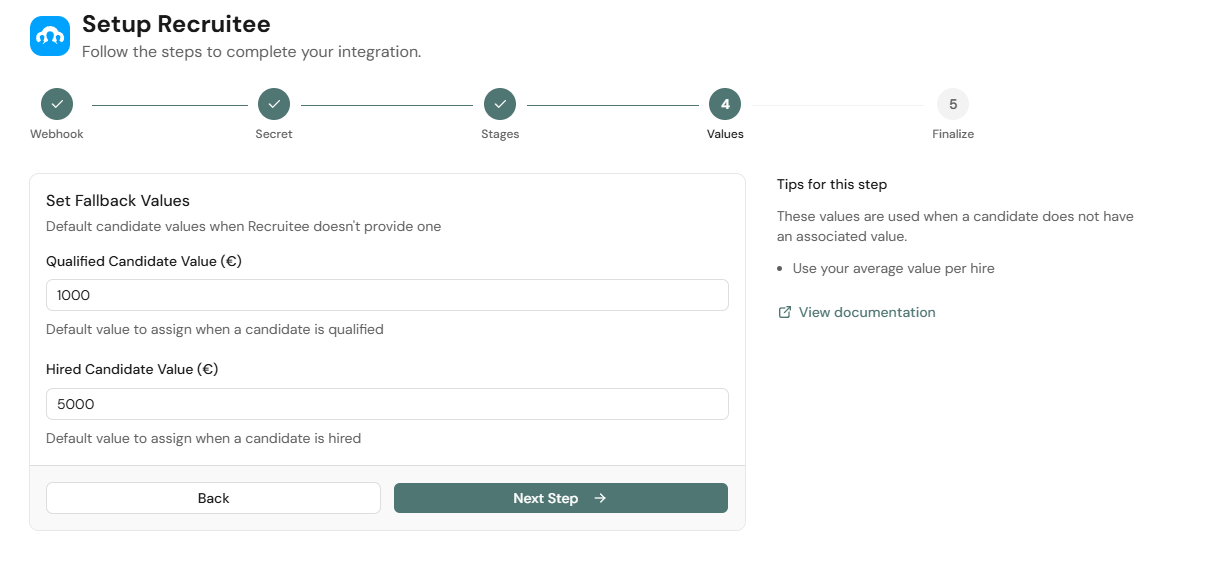
 3. Enter the **deal values**. These are the values sent alongside Google Ads, Meta, GA4, and other conversion platforms.
* **Qualified leads**: enter a value representative of the potential value of a hire.
* **Hired candidates**: enter a higher value that represents the value of a successfully hired candidate.
3. Enter the **deal values**. These are the values sent alongside Google Ads, Meta, GA4, and other conversion platforms.
* **Qualified leads**: enter a value representative of the potential value of a hire.
* **Hired candidates**: enter a higher value that represents the value of a successfully hired candidate.
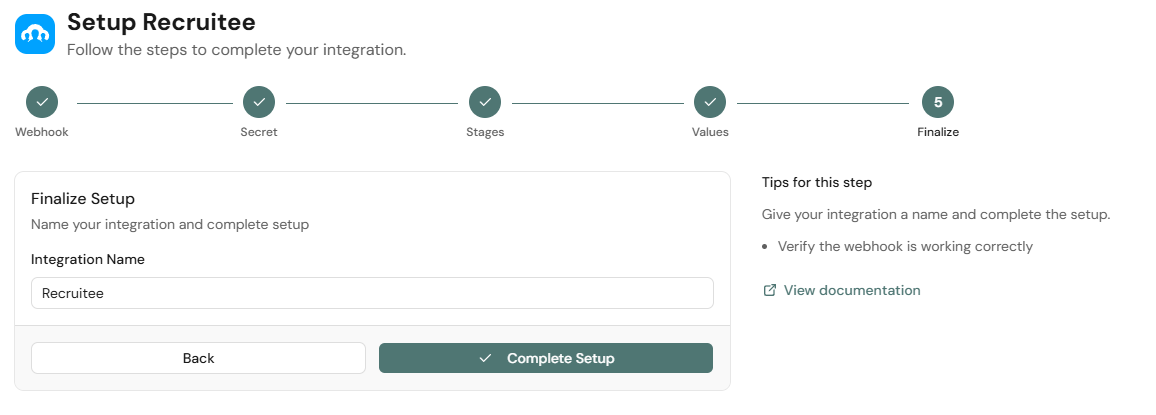
 4. Give the integration a name and complete the setup.
 ***
You are all set! Please test the integration by moving a candidate within Recruitee.
If you have any questions about this setup, contact us at [support@octanist.com](mailto:support@octanist.com).
***
You are all set! Please test the integration by moving a candidate within Recruitee.
If you have any questions about this setup, contact us at [support@octanist.com](mailto:support@octanist.com).