> ## Documentation Index
> Fetch the complete documentation index at: https://octanist.com/docs/llms.txt
> Use this file to discover all available pages before exploring further.
# Zoho CRM
> Connect Zoho CRM to Octanist to update leads based on Zoho CRM events.
The Zoho CRM integration allows you to update leads based on Zoho CRM deal events.
The Zoho CRM integration can be complex to set up. If you are having trouble or would like assistance, please contact us at [support@octanist.com](mailto:support@octanist.com).
## Table of Contents
1. [Zoho CRM](#1-zoho-crm)
2. [Octanist](#2-octanist)
***
## 1. Zoho CRM
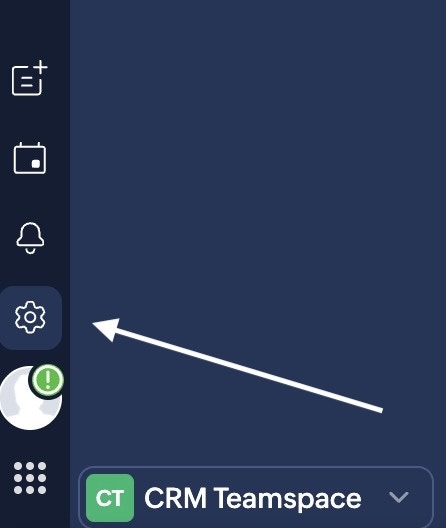 1. Go to [Zoho CRM](https://www.zoho.com/crm/) and log in. Click the **Settings** icon in the top-left corner.
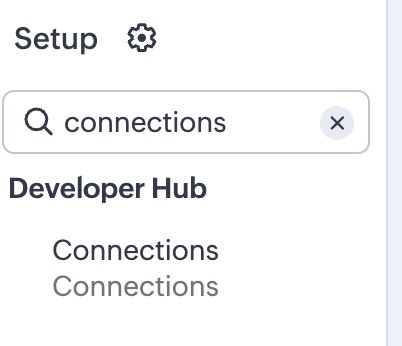
2. In the left sidebar, search for **Connections** and click on it.
1. Go to [Zoho CRM](https://www.zoho.com/crm/) and log in. Click the **Settings** icon in the top-left corner.
2. In the left sidebar, search for **Connections** and click on it.
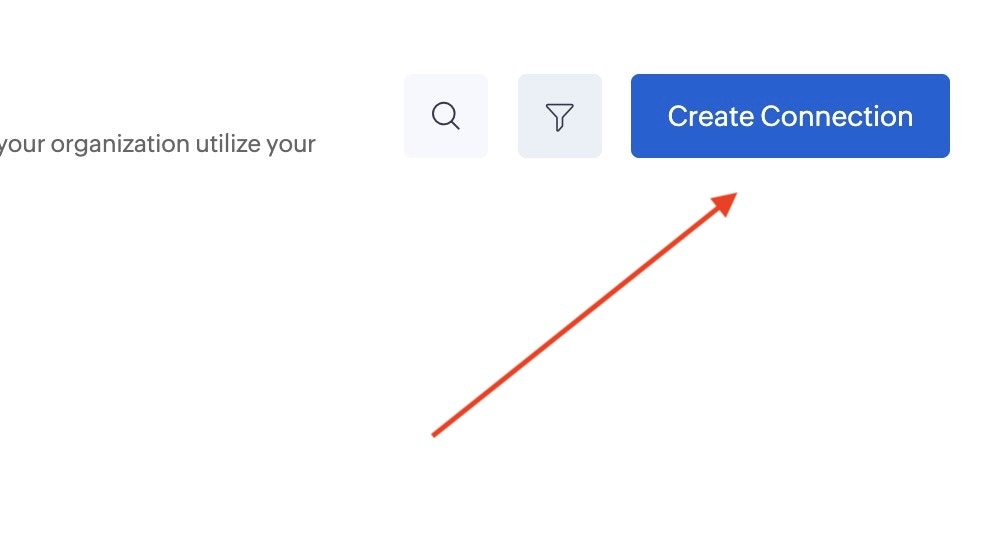
 3. Click **Create New Connection**.
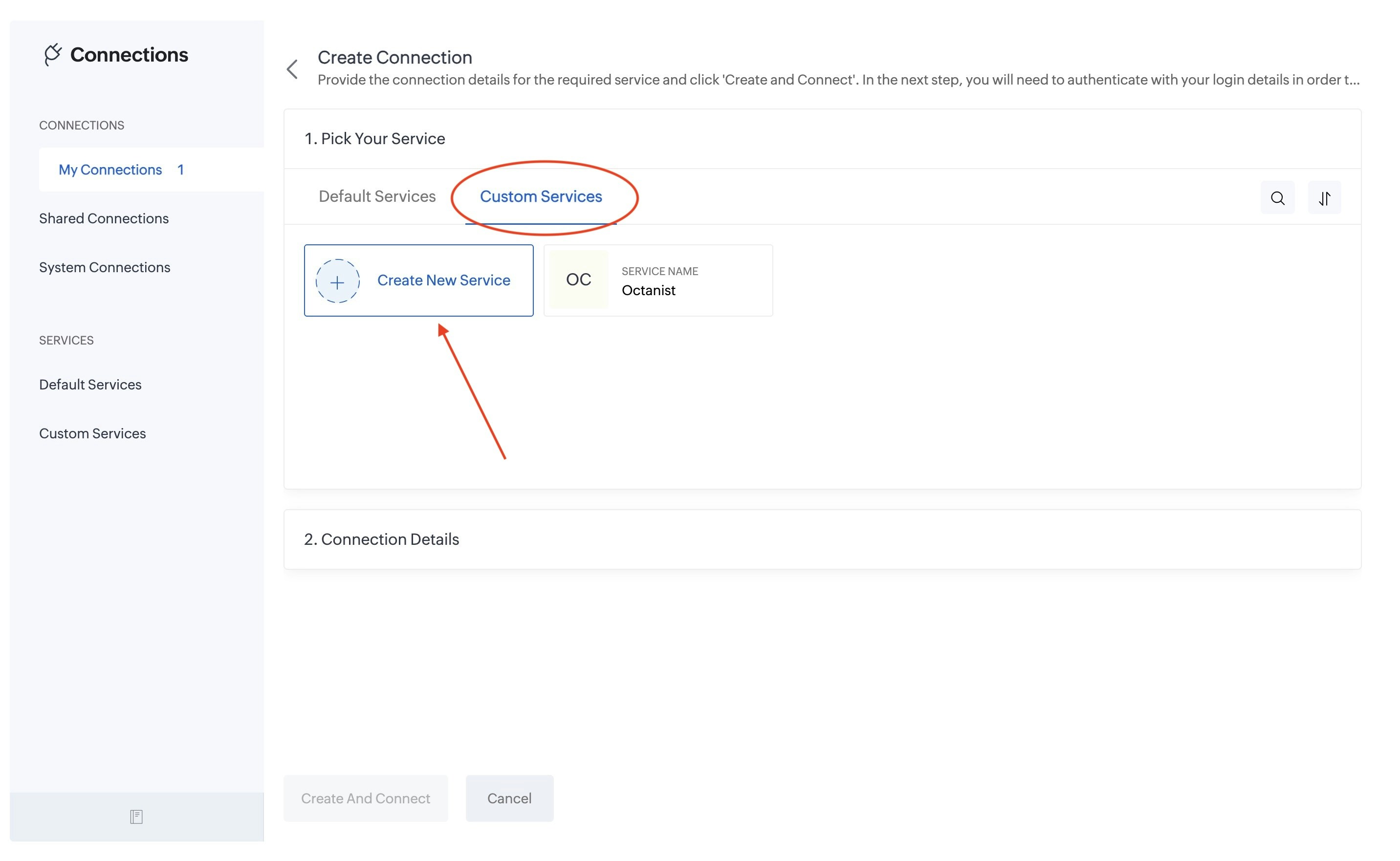
 4. Select **Custom Services** and click **Create New Service**.
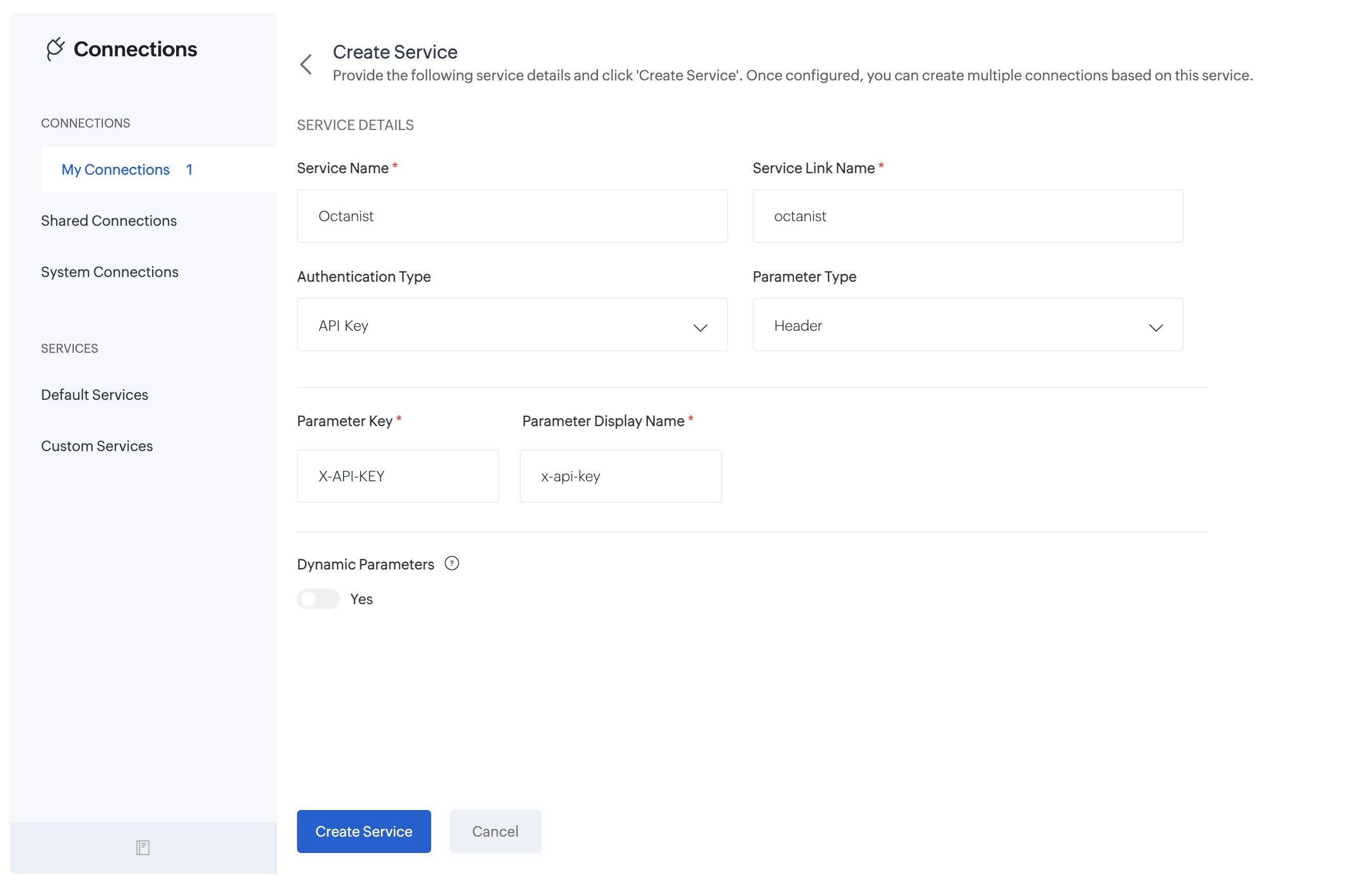
 5. Create a new service with the following details:
* **Name**: give it a name that is easy to identify, such as *Octanist*.
* **Authentication Type**: select *API Key*.
* **Parameter Type**: select *Header*.
* **Parameter Key**: enter *X-API-KEY*.
Then create the new service.
5. Create a new service with the following details:
* **Name**: give it a name that is easy to identify, such as *Octanist*.
* **Authentication Type**: select *API Key*.
* **Parameter Type**: select *Header*.
* **Parameter Key**: enter *X-API-KEY*.
Then create the new service.
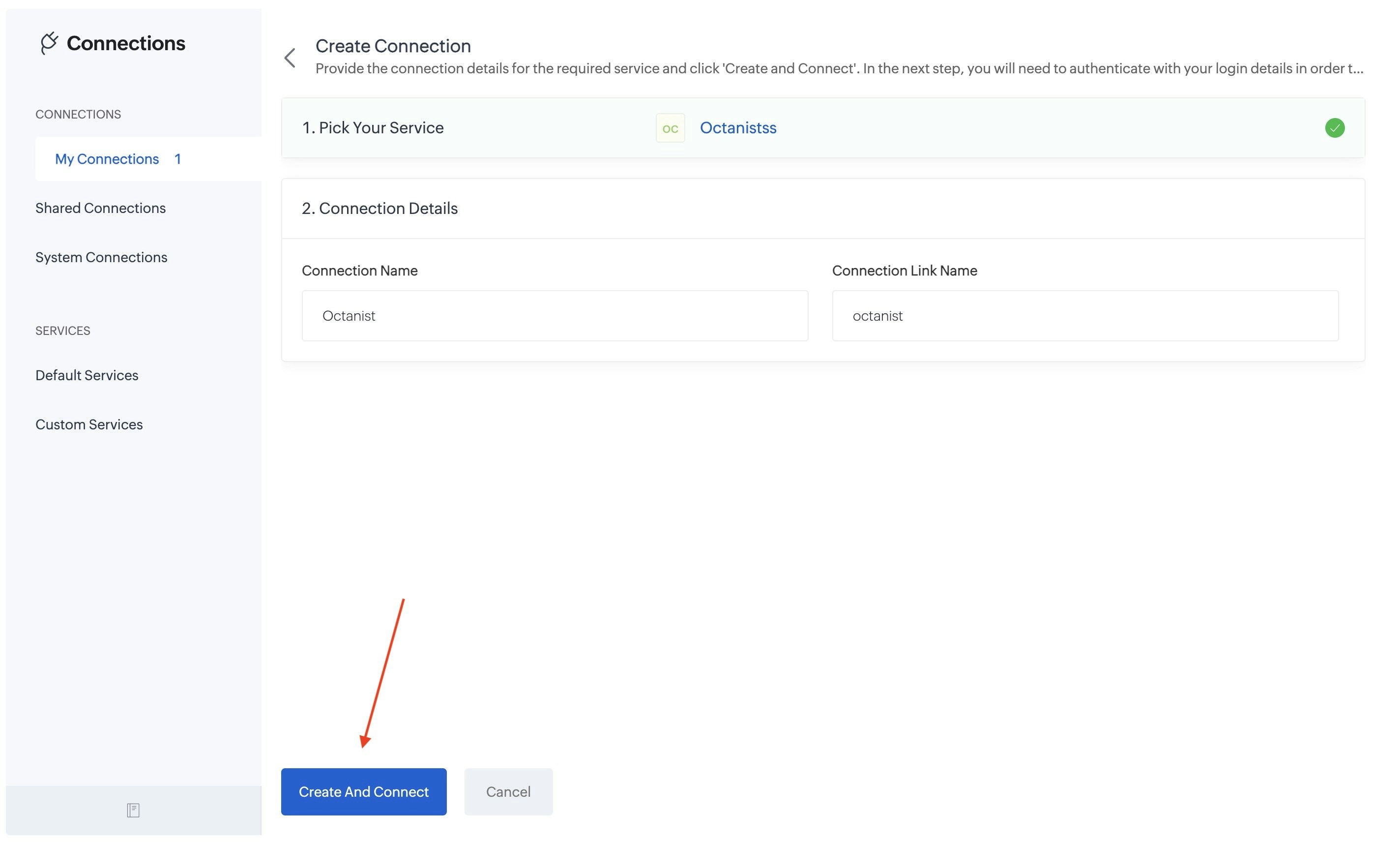
 6. Give the connection a name (e.g., *Octanist*) and click **Create And Connect**.
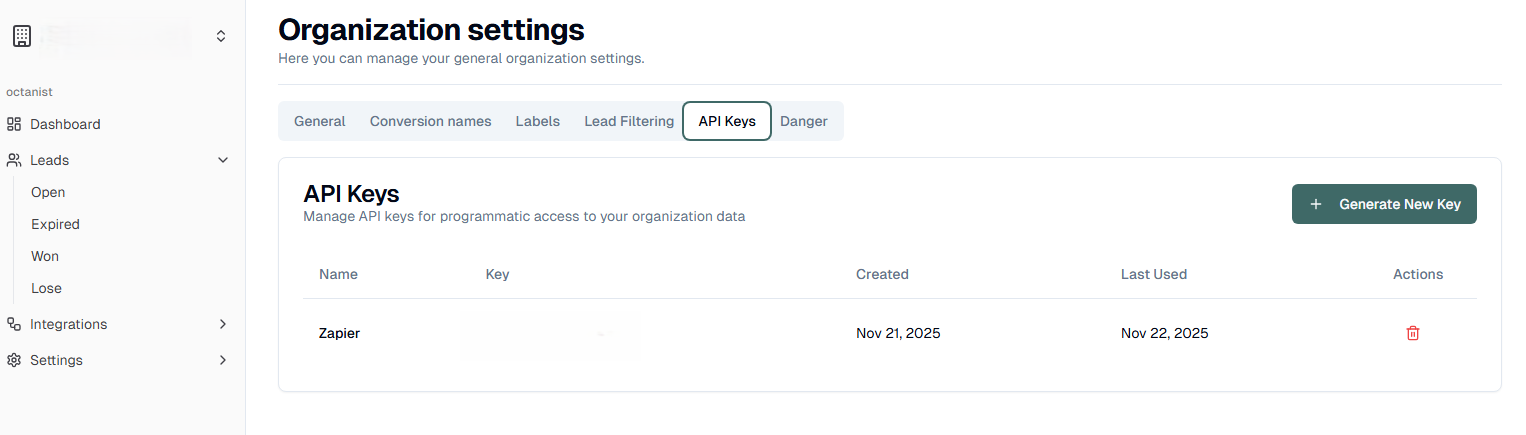
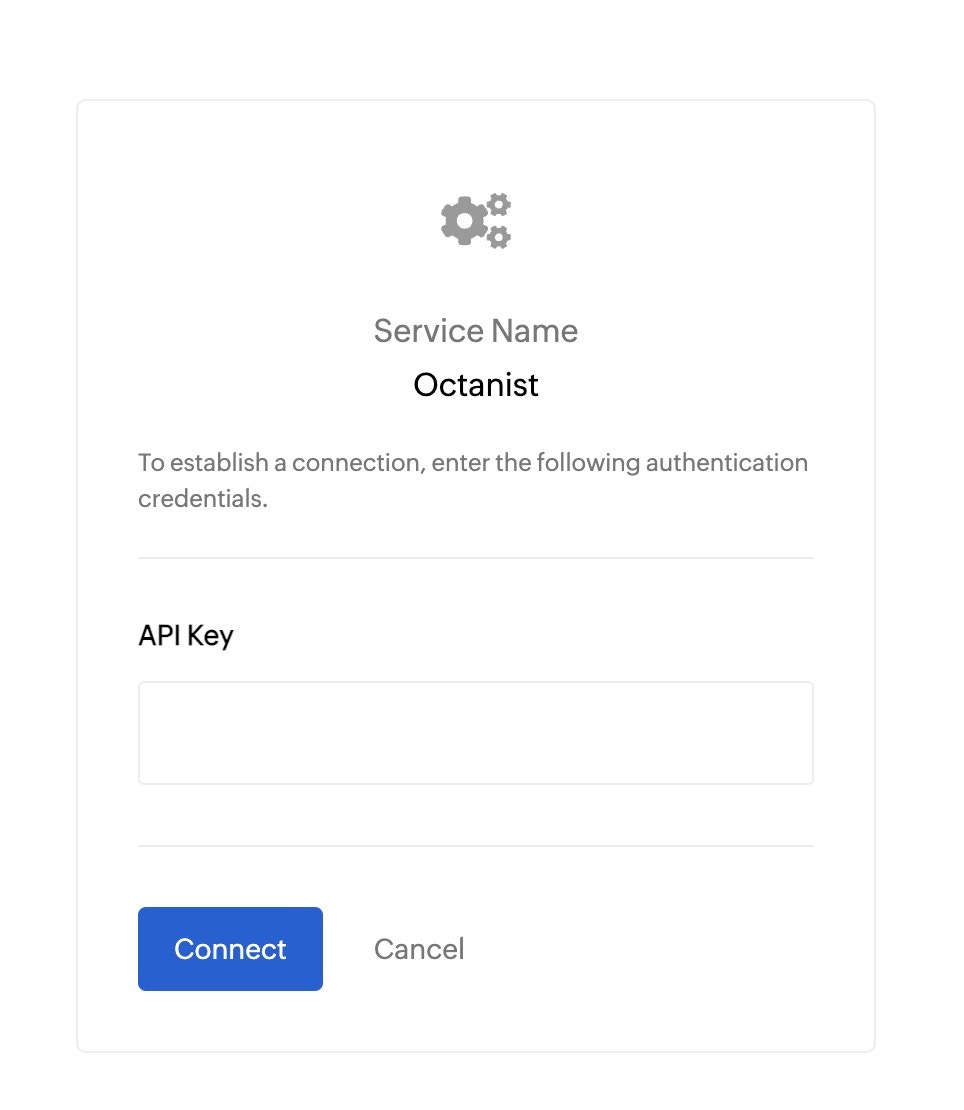
 You will be prompted to enter your API key.
* You can find this in **Octanist → Settings → General → API Key**.
* Create a new API key and give it a clear and descriptive name.
You will be prompted to enter your API key.
* You can find this in **Octanist → Settings → General → API Key**.
* Create a new API key and give it a clear and descriptive name.
 * Click **Connect**.
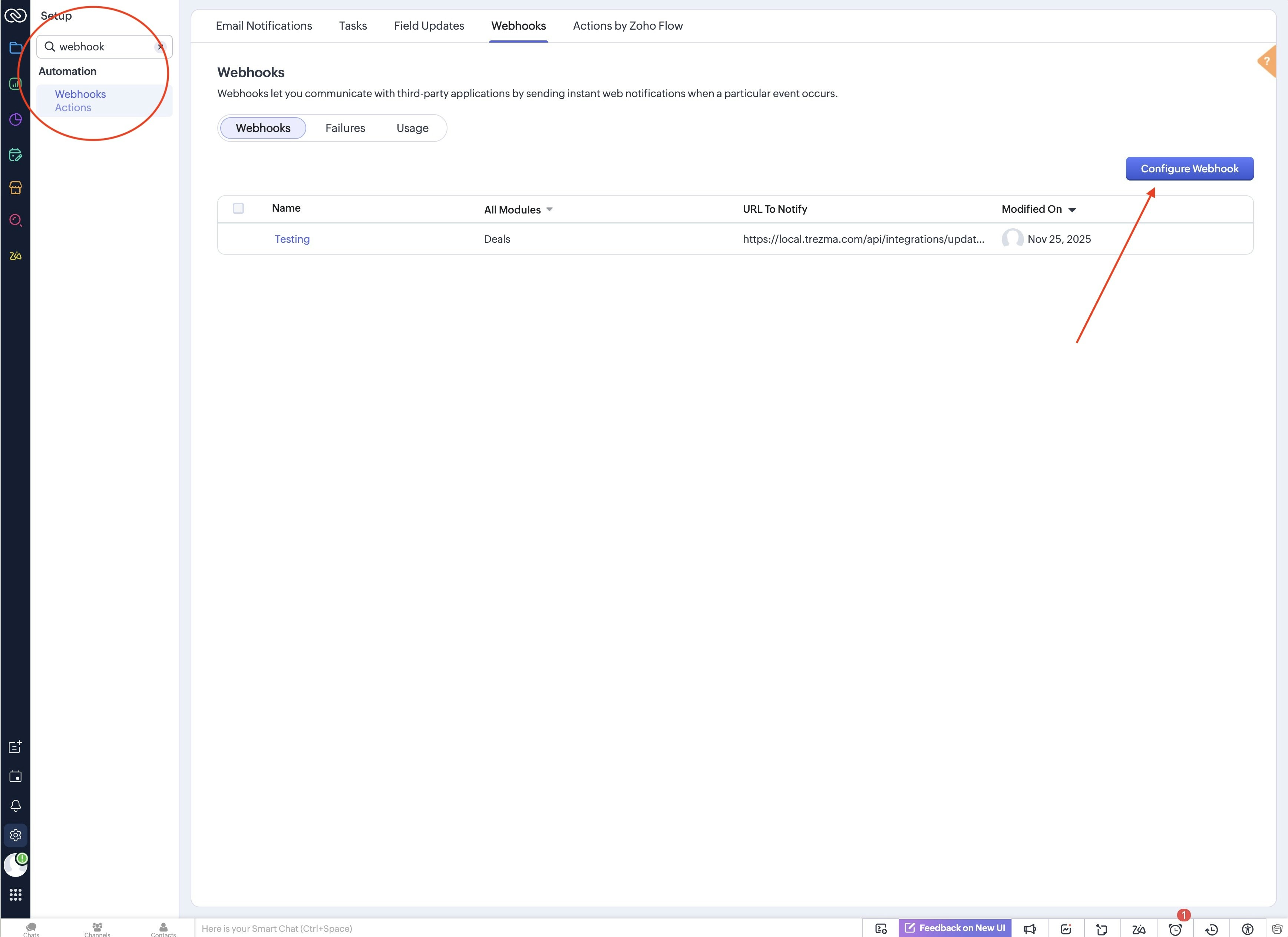
 7. Search for **Webhooks** and click **Configure Webhook**.
 8. Create a new webhook with the following fields:
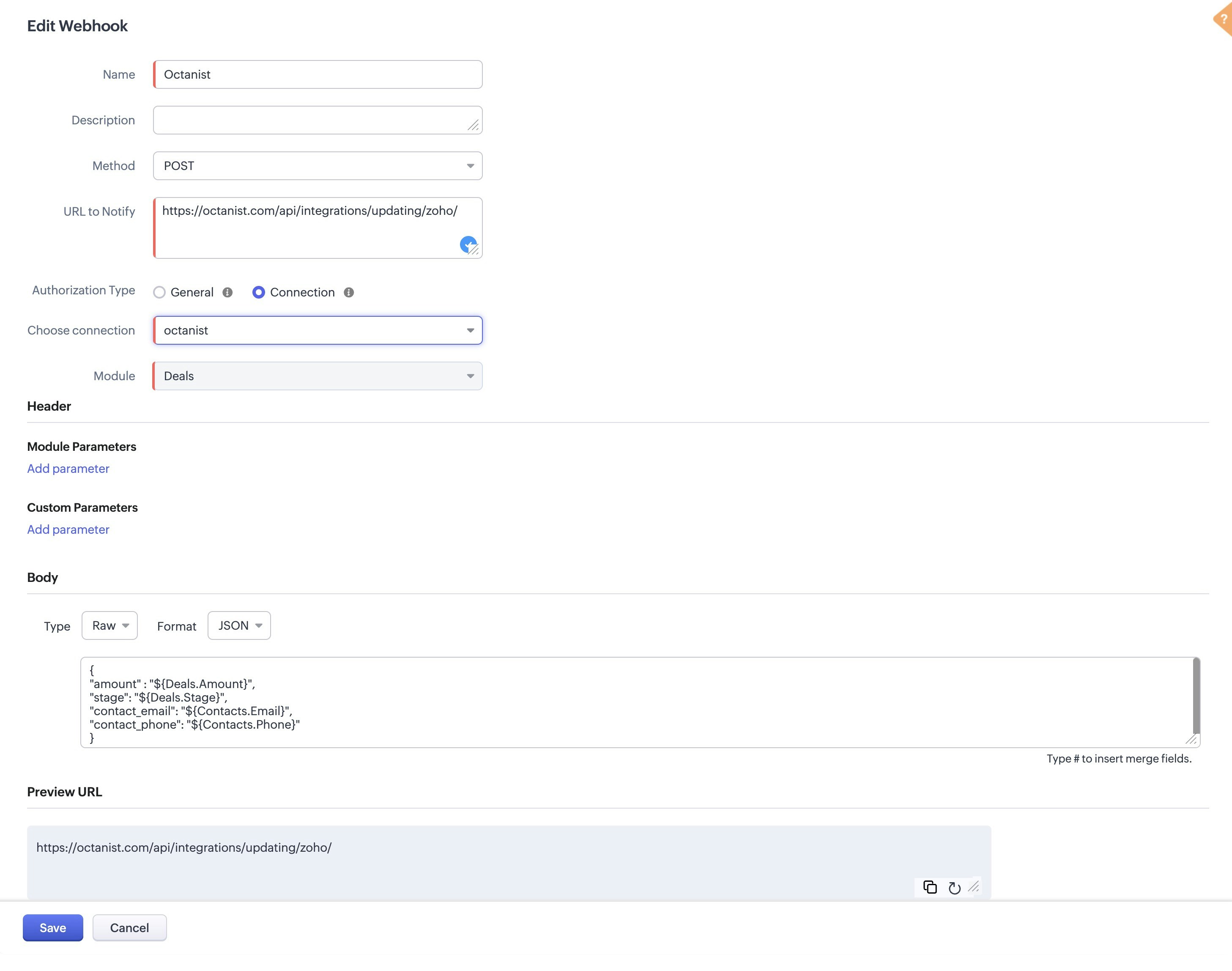
* **Name**: give it a name that is easy to identify, such as *Octanist*.
* **Method**: select *POST*.
* **URL to Notify**: enter `https://octanist.com/api/integrations/updating/zoho/`
* **Authorization Type**: select *Connection* and choose the connection you created.
* **Module**: select *Deals*.
* **Body**:
* **Type**: select *Raw*.
* **Format**: select *JSON*.
* **Content**: enter the following JSON:
```json theme={null}
{
"amount": "${Deals.Amount}",
"stage": "${Deals.Stage}",
"contact_email": "${Contacts.Email}",
"contact_phone": "${Contacts.Phone}"
}
```
* Click **Save**.
It is important to get these fields right. If any are incorrect, the webhook will not work and leads will not be updated correctly in Octanist.
8. Create a new webhook with the following fields:
* **Name**: give it a name that is easy to identify, such as *Octanist*.
* **Method**: select *POST*.
* **URL to Notify**: enter `https://octanist.com/api/integrations/updating/zoho/`
* **Authorization Type**: select *Connection* and choose the connection you created.
* **Module**: select *Deals*.
* **Body**:
* **Type**: select *Raw*.
* **Format**: select *JSON*.
* **Content**: enter the following JSON:
```json theme={null}
{
"amount": "${Deals.Amount}",
"stage": "${Deals.Stage}",
"contact_email": "${Contacts.Email}",
"contact_phone": "${Contacts.Phone}"
}
```
* Click **Save**.
It is important to get these fields right. If any are incorrect, the webhook will not work and leads will not be updated correctly in Octanist.
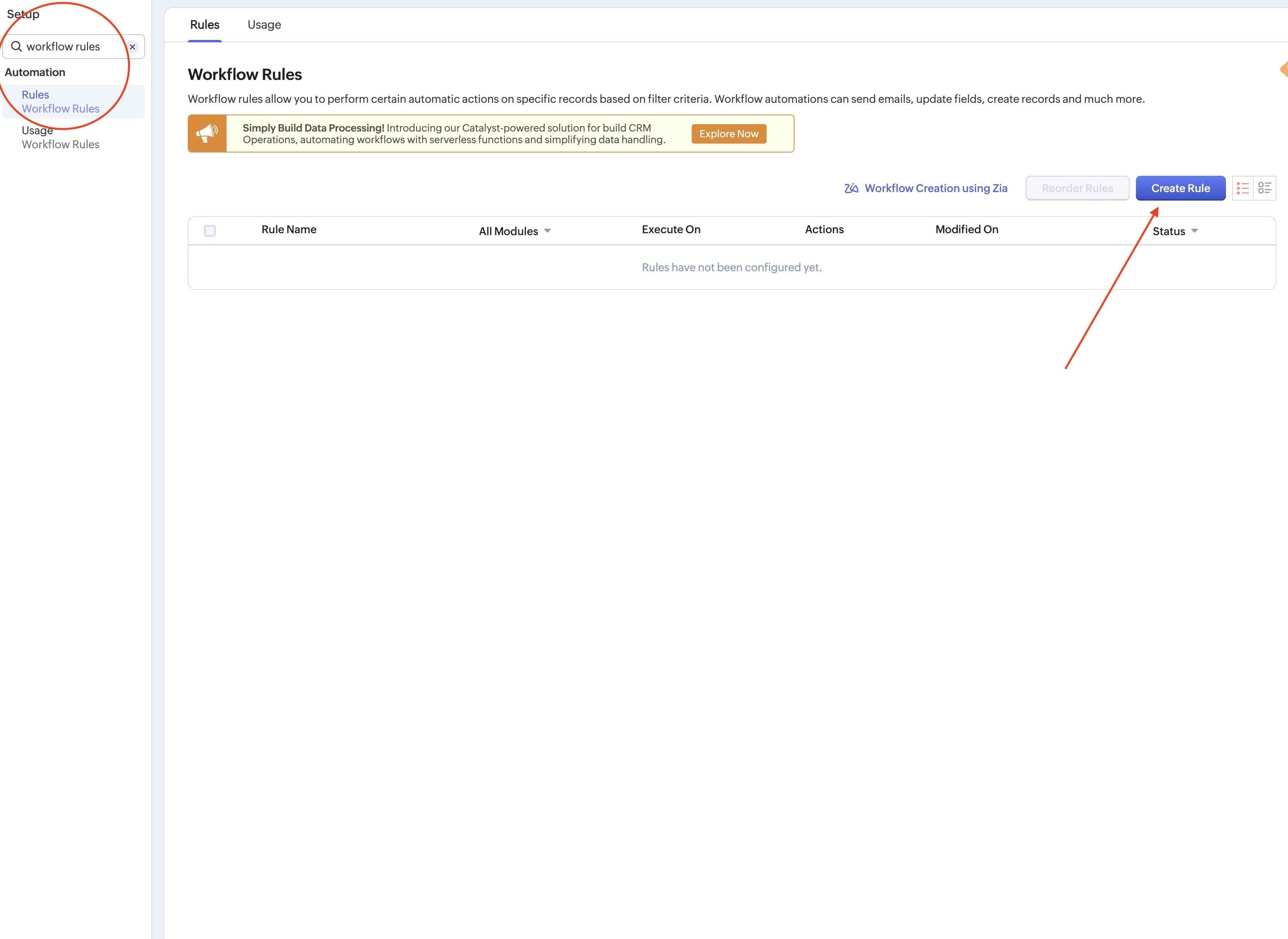
 9. Search for **Workflow Rules** and select **Rules**. On the page, click **Create Rule**.
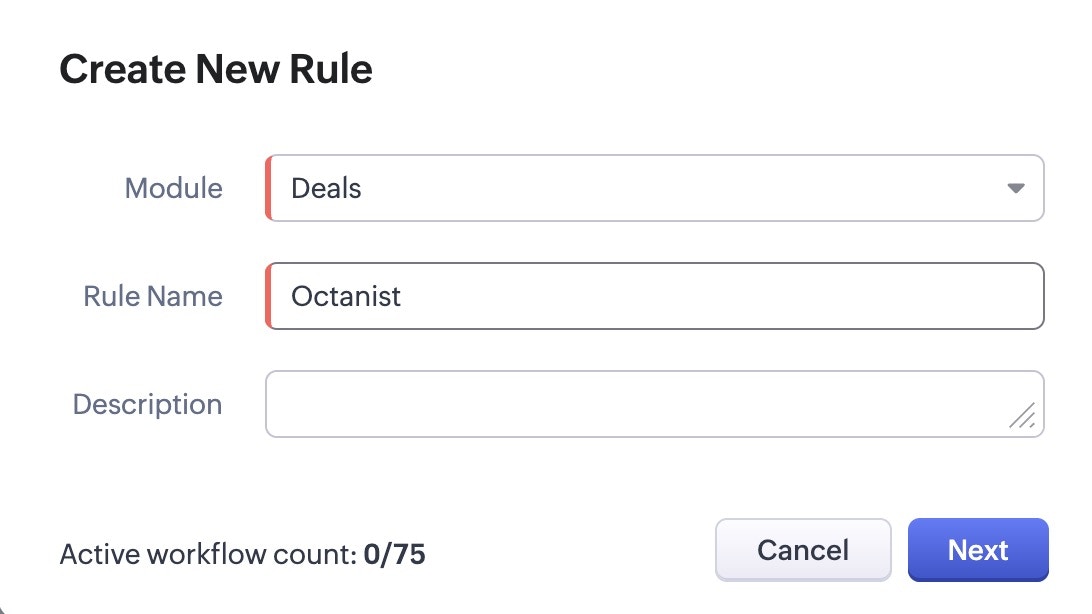
 10. In the popup, enter the following:
* **Module**: select *Deals*.
* **Rule Name**: give it a name that is easy to identify, such as *Octanist*.
10. In the popup, enter the following:
* **Module**: select *Deals*.
* **Rule Name**: give it a name that is easy to identify, such as *Octanist*.
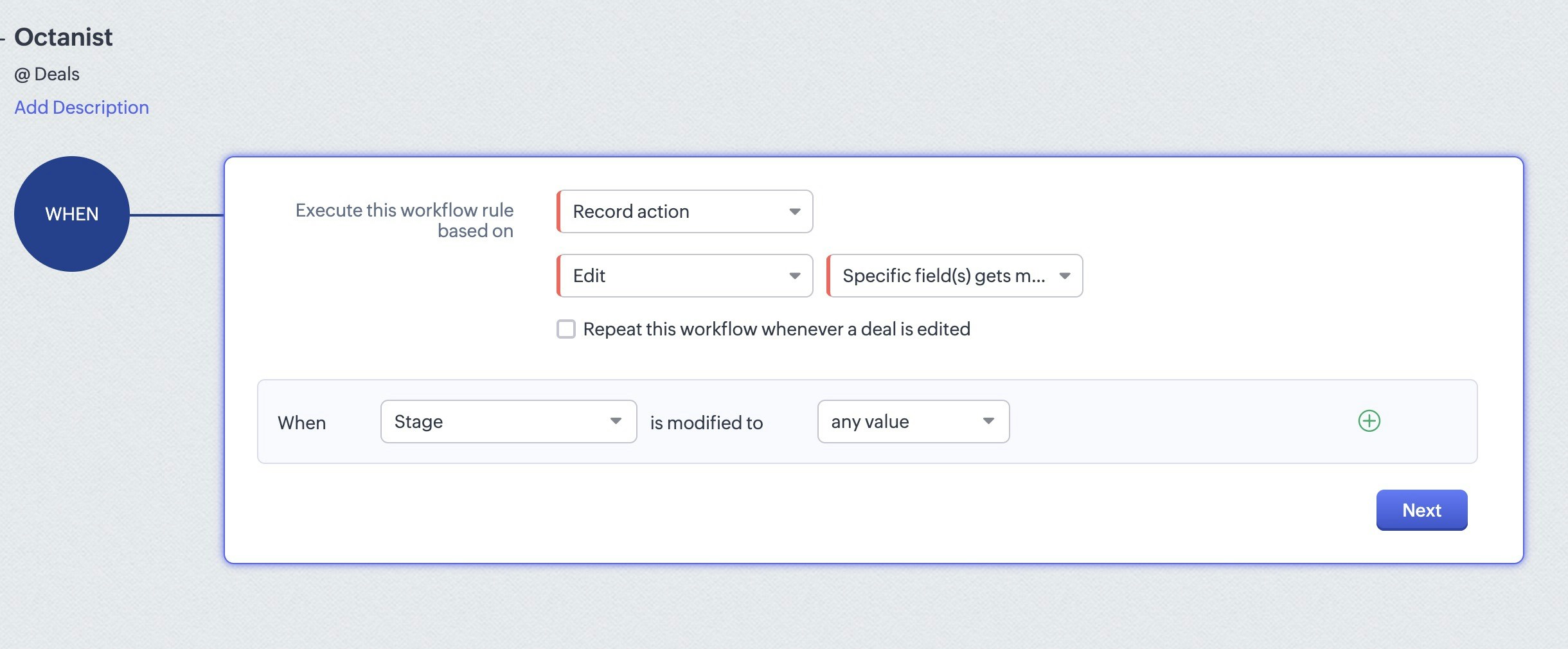
 11. For the **WHEN** step, choose the following options:
* **Execute this workflow rule based on**: select *Record action*.
* Then select *Edit* and *Specific field(s) get modified*.
* **When**: **Stage** is modified to **any value**.
* Click **Next**.
11. For the **WHEN** step, choose the following options:
* **Execute this workflow rule based on**: select *Record action*.
* Then select *Edit* and *Specific field(s) get modified*.
* **When**: **Stage** is modified to **any value**.
* Click **Next**.
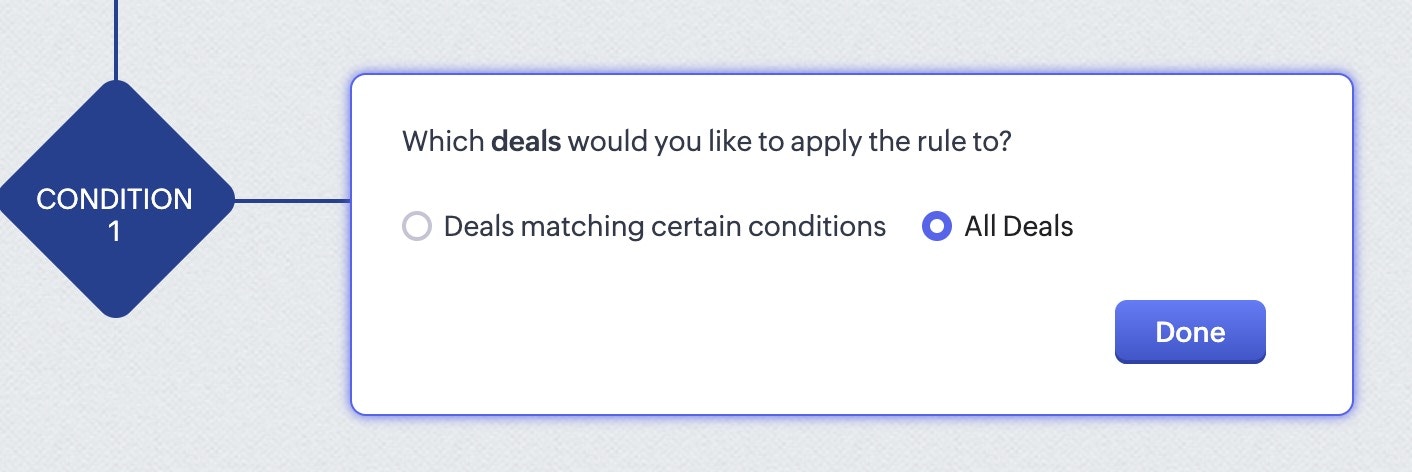
 12. Select **All Deals** and click **Done**.
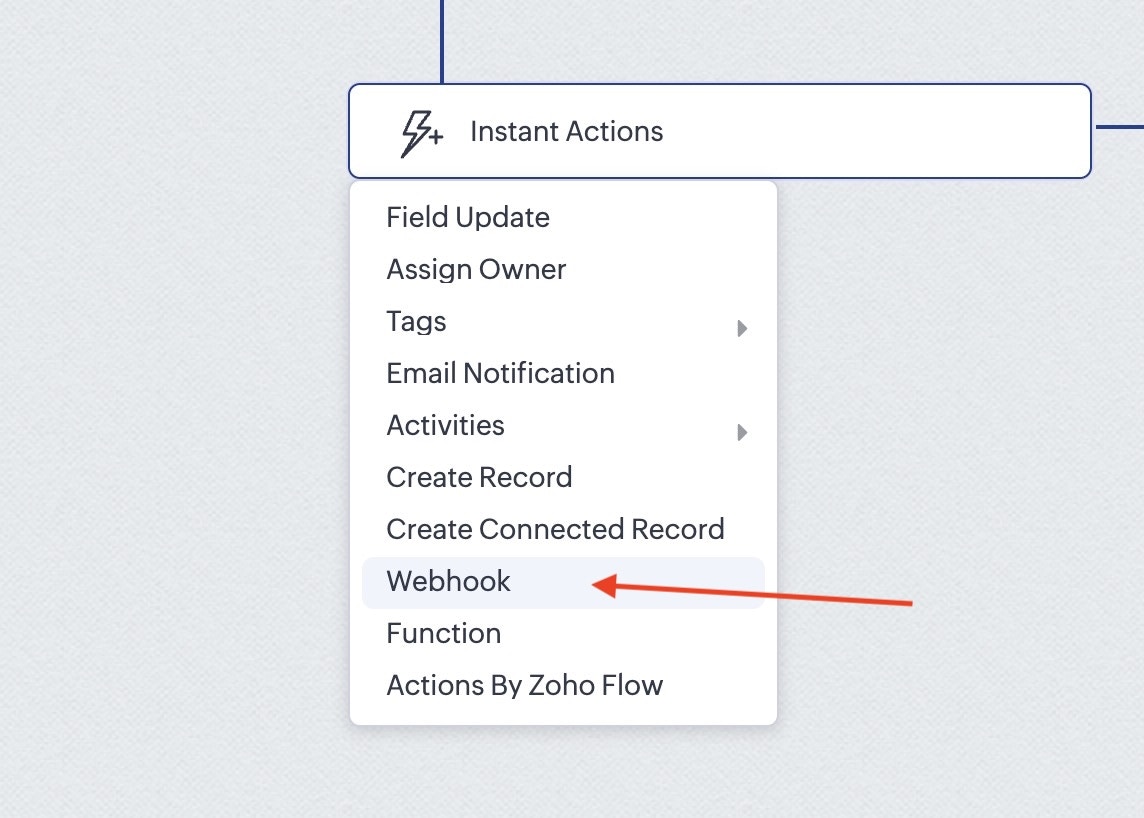
 13. For the action, select **Webhook** and choose the webhook created in step 8.
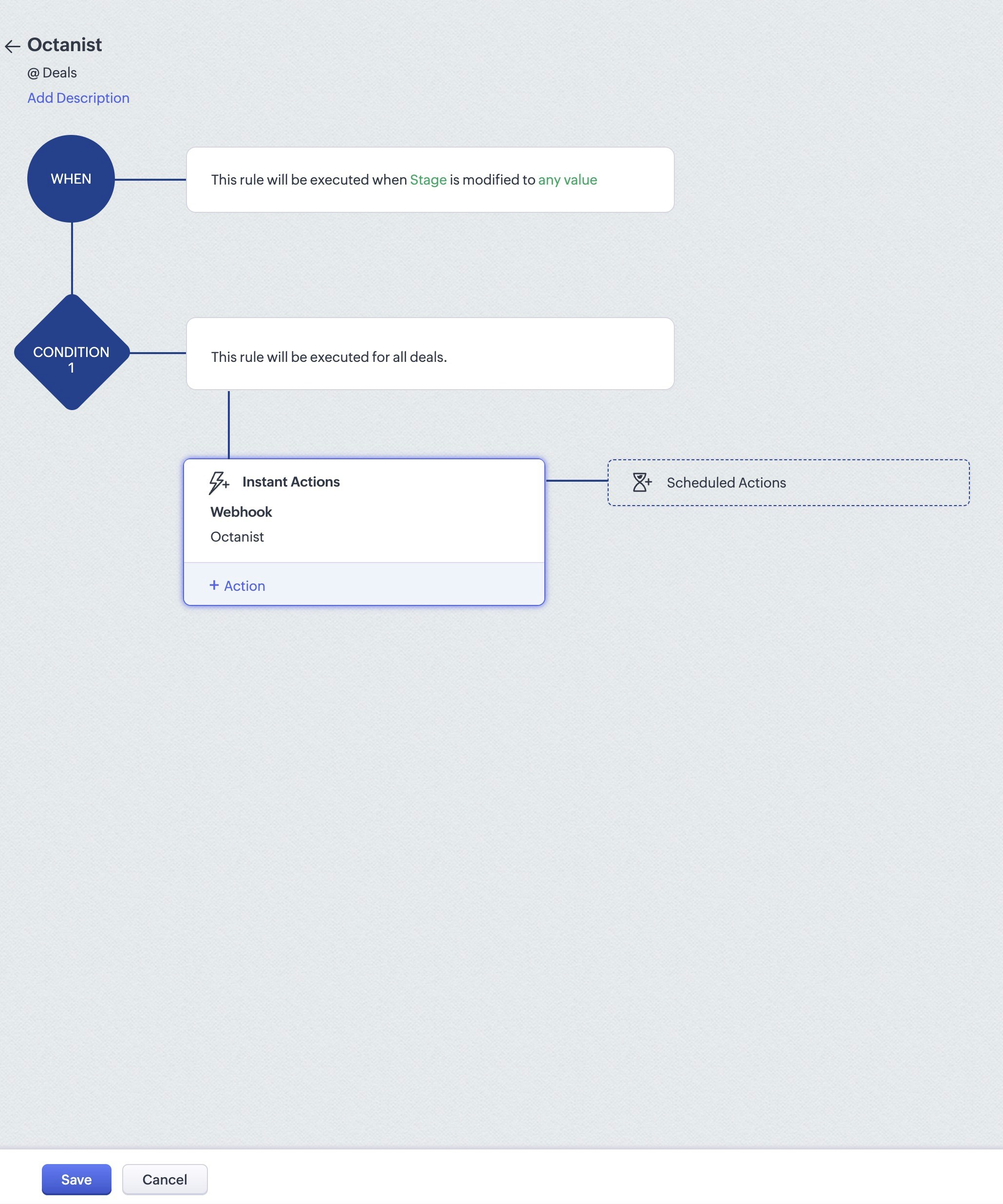
 14. Click **Save**.
 The Zoho CRM side of the integration is now complete. Next, set it up in Octanist.
***
## 2. Octanist
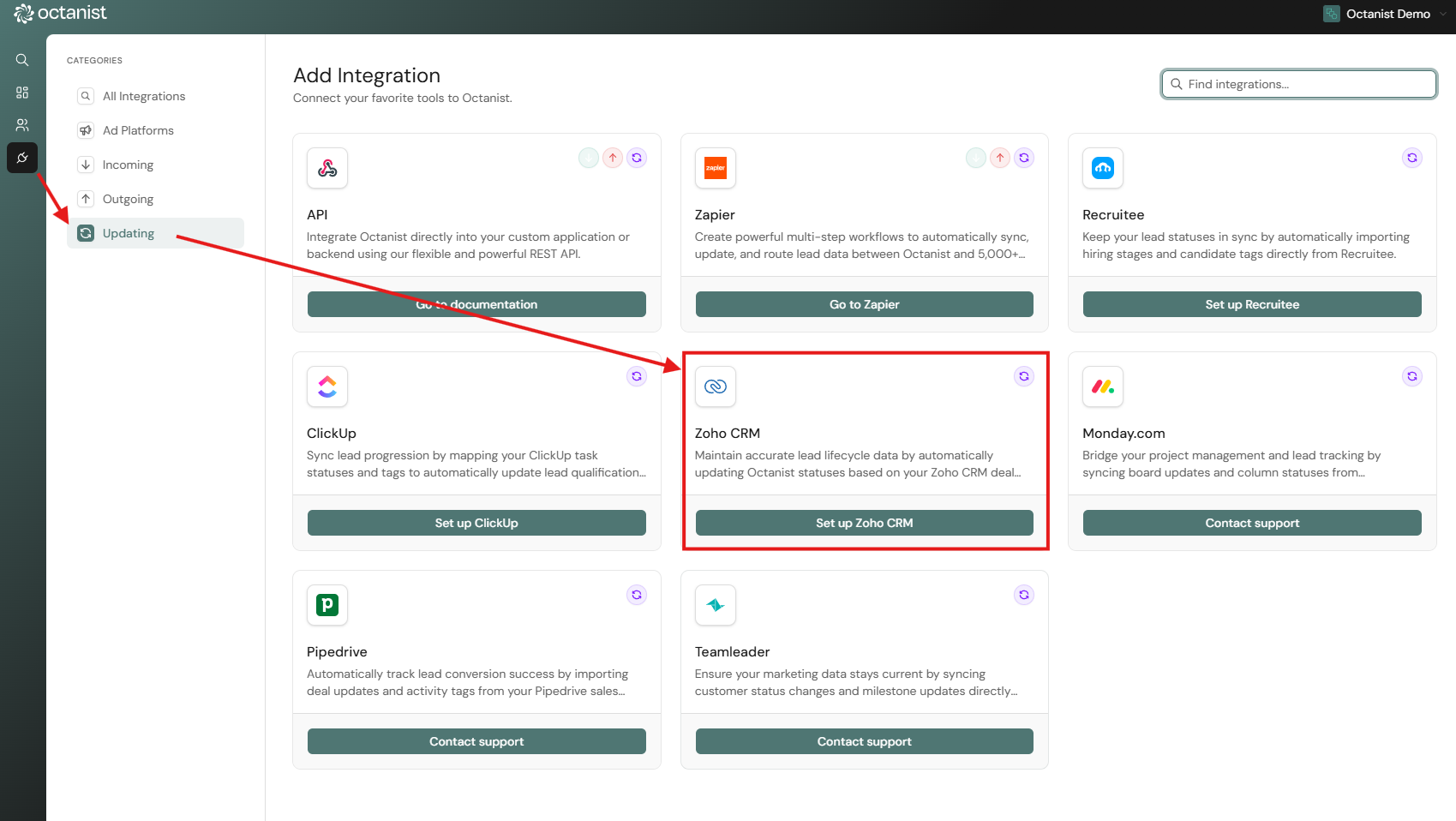
1. Go to [Octanist](https://octanist.com/) and navigate to **Integrations > Updating > Add New**.
2. Choose **Zoho CRM** and click **Add Integration**.
The Zoho CRM side of the integration is now complete. Next, set it up in Octanist.
***
## 2. Octanist
1. Go to [Octanist](https://octanist.com/) and navigate to **Integrations > Updating > Add New**.
2. Choose **Zoho CRM** and click **Add Integration**.
 3. For each stage, enter the exact stage name as it appears in Zoho CRM.
* Example - Qualified Stage Name: `Proposal`
* Example - Closed Won Stage Name: `Closed Won`
Use the exact stage name from your Zoho CRM.
3. For each stage, enter the exact stage name as it appears in Zoho CRM.
* Example - Qualified Stage Name: `Proposal`
* Example - Closed Won Stage Name: `Closed Won`
Use the exact stage name from your Zoho CRM.
 You can find the stage names in Zoho CRM as shown below:
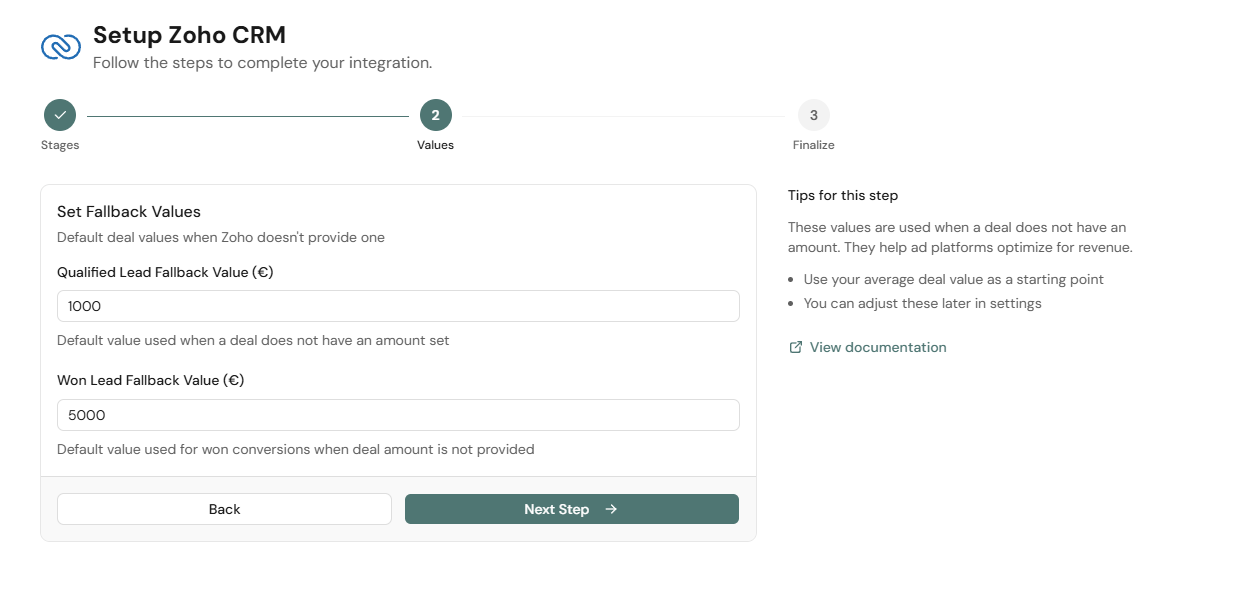
 4. Set the values for each lead stage:
* Example - Qualified Lead (high-potential client): `1000`
* Example - Won Lead (purchased your product or service): `5000`
4. Set the values for each lead stage:
* Example - Qualified Lead (high-potential client): `1000`
* Example - Won Lead (purchased your product or service): `5000`
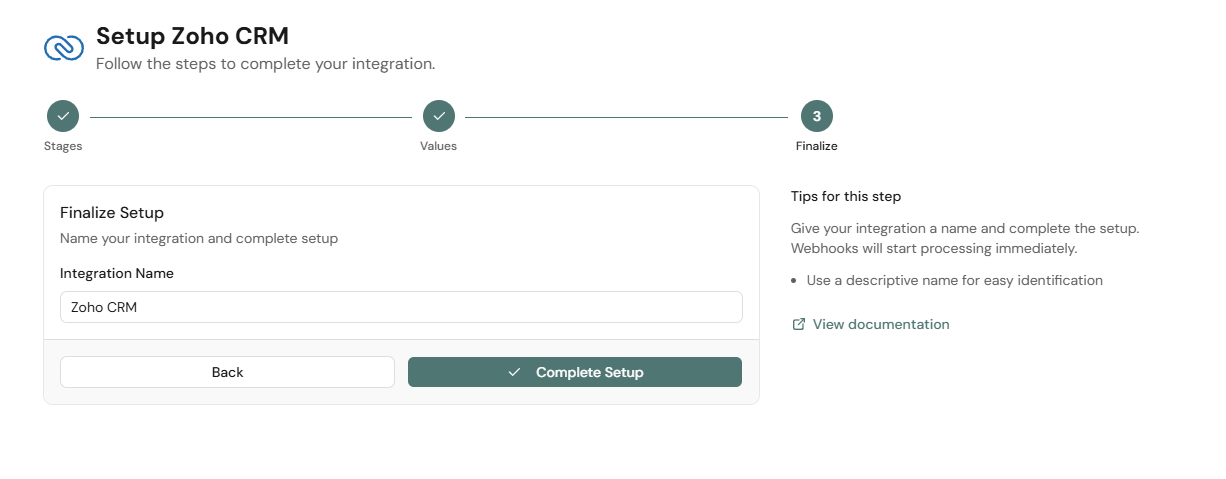
 5. Finally, complete the integration by giving it a descriptive name.
 ***
You are all set! Please test the integration by moving a deal within Zoho CRM.
If you have any questions about this setup, contact us at [support@octanist.com](mailto:support@octanist.com).
***
You are all set! Please test the integration by moving a deal within Zoho CRM.
If you have any questions about this setup, contact us at [support@octanist.com](mailto:support@octanist.com).