How to create Custom Columns to measure offline conversions in Google Ads
Custom Columns in Google Ads can be extremely valuable, as they allow you to create insights that Google Ads does not provide by default. For example, you can calculate the conversion rate for a specific conversion action or the margin for a campaign.In this article, we’ll show you how to set up Custom Columns for Offline Conversion Imports with Octanist.Before you start, make sure you have an Octanist Google Ads Outgoing Integration in place. This ensures you’ll see data from the beginning.
Adding custom columns
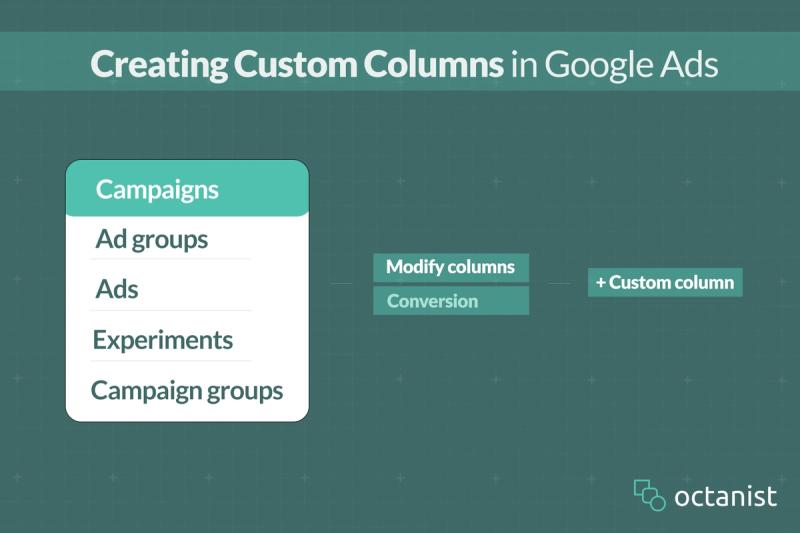
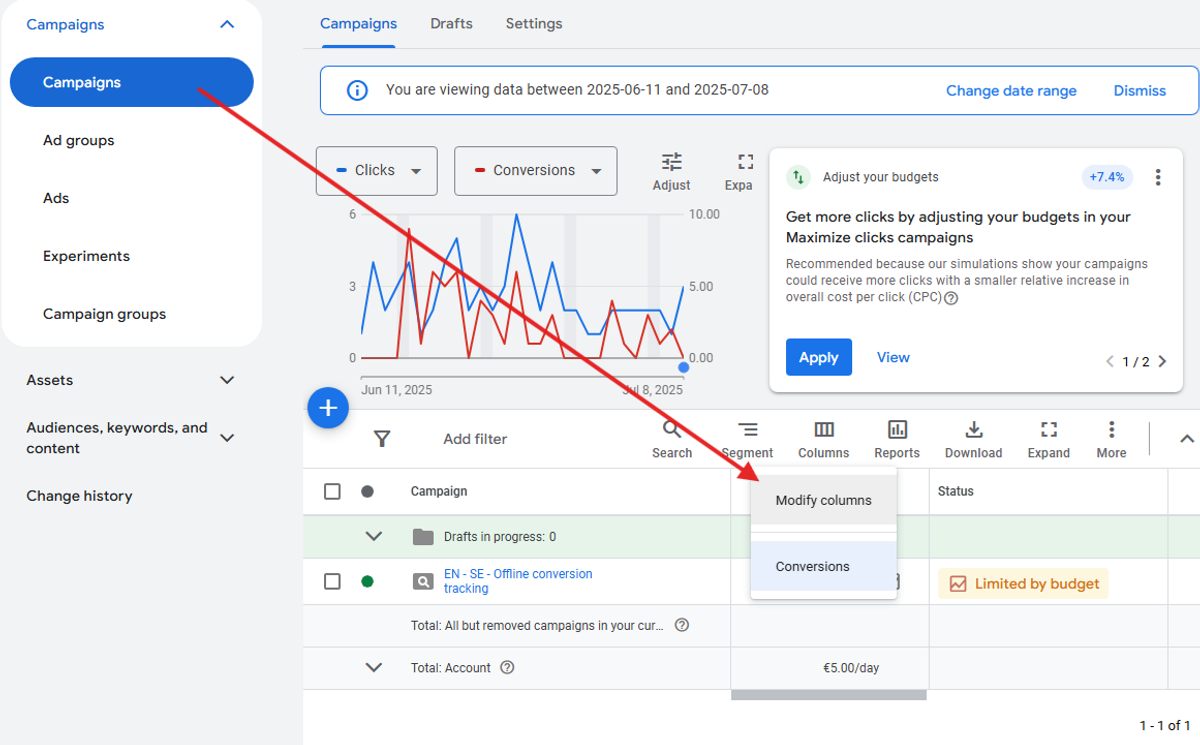
First head to your Google Ads account. In there head to Campaigns and to the overview of your campaigns. In the menu, you will see an option named columns. Click that, and then press Modify Columns.
Once in there, press the "+ Custom column" button in the top right.
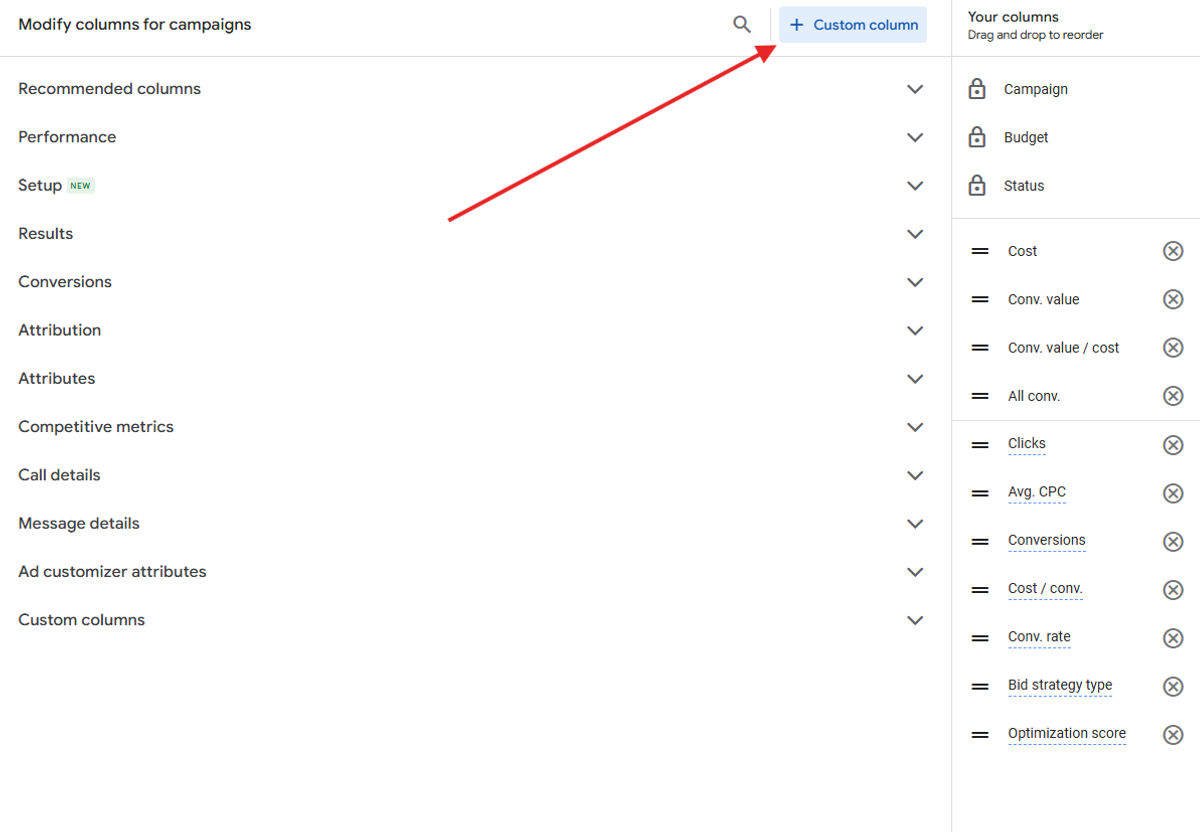
Now, you are ready to create your custom columns.
Creating Custom Columns
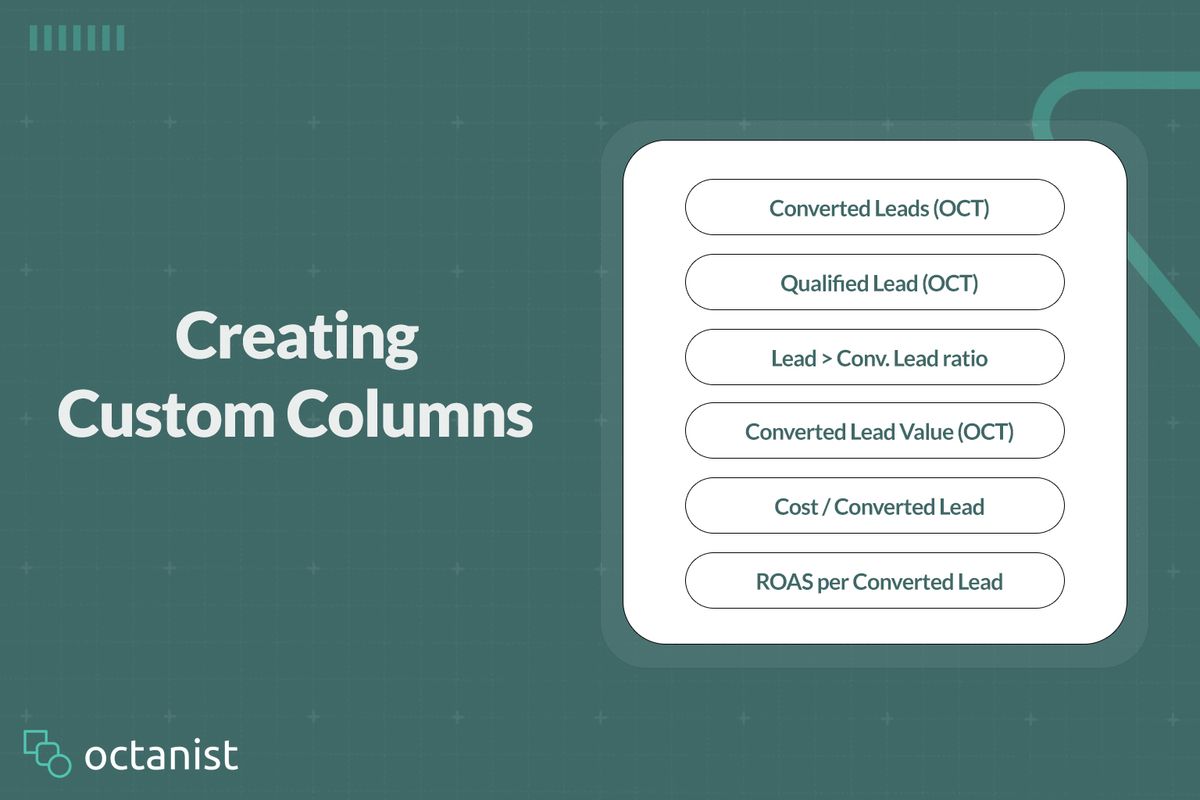
In here we will show the different Custom Columns you can create for Offline Conversion Tracking.
All Converted Leads
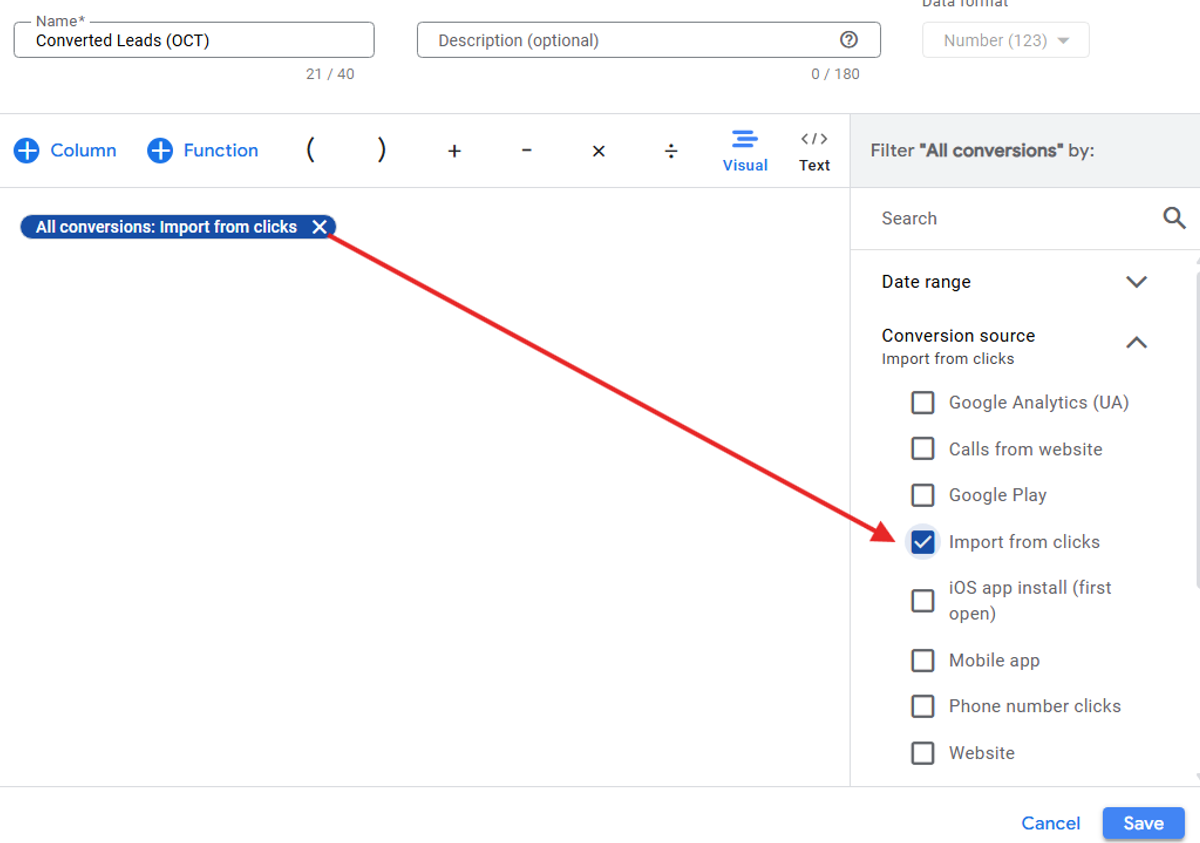
To show all leads that have converted, type "All conversions" and press enter. You then want to specify it by expanding "Conversion Source" on the right side. From thsi menu, select "Import from clicks". Then give it a descriptive name and aditionally a description.
Alternatively, if you see Conversion Action on the right hand side, you can select to only show Conversions for a specific Conversion Action or Conversion Name. This can be useful if you only want to show Qualified Leads instead of both qualified and converted leads. To do so expan "Conversion action" and select only the conversions you want displayed, in our example "Qualified Lead - Octanist".
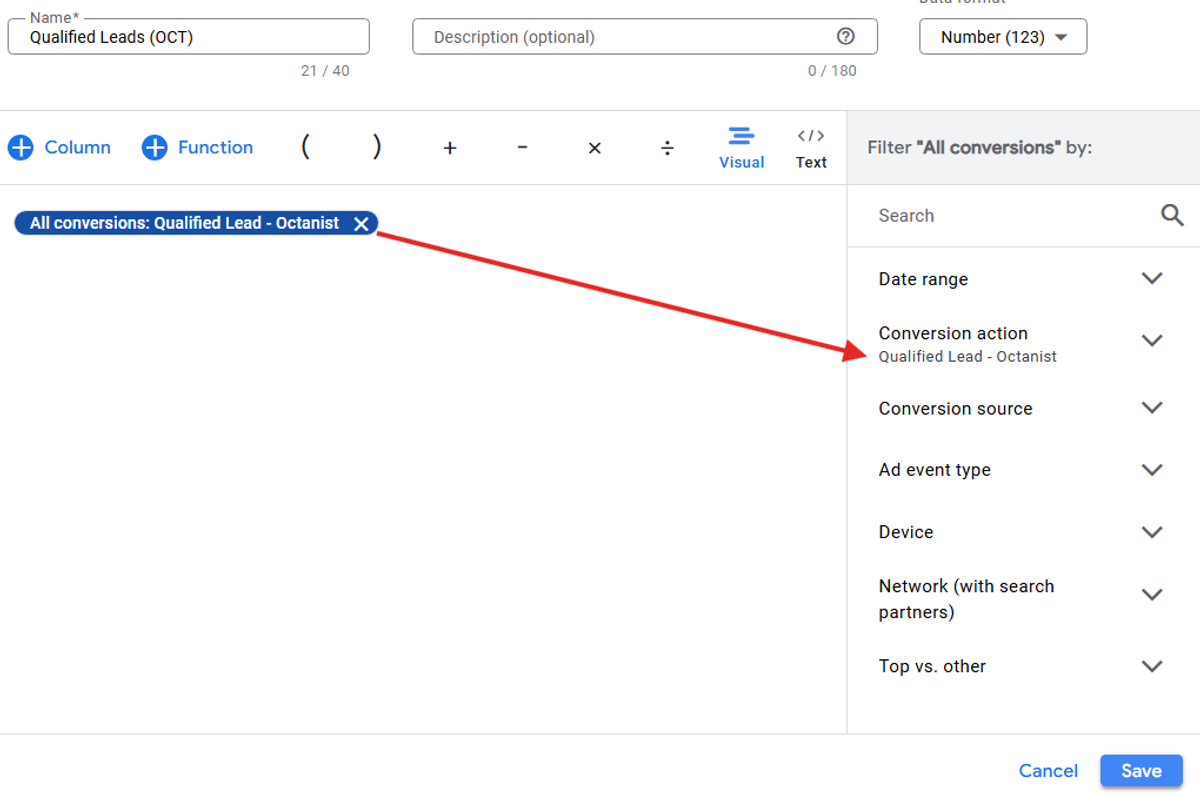
Once you're done, press the save button.
Example Calculation: All Converted Leads
Let’s say your report shows:
- All conversions (Import from Clicks) = 120
- Of these, 80 are Qualified Leads and 40 are Converted Leads
If you want to show only Qualified Leads, you would filter by:
Conversion Action = "Qualified Lead – Octanist",
which would return:
80 Qualified Leads.If you don’t filter and use All conversions + Import from Clicks,
your total would show:
120 Leads (Qualified + Converted + any other imported actions)
Lead to Converted Lead ratio
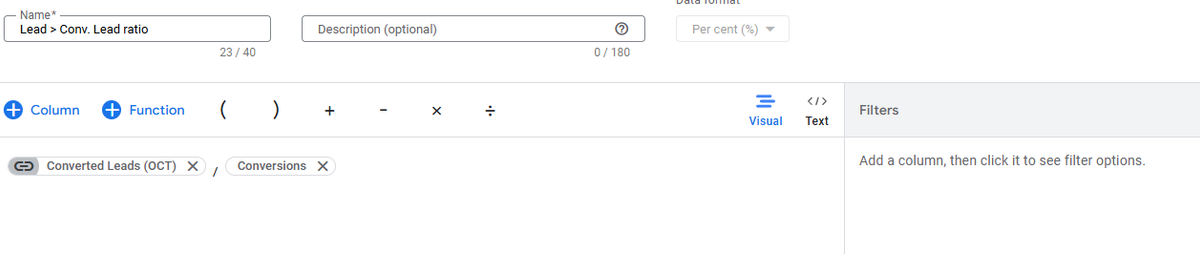
To calculate the Lead to Converted Lead ratio, create a new Custom Column once again. In this column, enter the name of the custom column for all converted leads (refer to the step above). You will see the column name with a "link" icon next to it. Select that column.This is useful if you want to adjust the settings for all Converted Leads, as any changes will automatically apply to this column as well.Next, divide it by your total number of leads. If you want to be more specific, divide it by the number of leads for a particular conversion action (e.g., quote requests).
Example Calculation Lead to Converted Lead:
Let’s say:
- Total Converted Leads = 30
- Total Leads = 150
Then the Lead to Converted Lead ratio is:
30 ÷ 150 = 0.2 (or 20%)This means 20% of your leads ended up converting, a valuable metric to track conversion quality.
Converted Lead Value
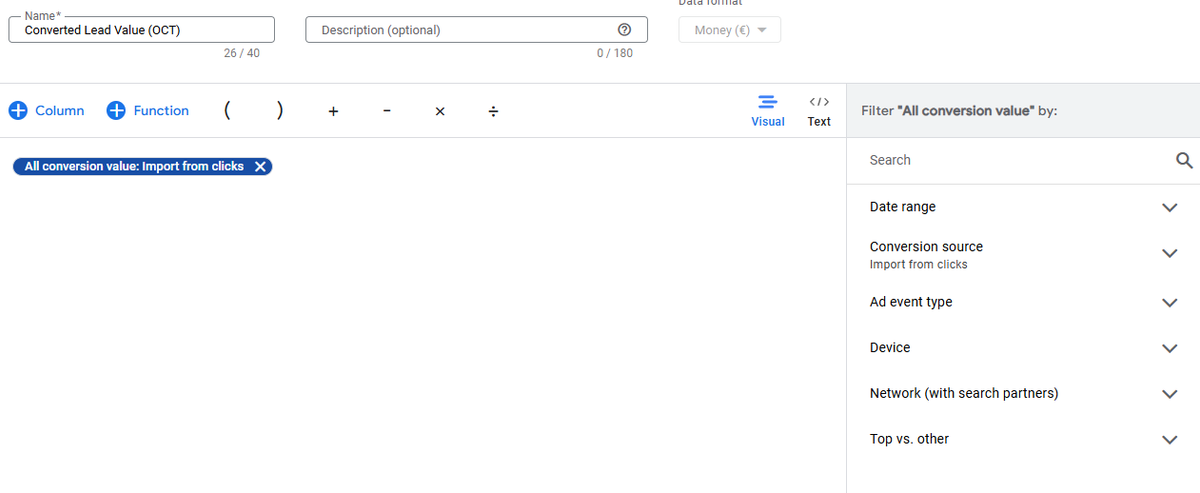
To display the Converted Lead Value, the process is much simpler. Create a new Custom Column and give it an appropriate name, e.g., Converted Lead Value. Then enter "All Conversion Value" and press Enter.You can further refine this by specifying the Conversion Source (e.g., Import from Clicks) or the Conversion Action (e.g., Converted Lead – Octanist). This will show the total value of all leads sent through offline uploads or via Octanist.
Example Calculation: Converted Lead Value
Let’s say:
- All Conversion Value (Converted Lead – Octanist) = €4,500
This is the total value of all converted leads uploaded via Octanist or offline tracking.
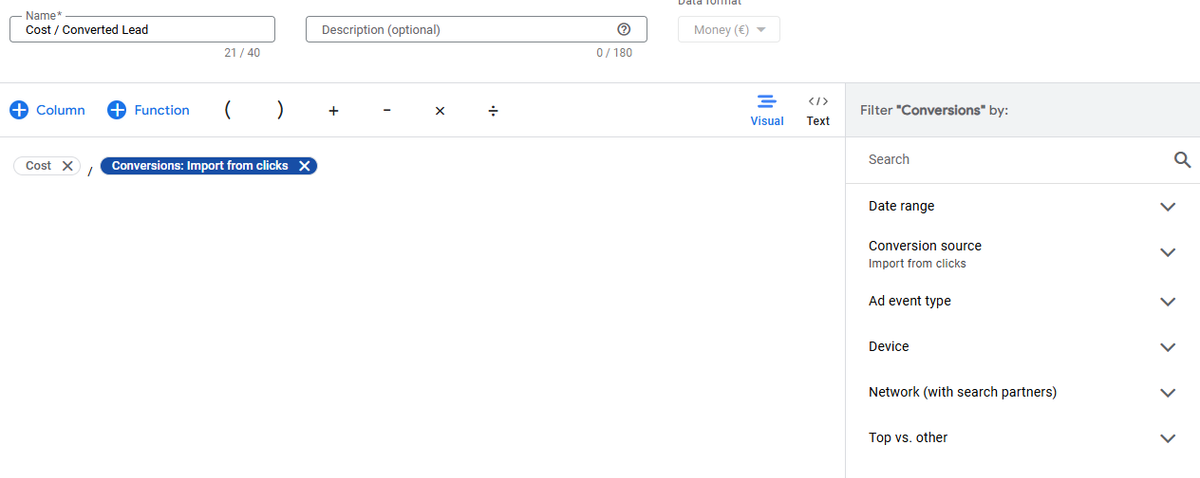
Cost per Converted Lead
To calculate the Cost per Converted Lead, follow the same steps as above and create a new Custom Column. Then divide the Cost by the number of Conversions: Import from Clicks or All Conversions: Octanist Converted – Lead, depending on the conversion source you want to use.
Example Calculation: Cost per Converted Lead:
Let’s say:
- Total Ad Spend (Cost) = €900
- Converted Leads (Octanist) = 30
Then the Cost per Converted Lead is:
€900 ÷ 30 = €30This means it cost you €30 on average to generate one converted lead.
ROAS for Converted Leads
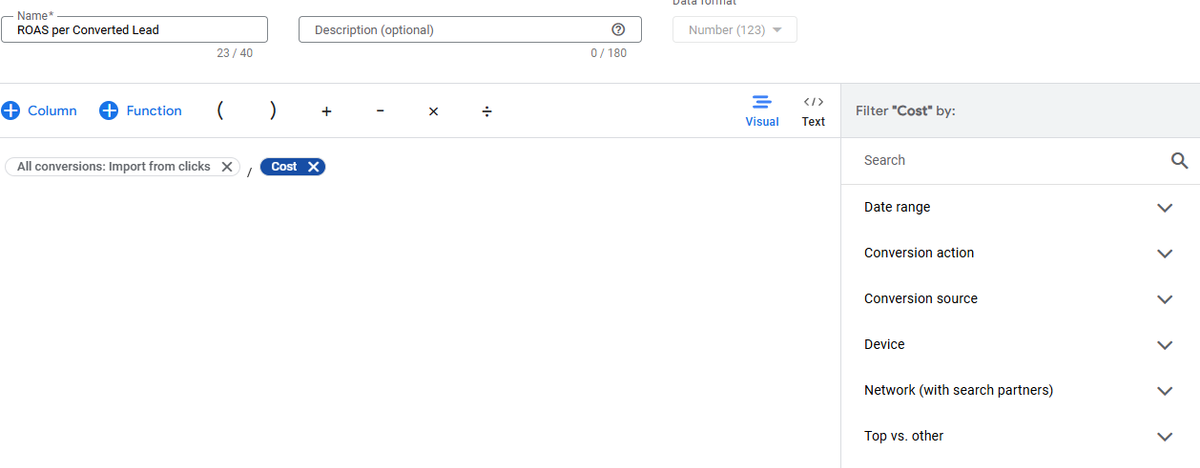
To calculate the ROAS for Converted Leads, divide the Conversion Value by the ad spent for Offline Conversions, or by the All Conversion Value of a specific conversion action (e.g., Converted Lead – Octanist or any other offline conversion).
As in the previous steps, you can further specify the data by Conversion Source (e.g., Import from Clicks) or by Conversion Action (e.g., Converted Lead – Octanist).
Example Calculation: ROAS for Converted Leads
Let’s say:
- Ad Spend = €1,500
- Conversion Value (Converted Lead – Octanist) = €4,500
Then the ROAS is:
€4,500 ÷ €1,500 = 3.0This means you earn €3 for every €1 spent on advertising — a ROAS of 3.0.
Final Words
With these Custom Columns, you gain valuable insights into how Octanist and/or Offline Conversion Tracking is performing within your campaigns. You’ll be able to see how much was spent on ads and how many clients or customers (Converted Leads) were generated as a result. If the outcome is positive, it allows you to demonstrate your true impact, whether to a client or your boss.Final tip:
When creating these custom columns, we’ve used both the Conversion Action (e.g., Converted Lead – Octanist) and the Conversion Source (e.g., Import from Clicks). We strongly recommend being consistent in your approach. Using Conversion Source for one column and Conversion Action for another will lead to inconsistent data.Why? Because Import from Clicks includes all imported conversions (e.g., Qualified Leads, Converted Leads, etc.), whereas filtering by Conversion Action isolates only one specific type of conversion, such as Converted Leads from Octanist.If you have any questions about Octanist or need help setting this up, feel free to reach out to us!