

How it works
- Submit a lead form on the website once.
- Octanist detects the form submission.
- Octanist uses AI to suggest the field mapping, or recommends denying the form when it does not look like a lead form.
- The form appears in Settings > Forms.
- You review the suggestion and adjust it if needed.
- You either activate the form or deny it.
- Active forms create future leads with attribution.
Submit an example form
Start by submitting the form that should create leads. This example is a lead form on the Octanist website that needs to be mapped.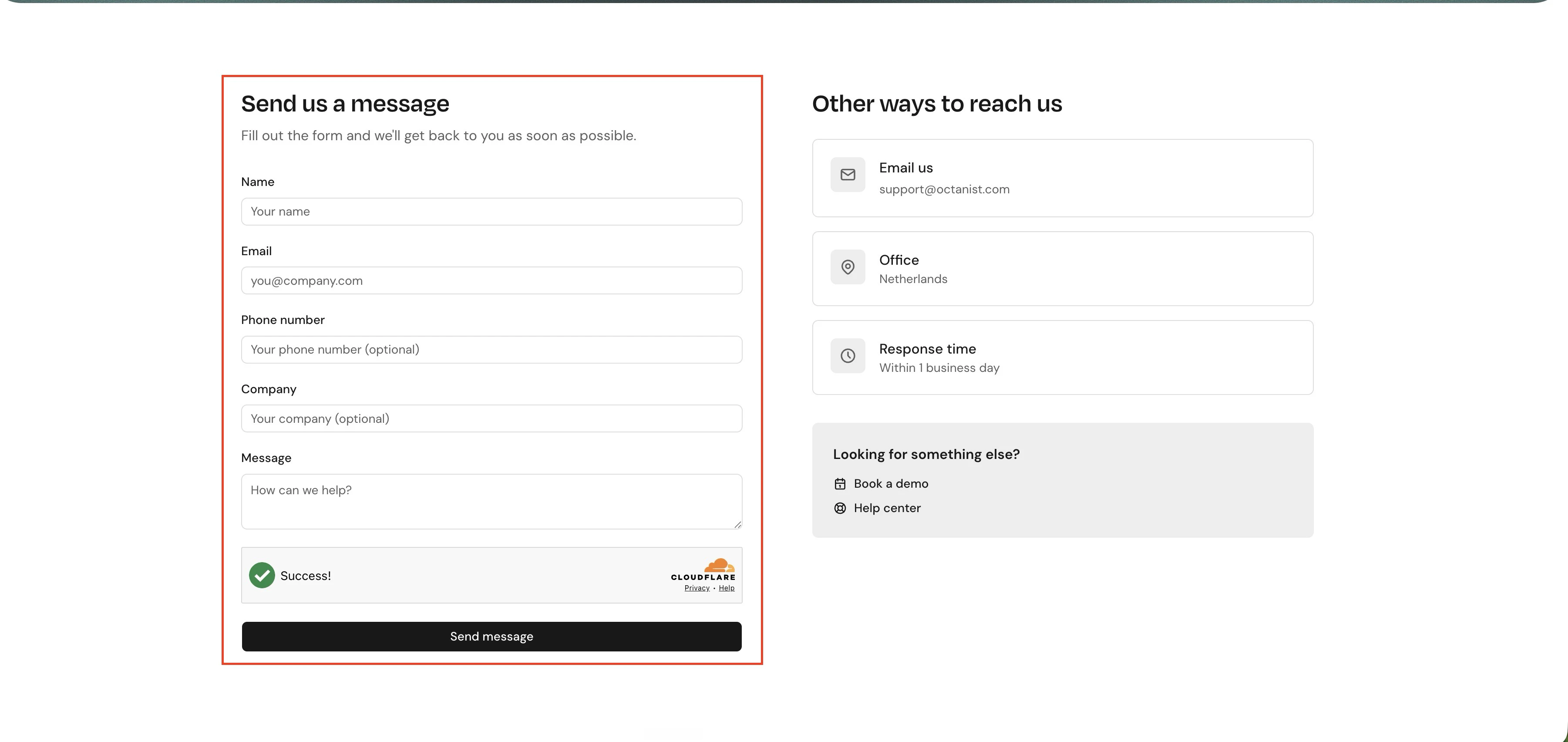
Open form mapping
- Open Octanist.
- Go to Settings > Forms.
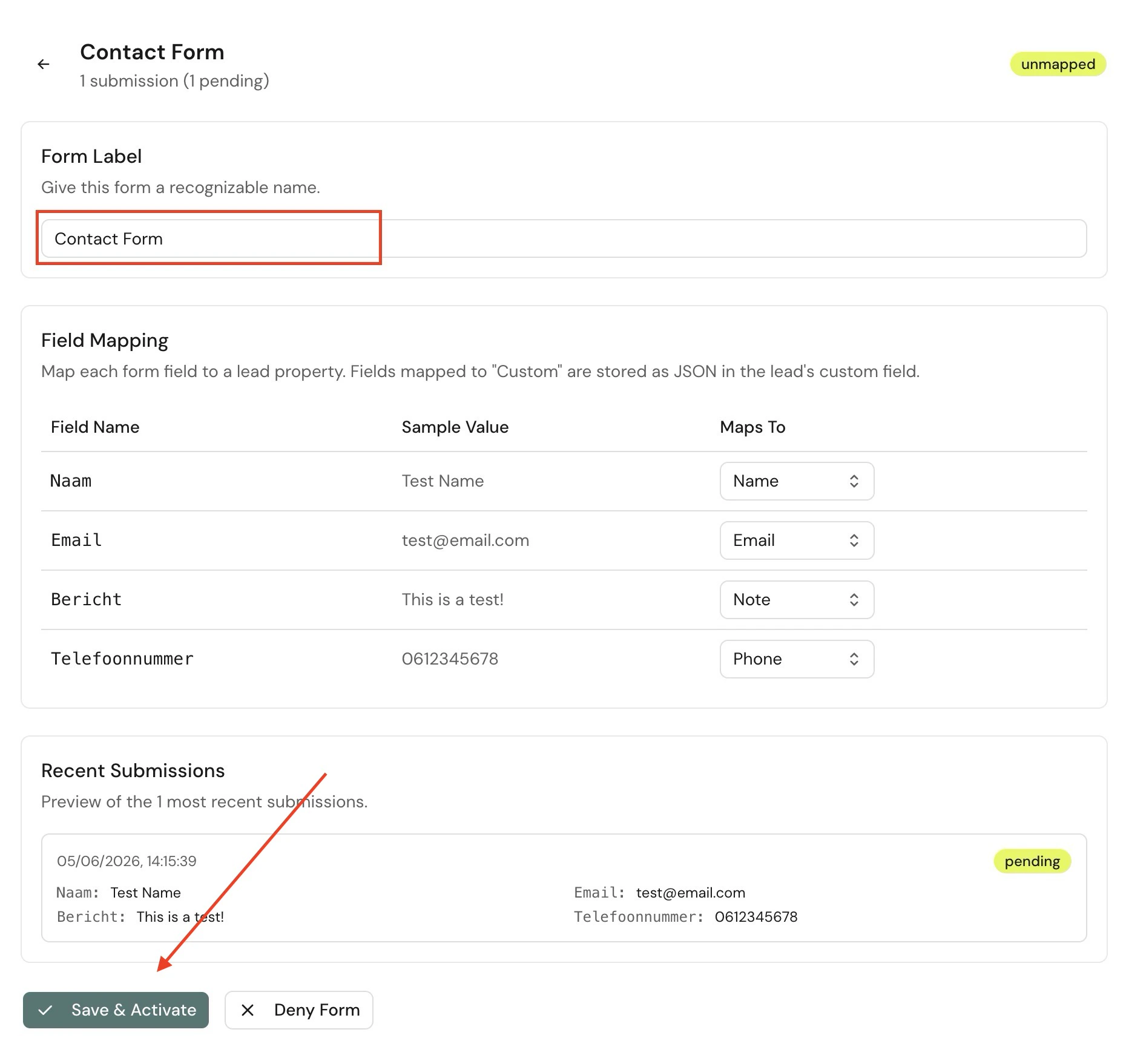
- Open a form marked Needs mapping.
- Review the suggested mapping and the sample fields.
Map fields
Octanist suggests a target for each detected field. Check the suggestion before saving. Each field can be mapped to one of these targets: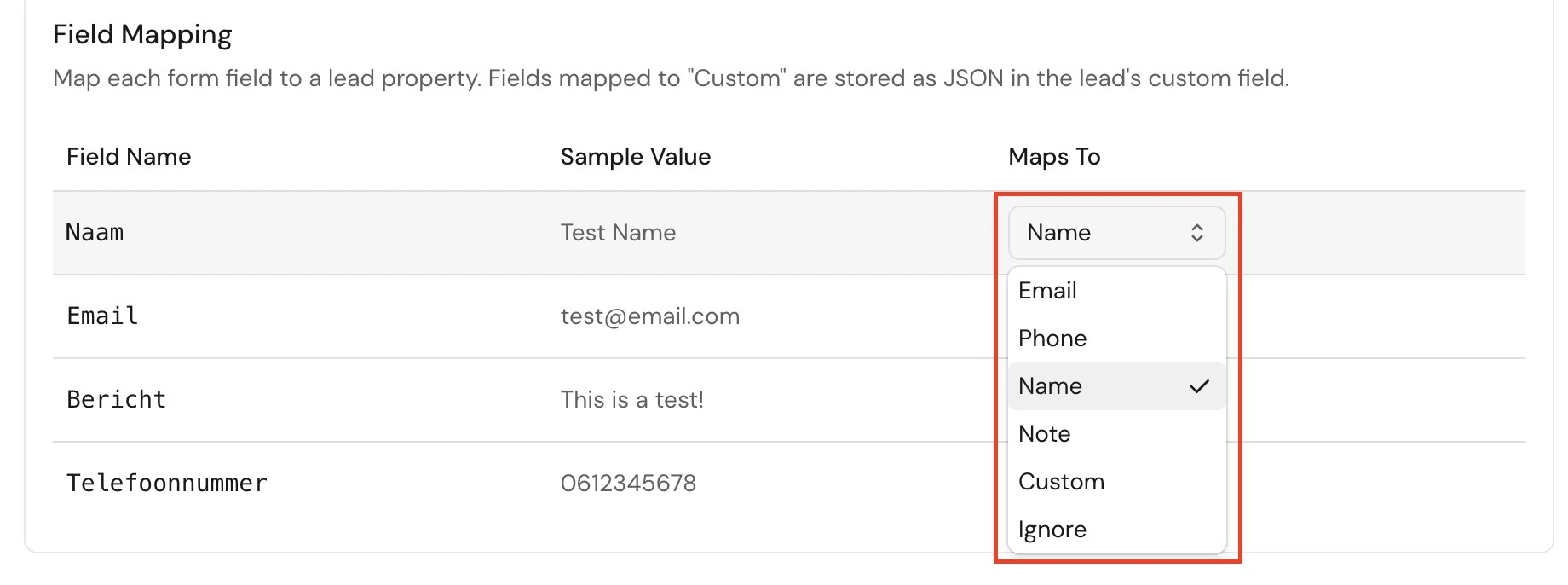
Save and activate
When the suggested mapping is correct:- Give the form a recognizable label.
- Click Save & Activate.
- If there are pending submissions, choose whether to convert them using the new mapping.
Ignore a form
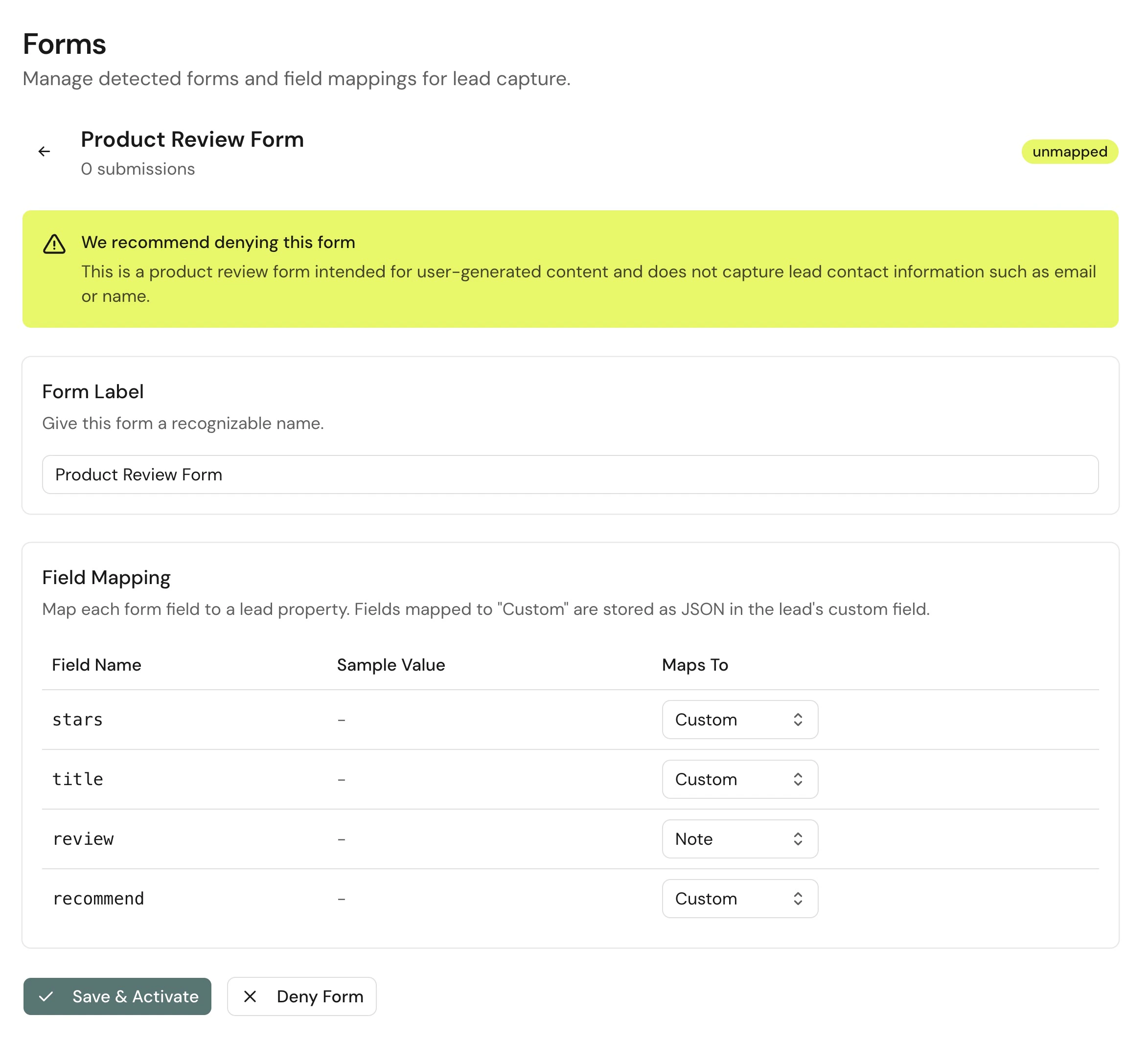
Use Deny Form when Octanist recommends denying a form, or when you decide that a detected form should never create leads. Examples:- Search forms
- Login forms
- Newsletter forms that should not enter the lead workflow
- Internal or test forms
Ignore forms by pattern
Some sites create a new form identifier for every cart, order or product, for exampleviews-form-commerce-cart-form-default-46296. Instead of denying each one, ignore them by pattern:
- Open Settings > Forms.
- Enter a pattern in Ignore by pattern, for example
views-form-commerce-cart-form-*.*matches any text. A pattern without*matches identifiers that start with it. - Keep Also ignore new matching forms checked to save the pattern as an ignore rule.
- Click Ignore matching.
Webshop forms
Octanist ignores common webshop forms automatically:
These rules keep a submission when it contains an email address, phone number or name, and they only apply to forms that are not in the list yet. Checkout forms are not ignored, because a checkout can be your quote request. Turn this off with Ignore webshop forms automatically under Ignore rules.
Troubleshooting
A form does not appear
A form does not appear
- Confirm the pixel is installed on the page.
- Confirm form capture is enabled for the setup you use.
- If the form is on a checkout, cart, basket, or payment page, confirm
data-checkout="true"is set on the pixel. See Checkout pages. - Submit the form once with test data.
- Check the Octanist Debugger Forms tab.
A lead has missing fields
A lead has missing fields
- Open Settings > Forms.
- Check whether the form is mapped.
- Confirm the missing field is mapped to External lead ID, Email, Phone, Name, Note, or Custom.
- Submit a new test form after saving changes.
Wrong forms are detected
Wrong forms are detected
- Open the detected form.
- Use Deny Form for forms that should not create leads.
- Search, login, and account forms should usually be ignored.
- Checkout, cart, basket, and payment forms are skipped by the pixel unless
data-checkout="true"is set. If a checkout form is still detected, deny it unless it should create leads. See Checkout pages. - When many forms differ only by a number, ignore them by pattern.