

Get your pixel script
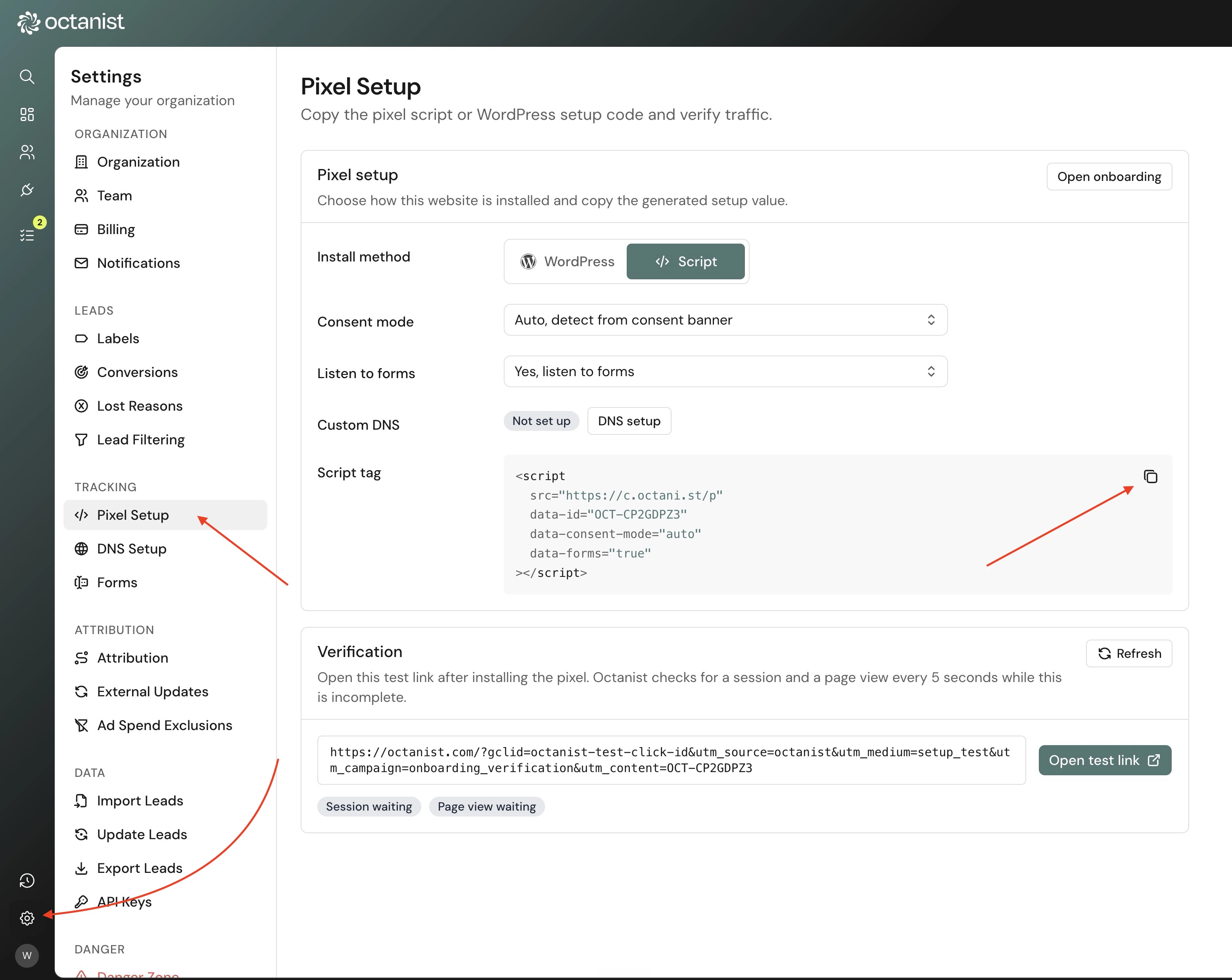
- Open Octanist.
- Go to Settings > Tracking.
- Copy the pixel script.
data-checkout="true". See Checkout pages.
Create a GTM tag
- Open Google Tag Manager.
- Open your website container.
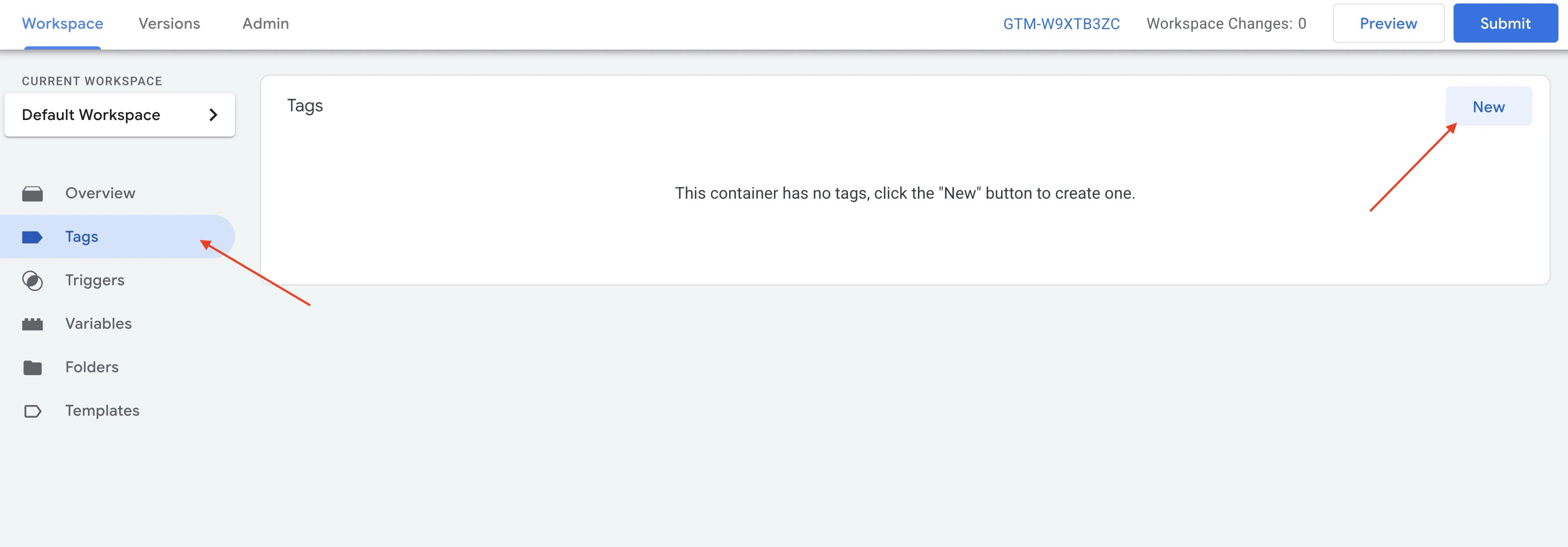
- Go to Tags.
- Click New.
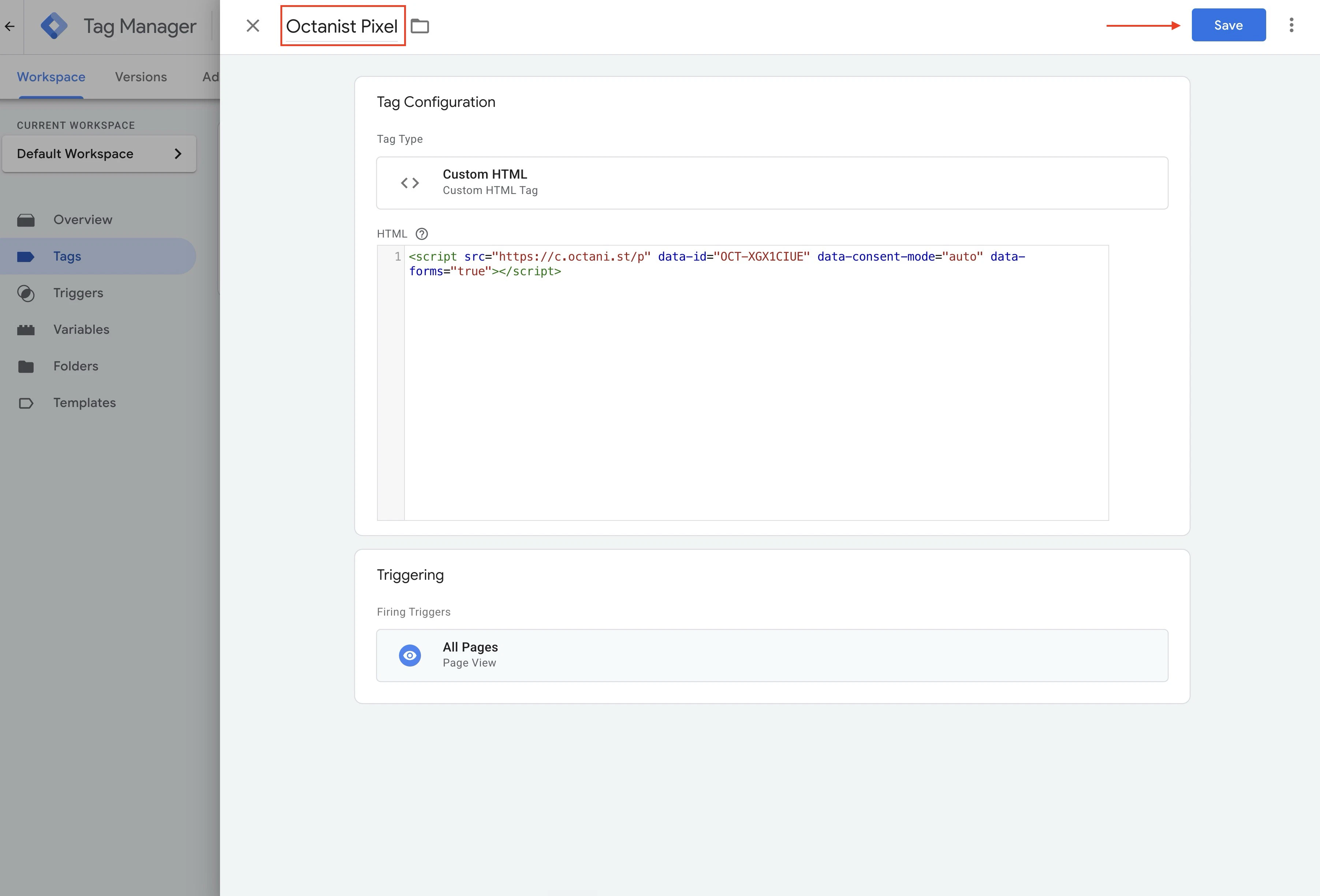
- Name the tag Octanist Pixel.
- Choose Tag Configuration > Custom HTML.
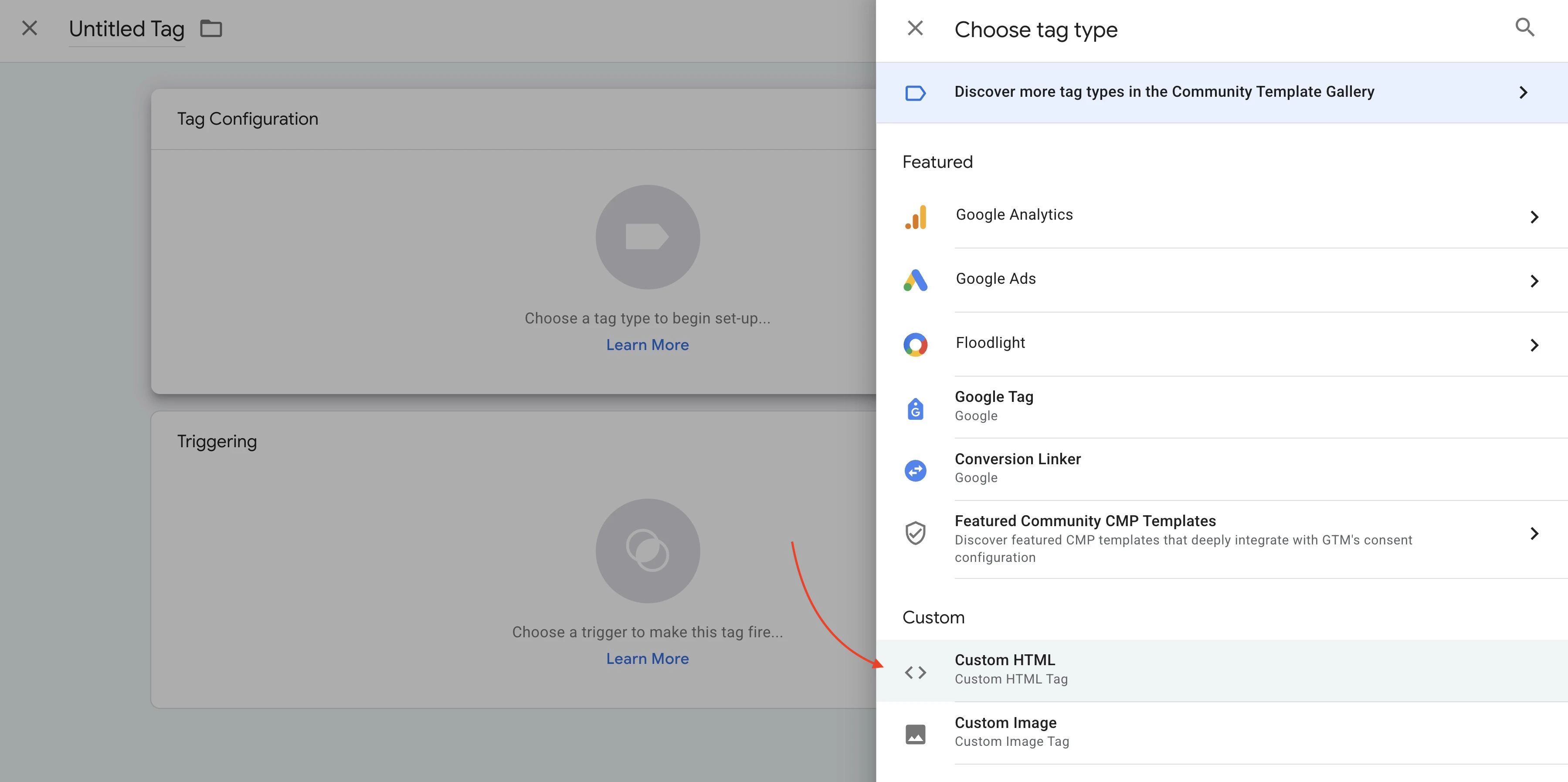
- Paste the pixel script from Octanist.
- Set the trigger to All Pages.
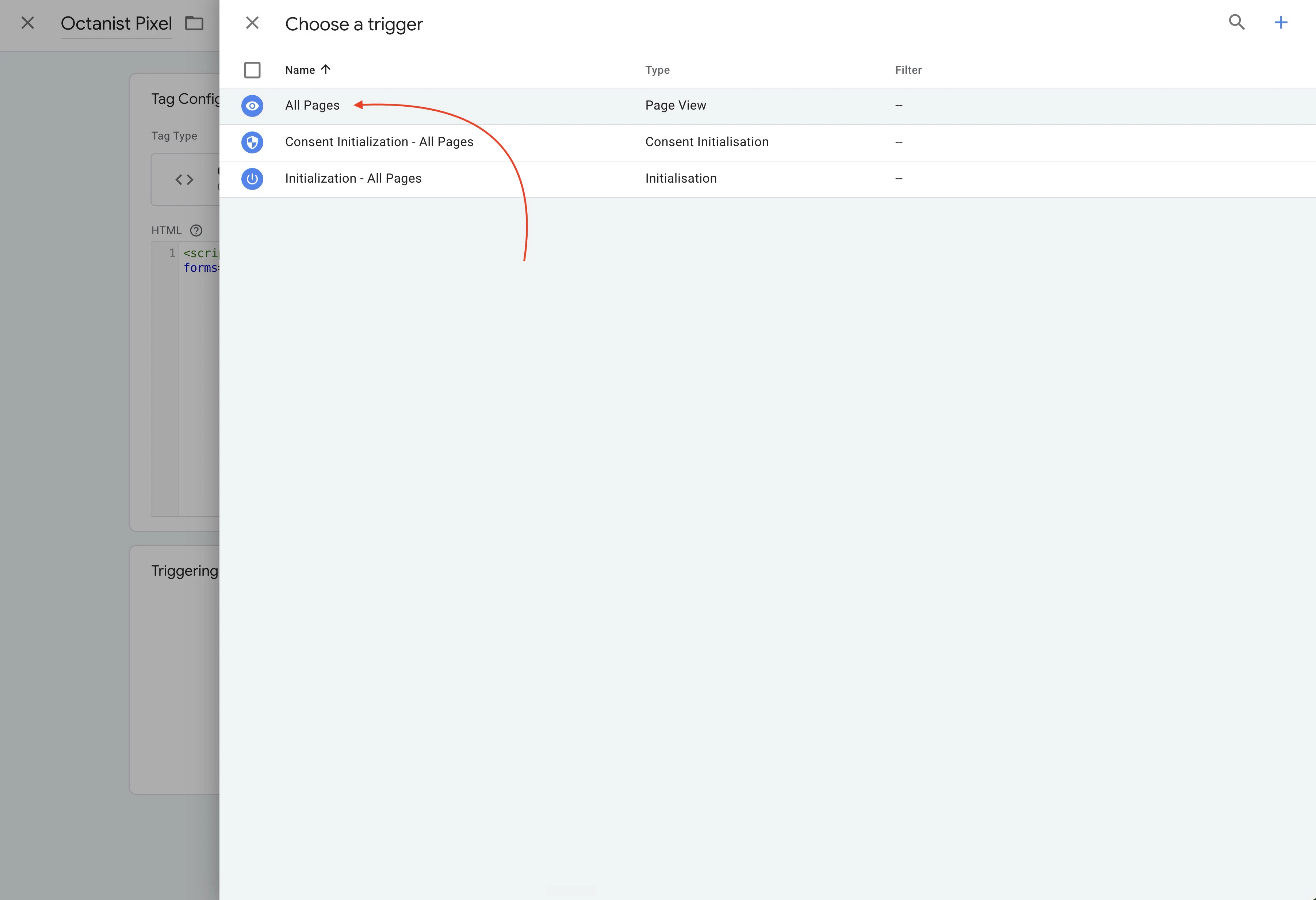
- Save the tag.
Publish and test
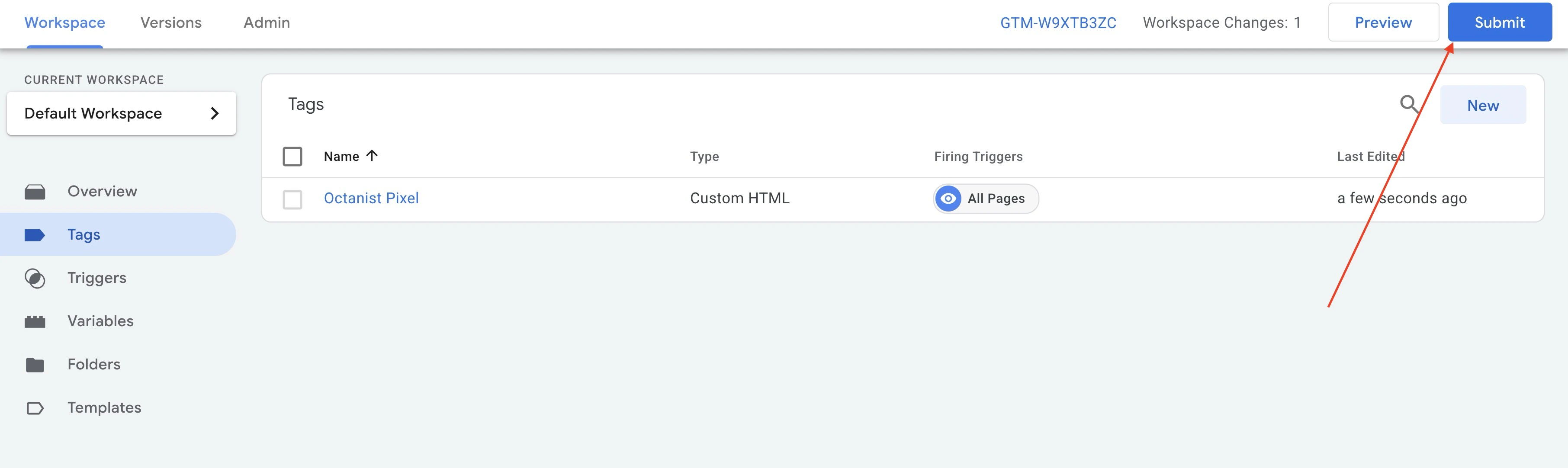
- Click Preview in GTM.
- Enter your website URL and connect Tag Assistant.
- Confirm the Octanist Pixel tag fires on the page.
- Submit a test form if
data-forms="true"is enabled. - Publish the GTM container.
- Open Octanist and verify the setup status or test lead.
Avoid duplicate form captures
If another Octanist integration already sends the same form submissions, removedata-forms="true" from the pixel script before adding it to GTM.
Use only one form capture method per form:
- Browser-side pixel form detection through
data-forms="true" - Server-side form capture through your backend
- WordPress server-side capture through the Octanist plugin
- GTM DataLayer lead sending
data-forms="true", so server-side form capture can link form submissions to the same session.
If you only need to exclude one specific form, add data-octa-ignore to that form instead of removing data-forms="true" from the site-wide pixel:
data-forms="true" is present. Add data-checkout="true" only when a form on those pages should become a lead. Payment card fields are still ignored. See Checkout pages.
Custom JavaScript forms
If your website needs to send a form submission from custom JavaScript, use the Client-side API. Mark that form withdata-octa-ignore so automatic browser capture does not also send it.