

Odoo sends the pipeline stage as a numeric
stage_id. You will need to copy
the Odoo stage IDs for the stages you want to map.Table of Contents
- Create the Integration in Octanist
- Enable Developer Mode in Odoo
- Find Your Odoo Stage IDs
- Create the Odoo Automation Rule
- Complete the Setup in Octanist
- Test the Integration
1. Create the Integration in Octanist
- Go to Octanist and navigate to Integrations > Updating > Add New.
- Choose Odoo CRM.
- Copy the Webhook URL from the first setup step.
2. Enable Developer Mode in Odoo
- Log in to Odoo.
- Open CRM.
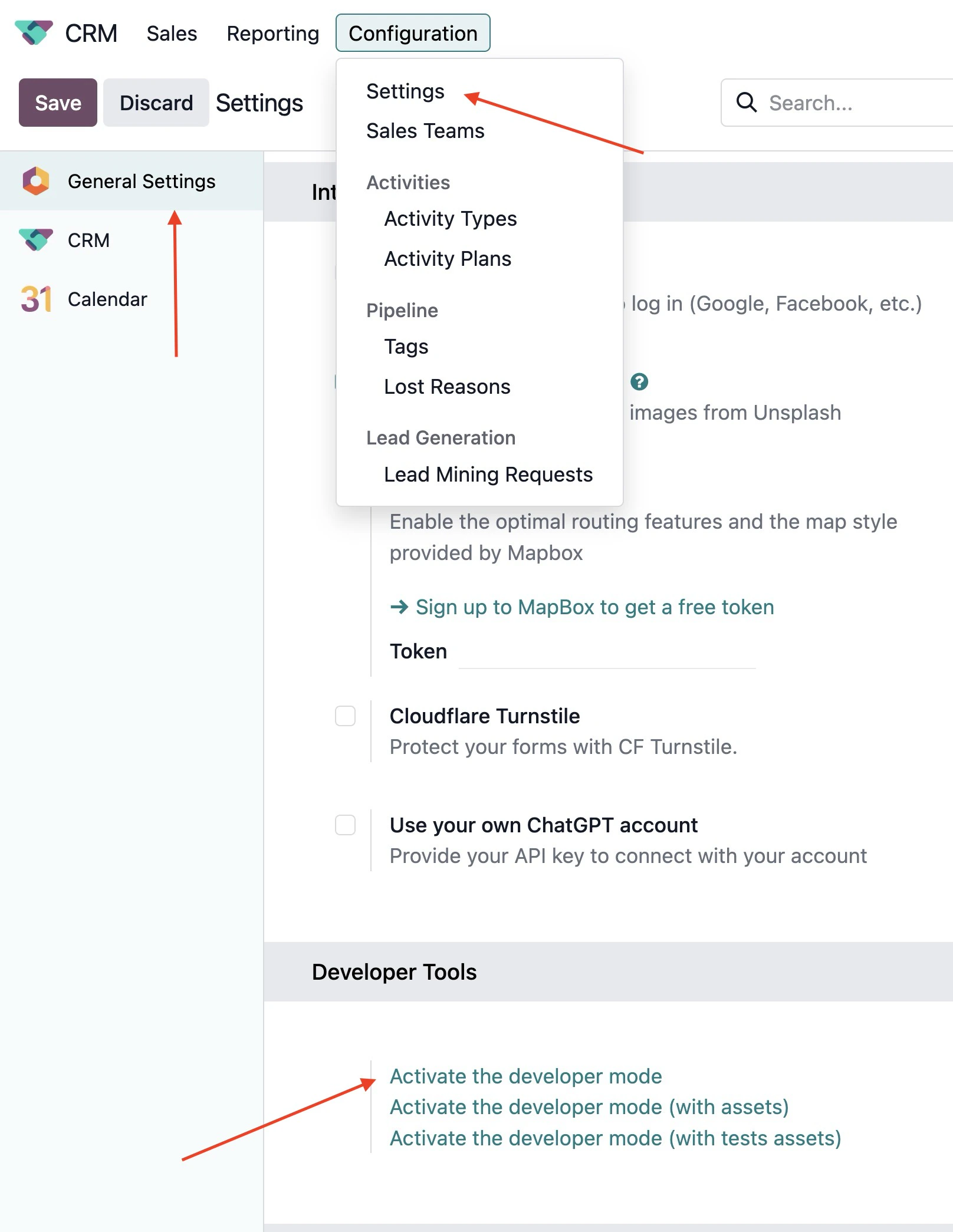
- Go to Configuration > Settings.
- In the left sidebar, click General Settings.
- Scroll to Developer Tools and click Activate the developer mode.
3. Find Your Odoo Stage IDs
Octanist maps Odoostage_id values to lead statuses. You need the stage ID for:
- The stage that should mark a lead as Qualified
- The stage that should mark a lead as Won
- Optional: the stage that should mark a lead as Lost
A lost stage is optional. When an Odoo opportunity is marked as lost, Odoo
sends
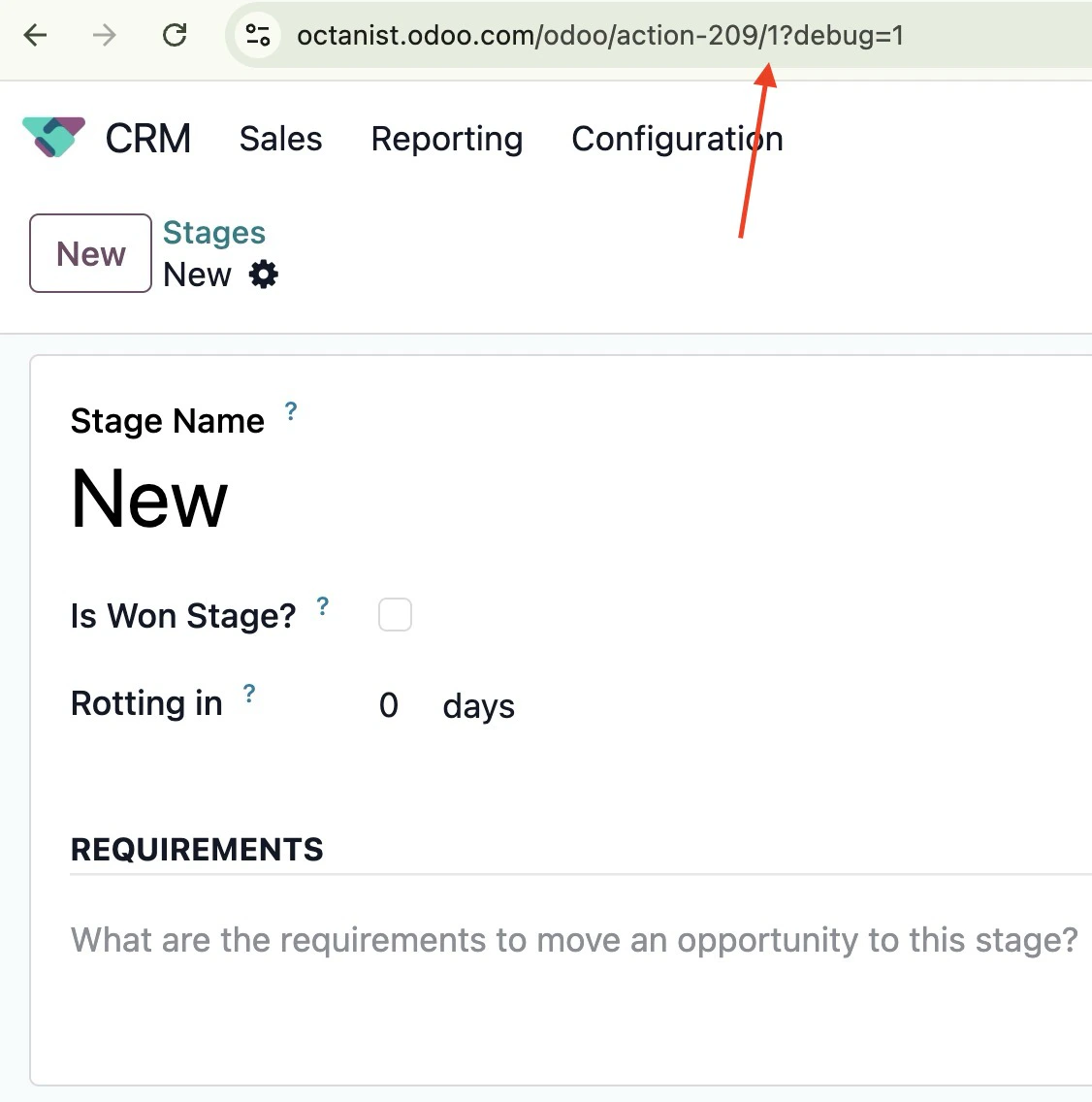
active: false, and Octanist can use that to mark the lead as lost.- In Odoo CRM, go to Configuration > Stages.

- Open the stage you want to map.
- Look at the URL in your browser.
- Copy the stage record ID from the URL.
4. Create the Odoo Automation Rule
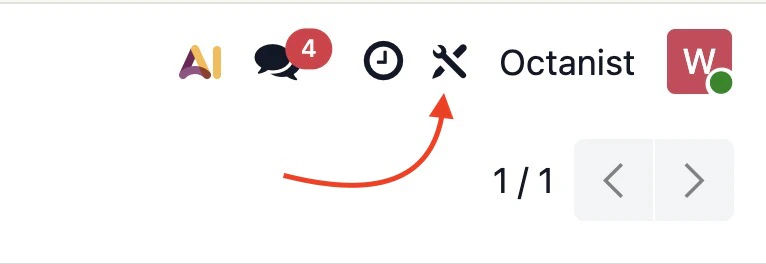
- In Odoo CRM, click the Studio button in the top bar.
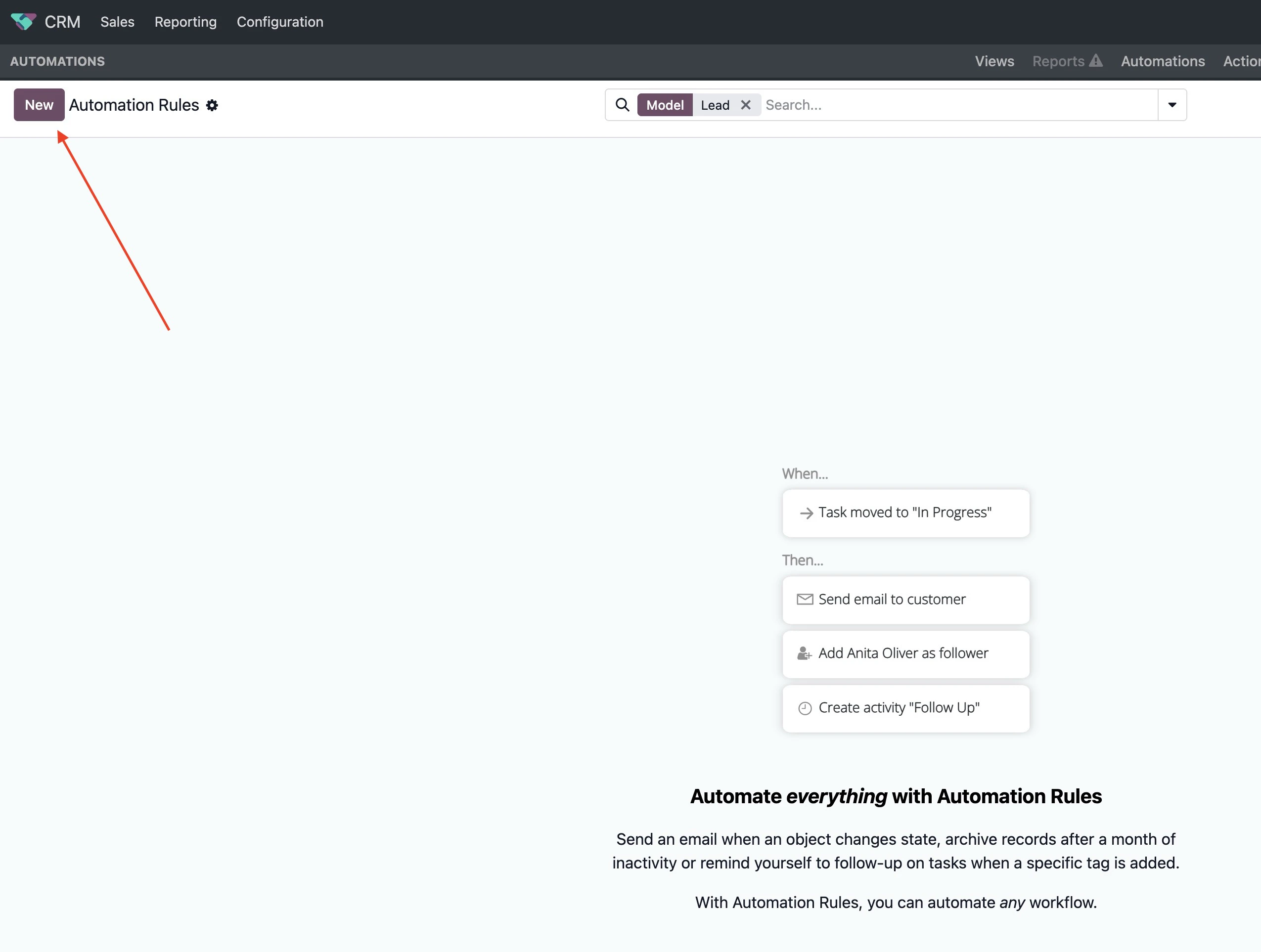
- In Odoo Studio, open the Automations tab.

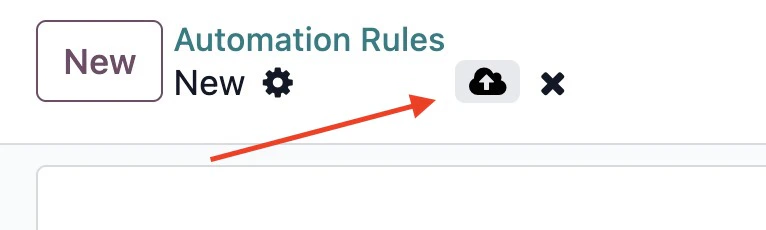
- Click New.
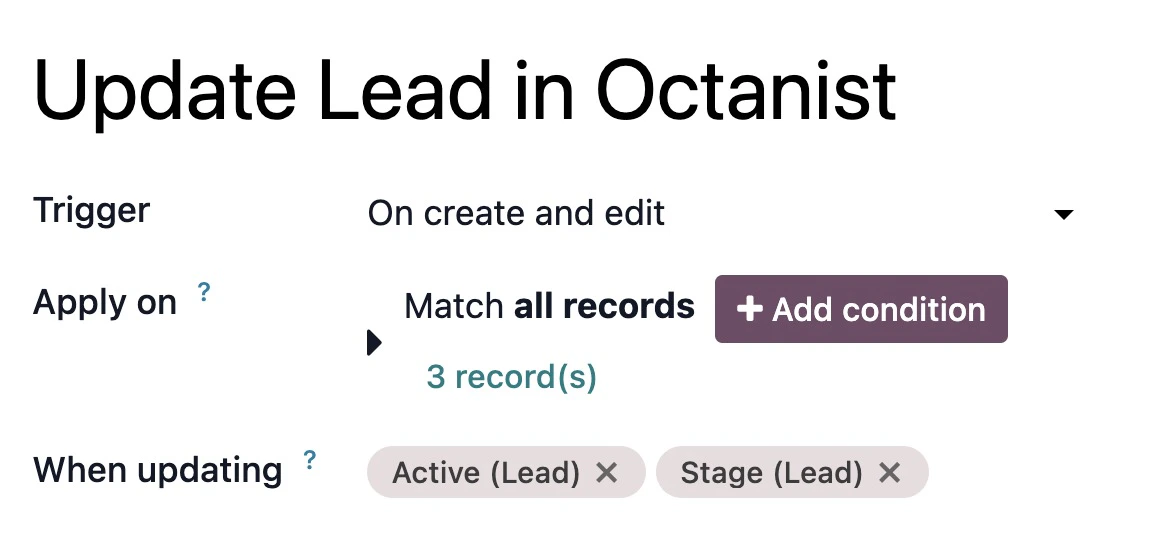
- Configure the automation rule:
- Name:
Update Lead in Octanist - Trigger:
On create and edit - Apply on:
Match all records - When updating: add
Active (Lead)andStage (Lead)
- Add an action and choose Send Webhook Notification.
- Configure the webhook action:
- Name:
Send Lead to Octanist - Type:
Send Webhook Notification - URL: paste the full webhook URL from Octanist
- Fields:
Active (Lead)Email (Lead)Expected Revenue (Lead)Phone (Lead)Stage (Lead)
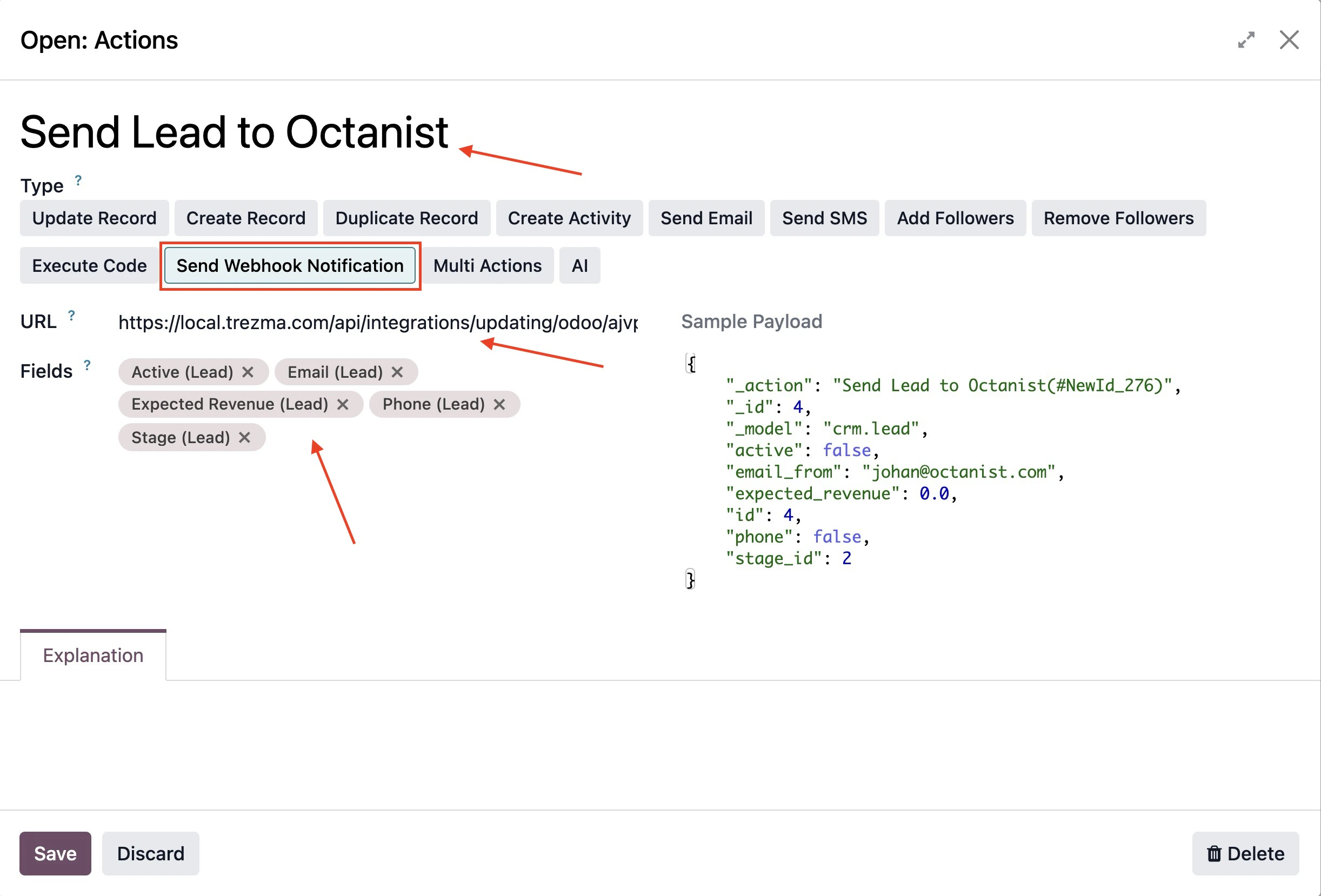
- Click Save.
5. Complete the Setup in Octanist
Return to the Odoo setup flow in Octanist.- Paste the Odoo stage IDs:
- Qualified Stage ID
- Won Stage ID
- Optional: Lost Stage ID
- Set fallback values:
- Qualified Lead Value
- Won Lead Value
- Give the integration a clear name.
- Complete the setup.
If Odoo sends expected revenue as
0, null, or does not send it at all,
Octanist uses the fallback value you configured.6. Test the Integration
Create or update a test opportunity in Odoo.- Move the opportunity to the stage mapped as Qualified.
- Move the opportunity to the stage mapped as Won.
- Mark the opportunity as Lost in Odoo.
Odoo webhook receivedLead updated via odoo- Or a skipped activity explaining why the update was not applied