

Table of Contents
- Set Up the Import
- Upload Leads with the CSV Template
- Map the Fields
- Preview the Import
- Import the Leads
1. Set Up the Import
Within Octanist, navigate to Settings > Import Leads.- Download the template for importing leads.
- Follow the requirements for setting up the manual import.
Date and Time Formats
Important:Use one of the following date and time formats in your CSV or Excel file. If a different format is used, the import will fail.
Note: Consistency in date formats across your file is crucial for accurate importing.
Additional Requirements
- Missing data: Leave fields empty for missing values, do not use placeholders like ”-” or “0.”
- External lead ID: Map customer-owned identifiers such as order, quotation, application, opportunity, or CRM lead IDs to External lead ID. Values are trimmed, can contain up to 255 characters, and must be unique within your organization.
- Review your file against these requirements to ensure a smooth import process.
2. Upload Leads with the CSV Template (Recommended)
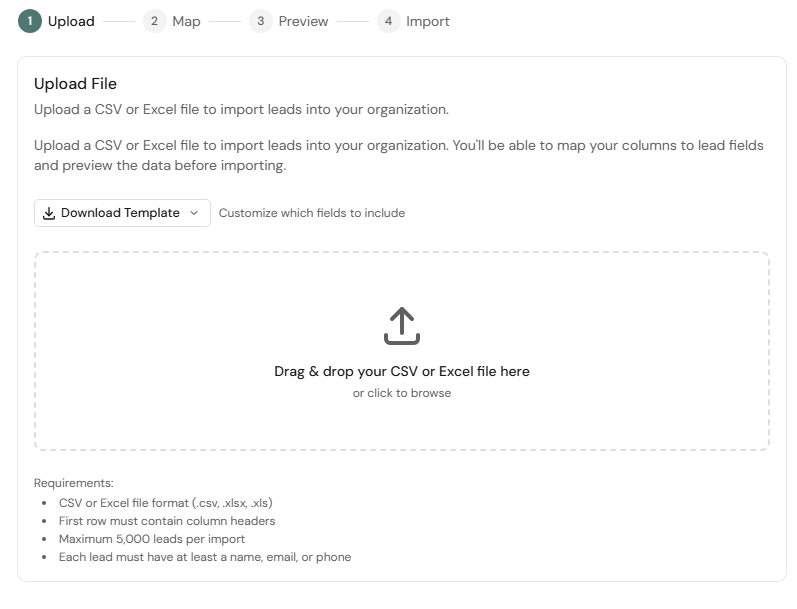
To minimise errors, download our CSV template.- Open the template in your preferred editor.
- Paste your leads and fill in the required fields.
- Save your file when ready.
- Upload the file using the upload field.
3. Map the Fields
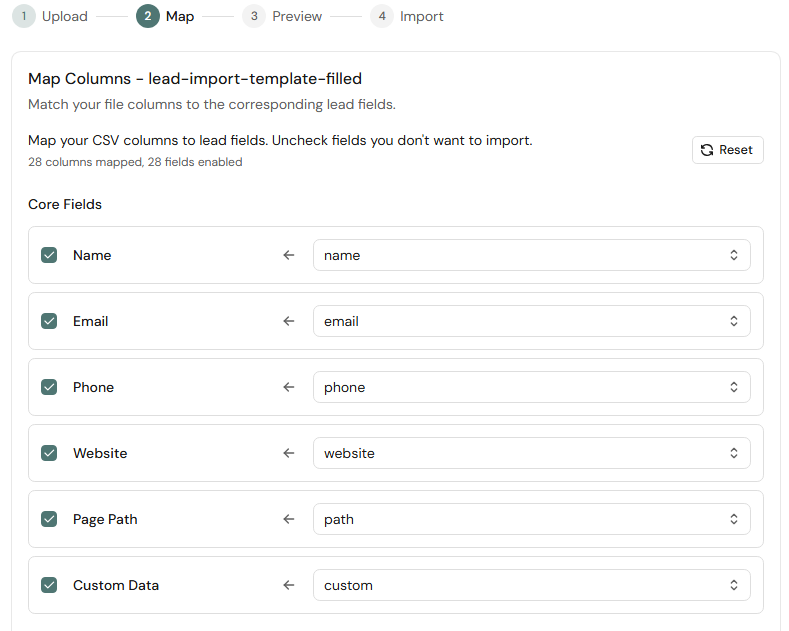
- Once uploaded, check that the field names match the column names in your CSV.
- For example, make sure the “Email” field in Octanist matches the column name from your CSV.
- Map a stable customer-owned identifier to External lead ID when one is available.
- If you used the template, this should already be done for you.
- Once done, scroll down and click Preview.
4. Preview the Import
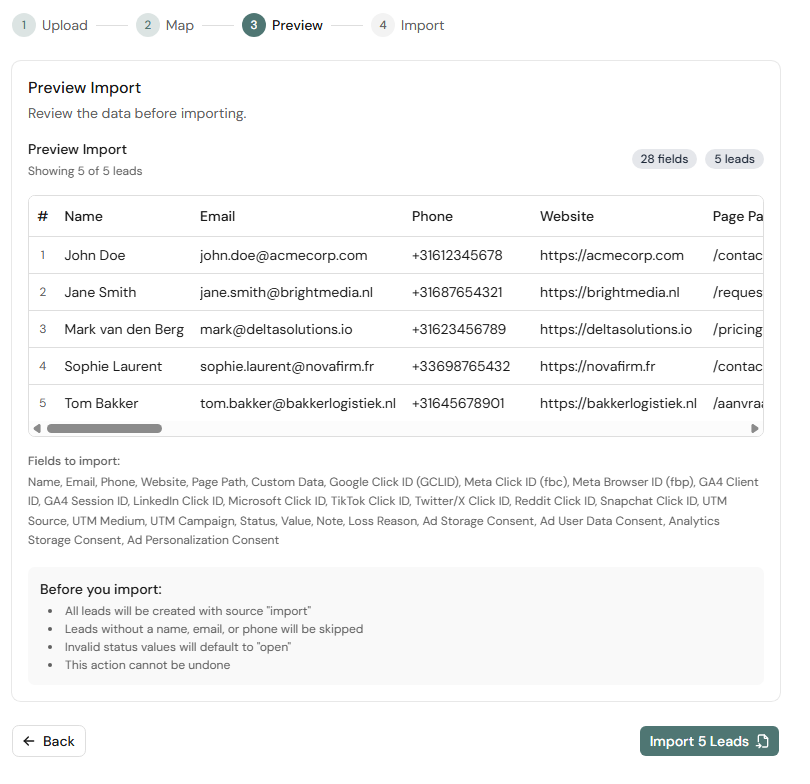
- In the preview section, verify that the columns and values are correct.
- For example, if your file uses “Converted Leads,” you can map it to “Won Leads” (the term used by Octanist).
- Make sure that email addresses are under the Email column.
- Once verified, click the Import button in the bottom right.
5. Import the Leads
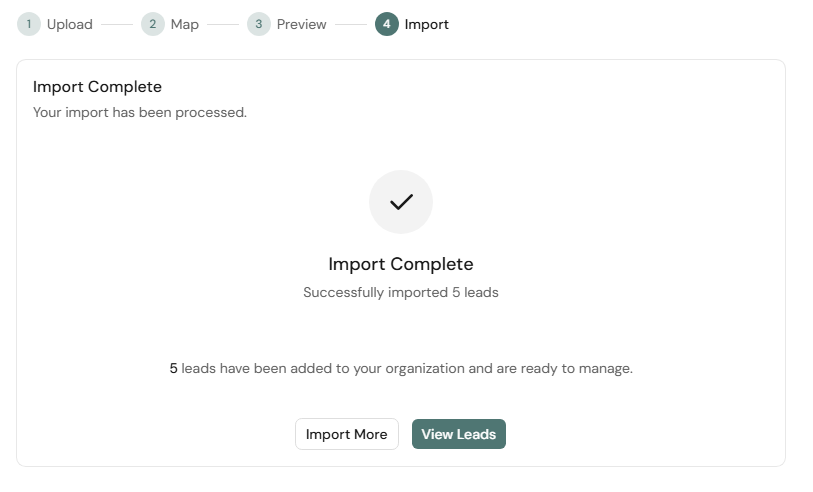
- If leads are successfully imported, you will see the following screen.
- You can then choose to either:
- Import more leads
- View all your leads
Troubleshooting
If errors occur:- Check that the date format matches one of the accepted formats.
- Check that external lead IDs are not repeated in the file or already used by another lead in the same organization.
- Contact support@octanist.com for assistance.