Table of Contents

  1. BigQuery Setup
    1.1 Project and Billing
    1.2 Enabling APIs and Permissions
    1.3 Creating a Dataset and Table
    1.4 Schema and Table Expiration
  2. Octanist Setup

1. BigQuery Setup

1.1 Project and Billing

Before setting up Google BigQuery for Octanist, you need a BigQuery environment with billing enabled. Don’t worry, the cost is typically between €0–€1 per month for storing data.
  1. Go to Google BigQuery.
  2. Sign in with the Google account you want to associate with the BigQuery environment. We recommend using a client-owned account or one that the client can always access.
  3. Create or select a project. Use a clear and concise name, you cannot change it later.
  4. Select the appropriate organisation (usually your business or your client’s), then click Create.
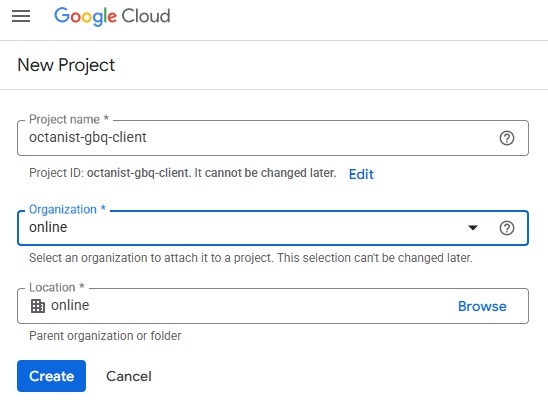
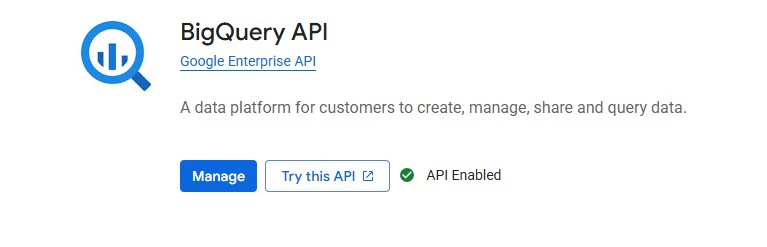
Create BigQuery Project Search for Billing and open it. You must set up a billing account to enable and use the APIs required by Google BigQuery. Next, search for BigQuery API, open it, and click Enable. A green checkmark will confirm activation. Enable BigQuery API

1.2 Enabling APIs and Permissions

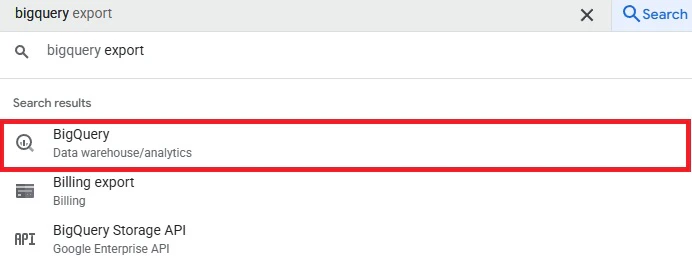
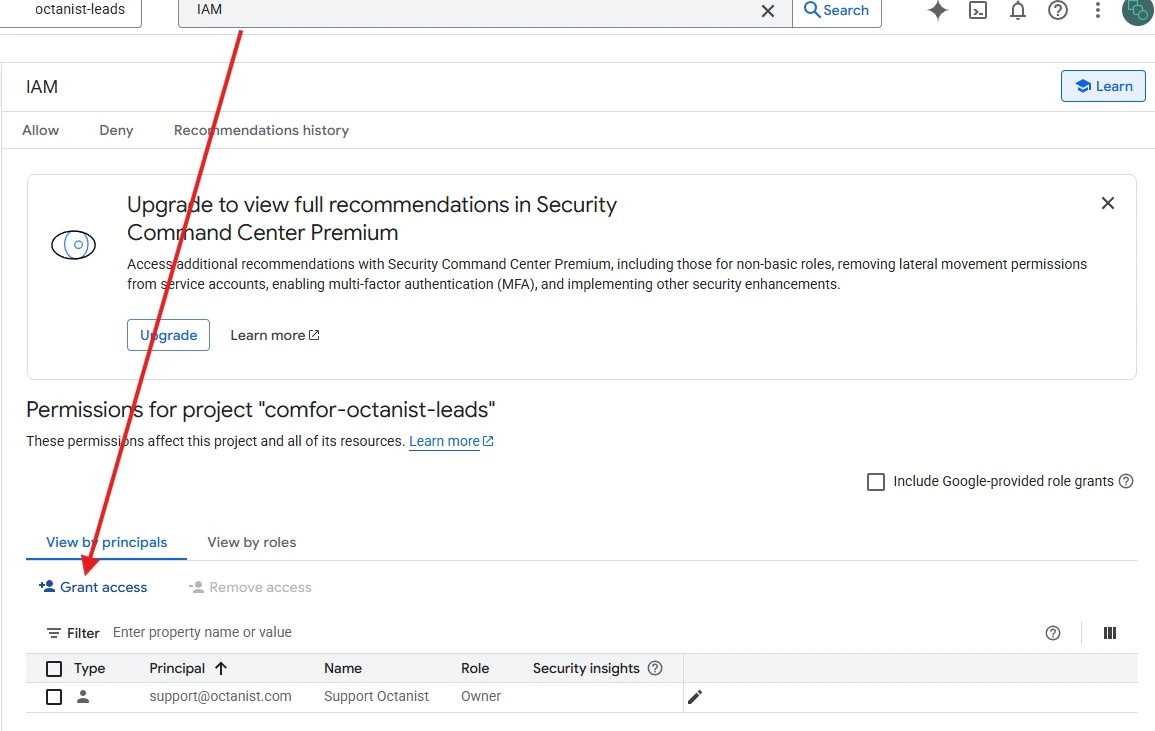
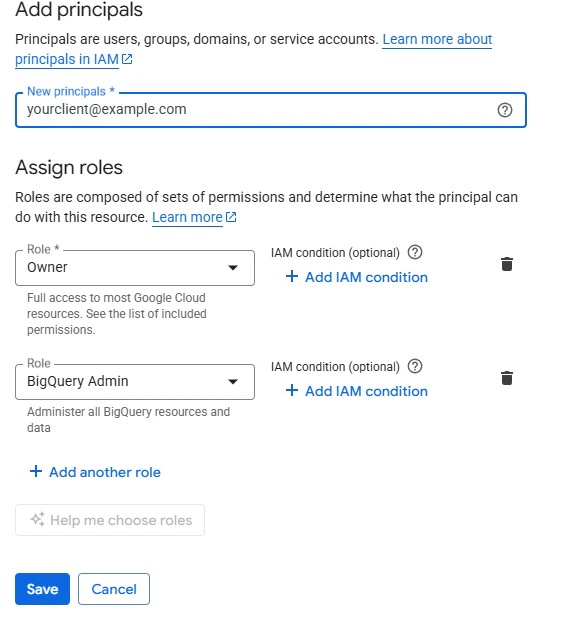
Now, search for IAM & Admin and click Grant Access. Grant Access Add relevant users (e.g., your team, your agency’s email, your client). Assign the Owner or BigQuery Admin role so they can manage the lead data and perform analysis. Add Roles Return to the search bar, search for BigQuery, and click it to open BigQuery Studio. Open BigQuery Studio
1.3 Creating a Dataset and Table

  1. In BigQuery Studio, click the three dots next to your project name and select Create dataset.
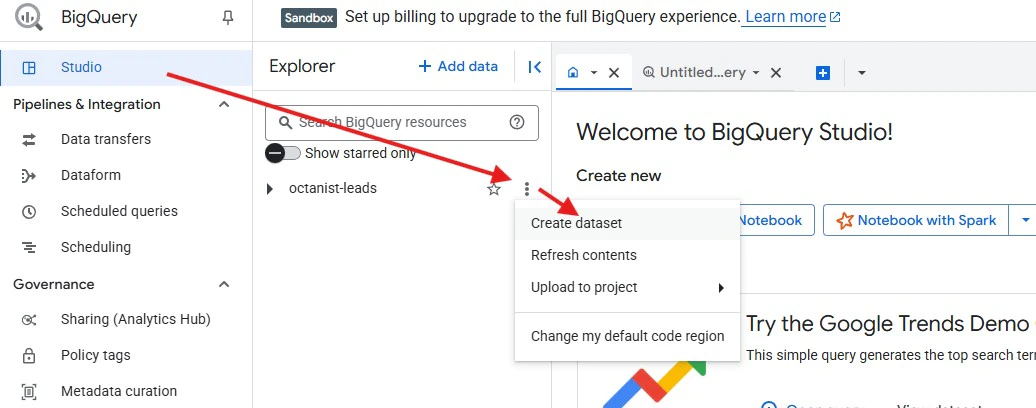
Create Dataset
  1. Enter a Dataset ID (e.g., octanist_dataset). This cannot be changed later.
  2. Choose a Region close to your business (e.g., a region containing “europe” or the “EU” multi-region).
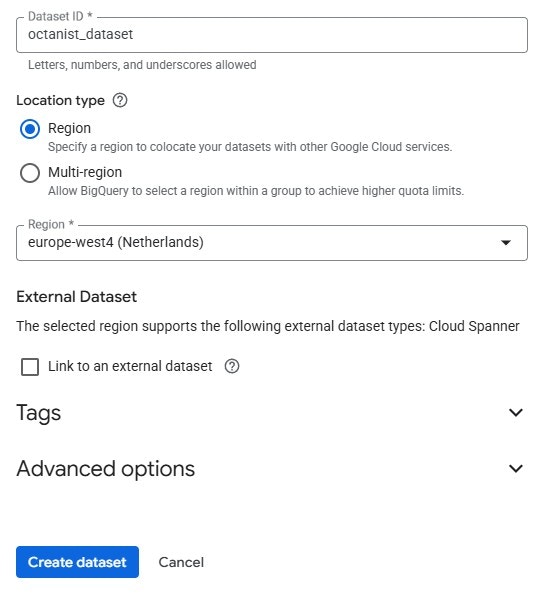
Dataset ID and Region Once the dataset is created:
  1. Click the three dots next to the dataset name and choose Create table.
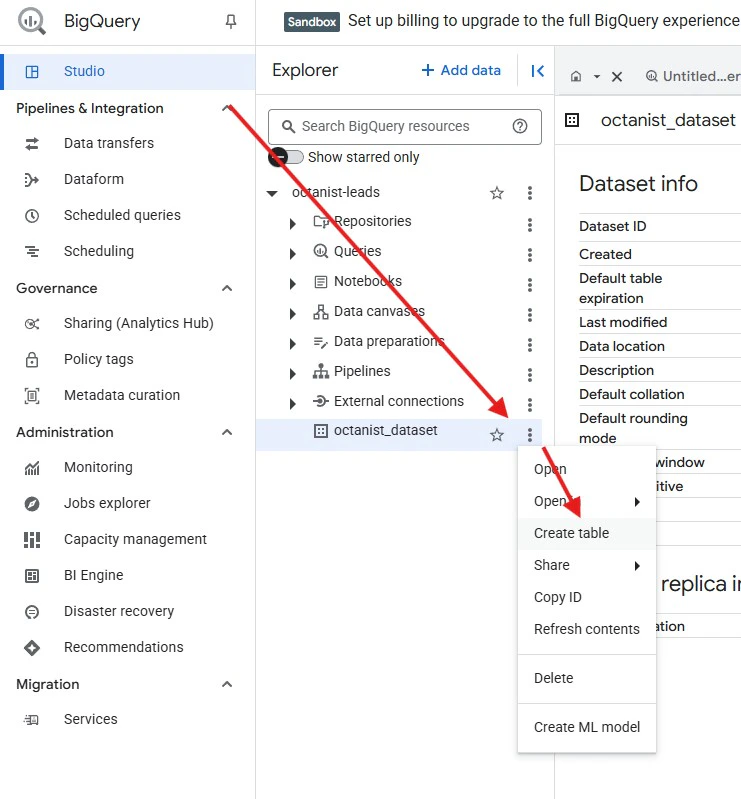
Create Table
  1. In the Create Table menu:
    • Select Empty table.
    • Ensure the project and dataset are filled in correctly.
    • Enter a Table Name (e.g., export_bigquery_integration or exported_leads_octanist).
  2. Scroll down to Partitioning Settings:
    • Set Partition by ingestion time.
    • Choose By day.
    This keeps the dataset manageable and cost-efficient.
  3. Scroll up to Schema, switch to Edit as text, and paste the schema below:
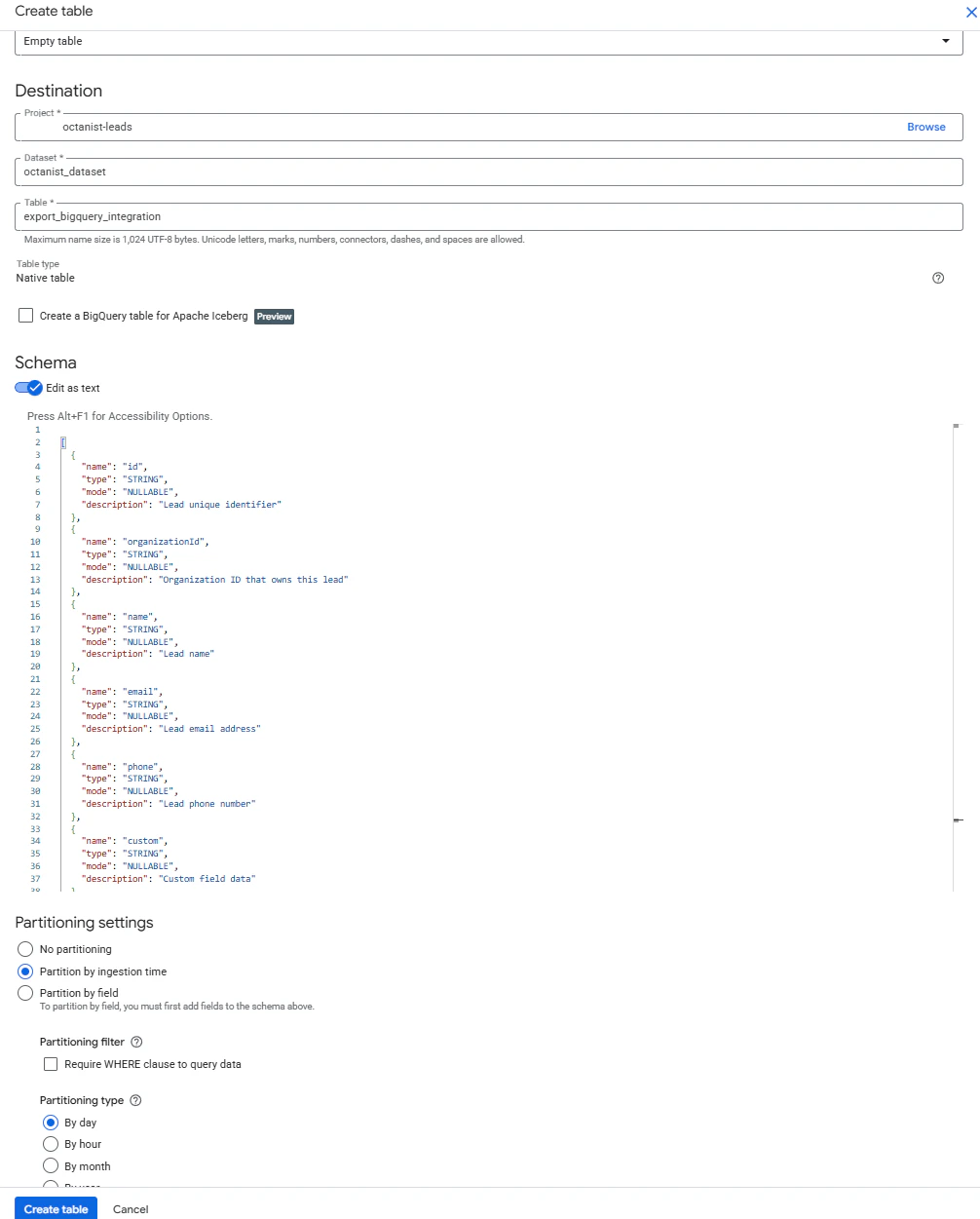
[
  {
    "name": "id",
    "type": "STRING",
    "mode": "NULLABLE",
    "description": "Lead unique identifier"
  },
  {
    "name": "organizationId",
    "type": "STRING",
    "mode": "NULLABLE",
    "description": "Organization ID that owns this lead"
  },
  {
    "name": "name",
    "type": "STRING",
    "mode": "NULLABLE",
    "description": "Lead name"
  },
  {
    "name": "email",
    "type": "STRING",
    "mode": "NULLABLE",
    "description": "Lead email address"
  },
  {
    "name": "phone",
    "type": "STRING",
    "mode": "NULLABLE",
    "description": "Lead phone number"
  },
  {
    "name": "custom",
    "type": "STRING",
    "mode": "NULLABLE",
    "description": "Custom field data"
  },
  {
    "name": "gclid",
    "type": "STRING",
    "mode": "NULLABLE",
    "description": "Google Click ID"
  },
  {
    "name": "fbc",
    "type": "STRING",
    "mode": "NULLABLE",
    "description": "Facebook Click ID"
  },
  {
    "name": "fbp",
    "type": "STRING",
    "mode": "NULLABLE",
    "description": "Facebook Browser ID"
  },
  {
    "name": "ga4cid",
    "type": "STRING",
    "mode": "NULLABLE",
    "description": "Google Analytics 4 Client ID"
  },
  {
    "name": "ga4sid",
    "type": "STRING",
    "mode": "NULLABLE",
    "description": "Google Analytics 4 Session ID"
  },
  {
    "name": "li_fat_id",
    "type": "STRING",
    "mode": "NULLABLE",
    "description": "LinkedIn First Party Ad Tracking ID"
  },
  {
    "name": "msclkid",
    "type": "STRING",
    "mode": "NULLABLE",
    "description": "Microsoft Click ID"
  },
  {
    "name": "path",
    "type": "STRING",
    "mode": "NULLABLE",
    "description": "Website path where lead was generated"
  },
  {
    "name": "website",
    "type": "STRING",
    "mode": "NULLABLE",
    "description": "Website domain"
  },
  {
    "name": "ad_storage",
    "type": "BOOLEAN",
    "mode": "NULLABLE",
    "description": "Google Consent Mode - Ad Storage"
  },
  {
    "name": "ad_user_data",
    "type": "BOOLEAN",
    "mode": "NULLABLE",
    "description": "Google Consent Mode - Ad User Data"
  },
  {
    "name": "ad_personalization",
    "type": "BOOLEAN",
    "mode": "NULLABLE",
    "description": "Google Consent Mode - Ad Personalization"
  },
  {
    "name": "analytics_storage",
    "type": "BOOLEAN",
    "mode": "NULLABLE",
    "description": "Google Consent Mode - Analytics Storage"
  },
  {
    "name": "status",
    "type": "STRING",
    "mode": "NULLABLE",
    "description": "Lead status: new, open, win, lost, expired, archived"
  },
  {
    "name": "note",
    "type": "STRING",
    "mode": "NULLABLE",
    "description": "Notes about the lead"
  },
  {
    "name": "utm_source",
    "type": "STRING",
    "mode": "NULLABLE",
    "description": "UTM source parameter"
  },
  {
    "name": "utm_medium",
    "type": "STRING",
    "mode": "NULLABLE",
    "description": "UTM medium parameter"
  },
  {
    "name": "utm_campaign",
    "type": "STRING",
    "mode": "NULLABLE",
    "description": "UTM campaign parameter"
  },
  {
    "name": "value",
    "type": "FLOAT",
    "mode": "NULLABLE",
    "description": "Lead value"
  },
  {
    "name": "currency",
    "type": "STRING",
    "mode": "NULLABLE",
    "description": "Currency code (ISO 4217)"
  },
  {
    "name": "conversionName",
    "type": "STRING",
    "mode": "NULLABLE",
    "description": "Conversion name/type"
  },
  {
    "name": "createdAt",
    "type": "TIMESTAMP",
    "mode": "NULLABLE",
    "description": "When the lead was originally created"
  },
  {
    "name": "updatedAt",
    "type": "TIMESTAMP",
    "mode": "NULLABLE",
    "description": "When the lead was last updated"
  },
  {
    "name": "labelId",
    "type": "STRING",
    "mode": "NULLABLE",
    "description": "Associated label ID"
  },
  {
    "name": "leadOfTheMonth",
    "type": "INTEGER",
    "mode": "NULLABLE",
    "description": "Lead of the month counter"
  },
  {
    "name": "qualifiedAt",
    "type": "TIMESTAMP",
    "mode": "NULLABLE",
    "description": "When the lead was qualified"
  },
  {
    "name": "event_type",
    "type": "STRING",
    "mode": "NULLABLE",
    "description": "Event type: win, qualified, lost"
  },
  {
    "name": "event_timestamp",
    "type": "TIMESTAMP",
    "mode": "NULLABLE",
    "description": "When the event was sent to BigQuery"
  }
]
After this is set up, click Create Table. The settings should look as follows: Table Settings

1.4 Schema and Table Expiration

Before switching back to Octanist, click on the dataset (the square icon with four dots), then click Edit Details in the top right. Uncheck Enable table expiration. Make sure this option is disabled otherwise your data will be deleted after 60 days. Disable Table Expiry
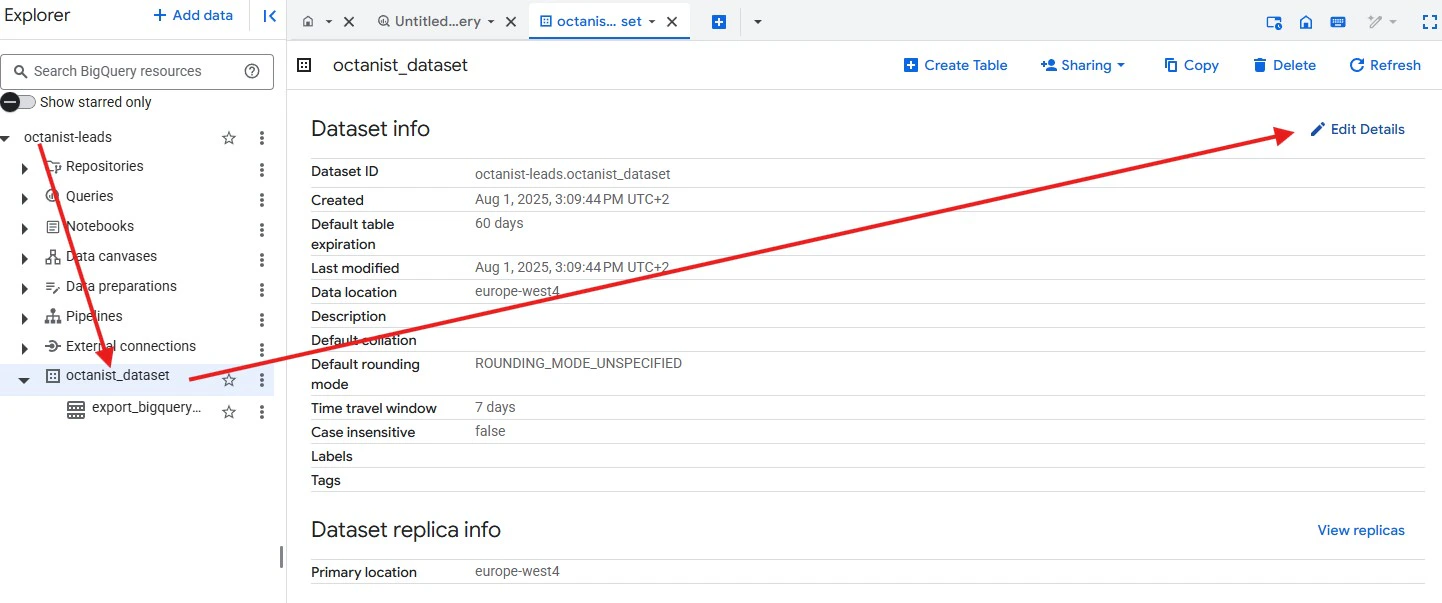
2. Octanist Setup

Head back to Octanist and create an integration: Create Integration
  1. Select Google BigQuery.
Octanist Integration Add Google Bigquery
  1. Grant Octanist access to your BigQuery account so it can insert lead data.
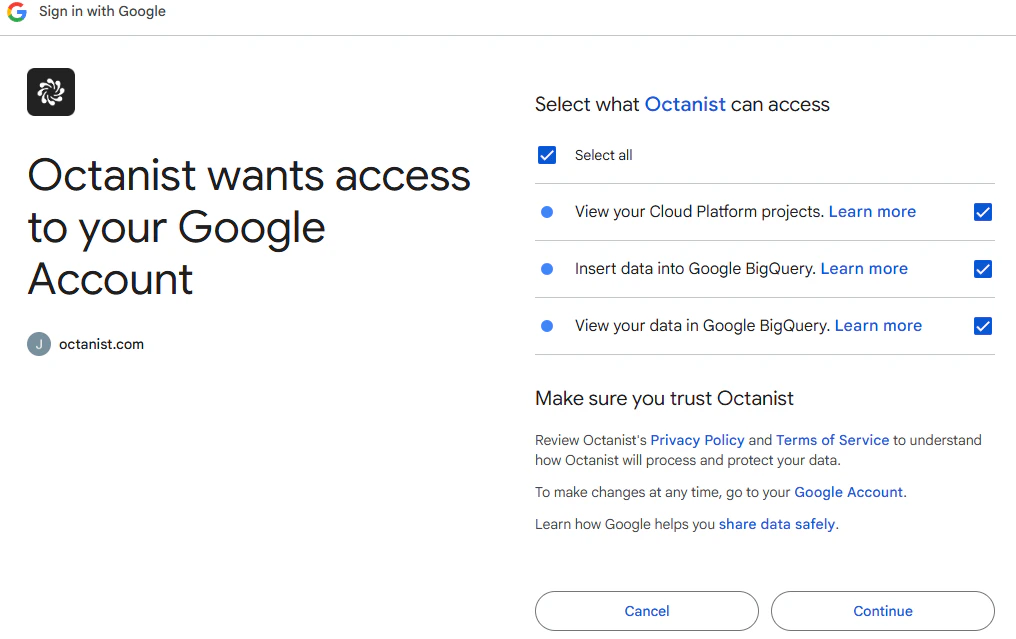
Octanist Integration Sign In Google Bigquery
Note: A second window may open during the authentication process. If it does, complete the setup in that window, then close it. This is related to Google Authentication and will be improved in future updates.
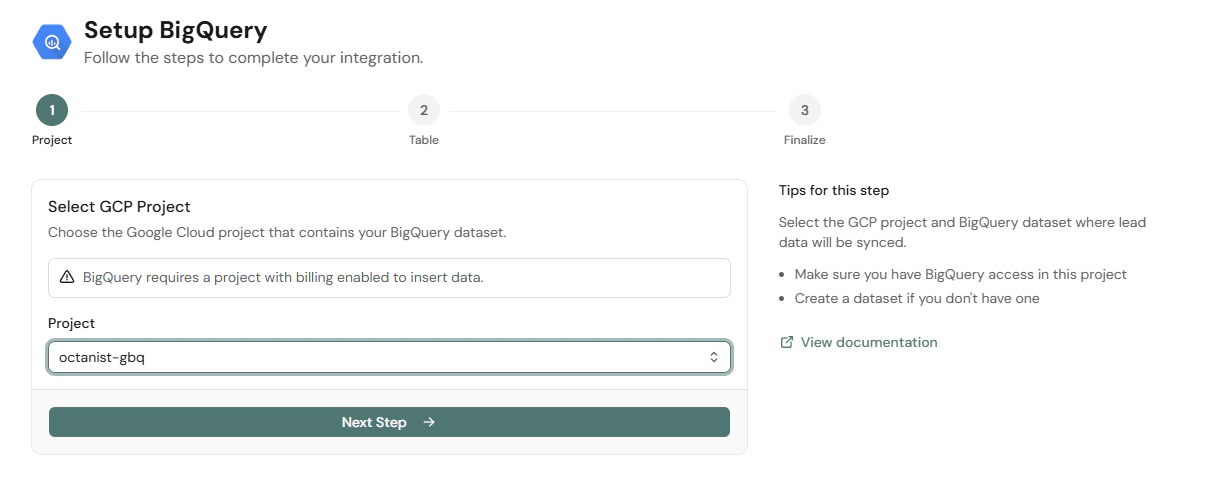
  1. Select your BigQuery project this is the project where you created your Octanist table.
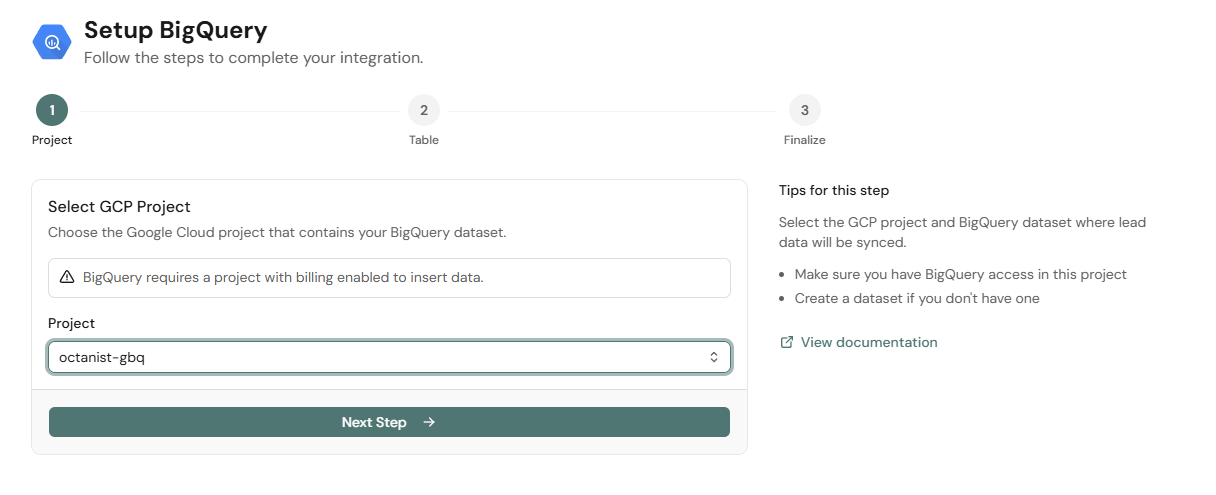
Select BigQuery Project for Octanist
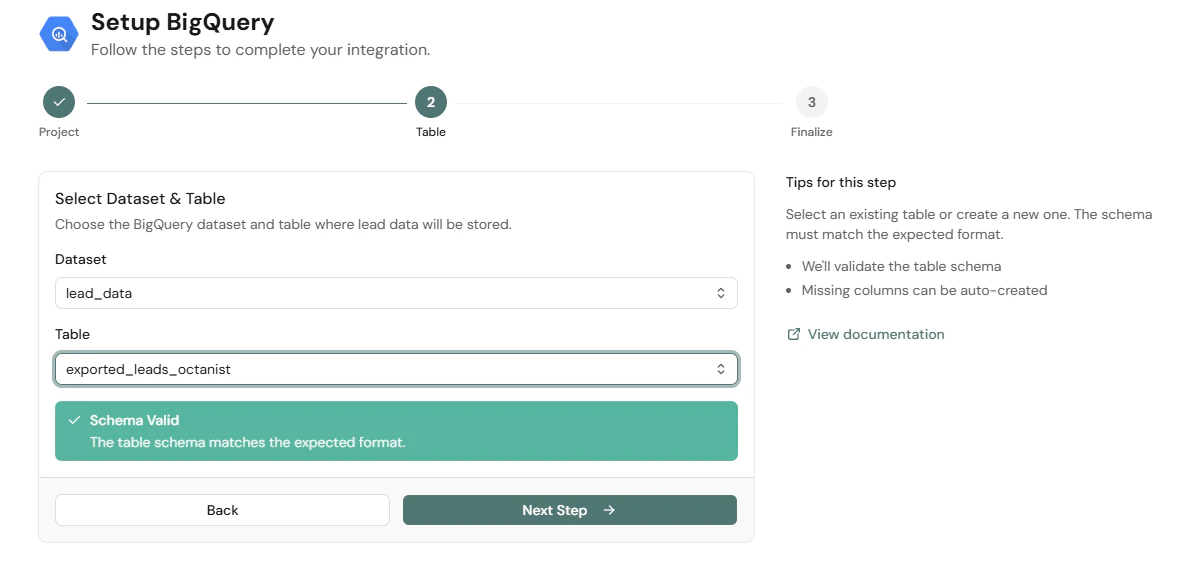
  1. In the next step, select the dataset and the table you created in Google BigQuery in the earlier steps. Octanist will display a message confirming that the schema is valid and the format is as expected. If you followed the steps above exactly, this should always be valid.
Octanist Integration Google Bigquery Add Table
  1. In the final step, you will see a summary of your current settings. Review these settings thoroughly.
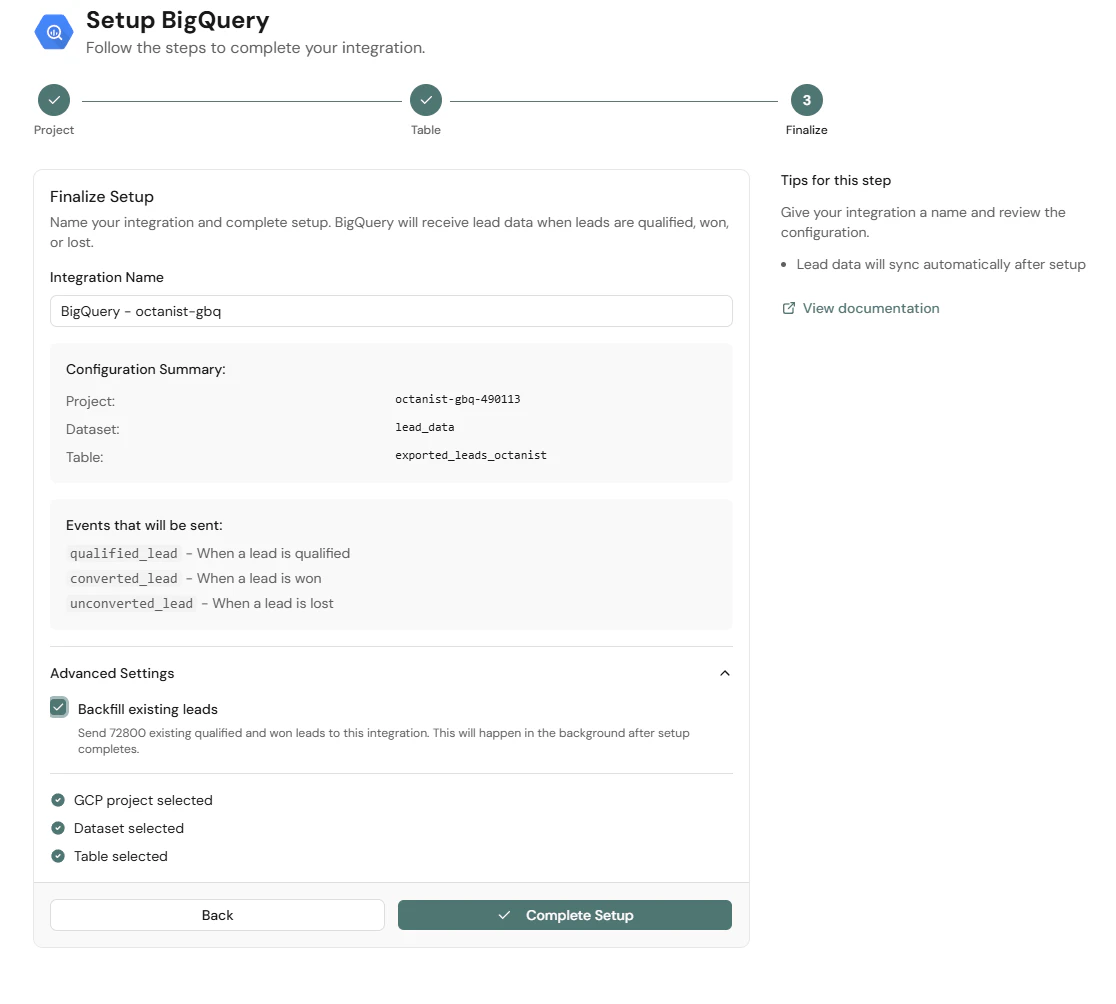
Octanist Integration Google Bigquery Finalize
All qualified, won, and lost leads will be sent directly to BigQuery. If you want historical data in BigQuery, go to Advanced Settings and check Backfill existing Leads. This will perform a one-time backfill of all current won, lost, and qualified leads. Once configured, you can start qualifying your leads these will be automatically sent to BigQuery.