The Octanist WordPress plugin connects your website forms directly to the Octanist platform, enabling automatic offline conversion tracking. It captures form submissions from popular form plugins, and with the help of our field mapping, maps field data according to your settings and sends it to your Octanist account for comprehensive marketing attribution.
Field tracking can be complex depending on your form setup and field naming conventions. Our support team is ready to help you configure field mappings correctly. Contact us at support@octanist.com for assistance.

Compatibility

Here is the list of supported form plugins. We are continuously adding more to the list. If you don’t see your form plugin here, please contact us at support@octanist.com.
WordPress form pluginSupported without captchaSupported with captchaEasy field mapping
Contact Form 7
Fluent Forms
Clio Form
WP Forms
Formidable Forms
Forminator
Elementor Forms
Ninja Forms
Gravity Forms
For unsupported forms, you can enable tracking by adding the CSS class octanist-form to your <form> element.

Installation

Install the Plugin

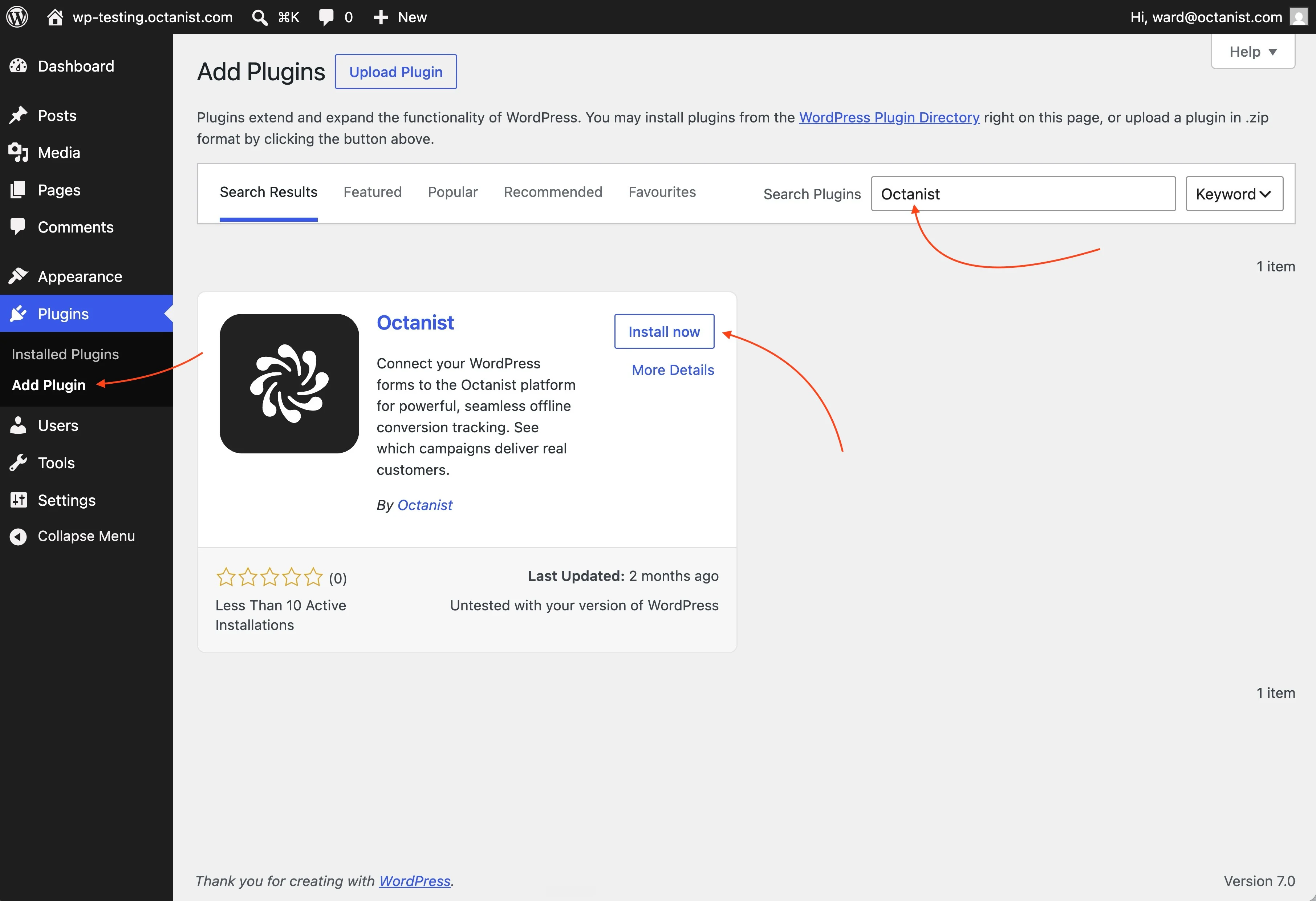
  1. In your WordPress dashboard, navigate to Plugins > Add New.
  2. In the search bar, type “Octanist” and press Enter.
  3. Find the Octanist plugin in the search results and click Install Now. WordPress Plugin Directory
  4. Once installation is complete, click Activate.

Get the Octanist ID

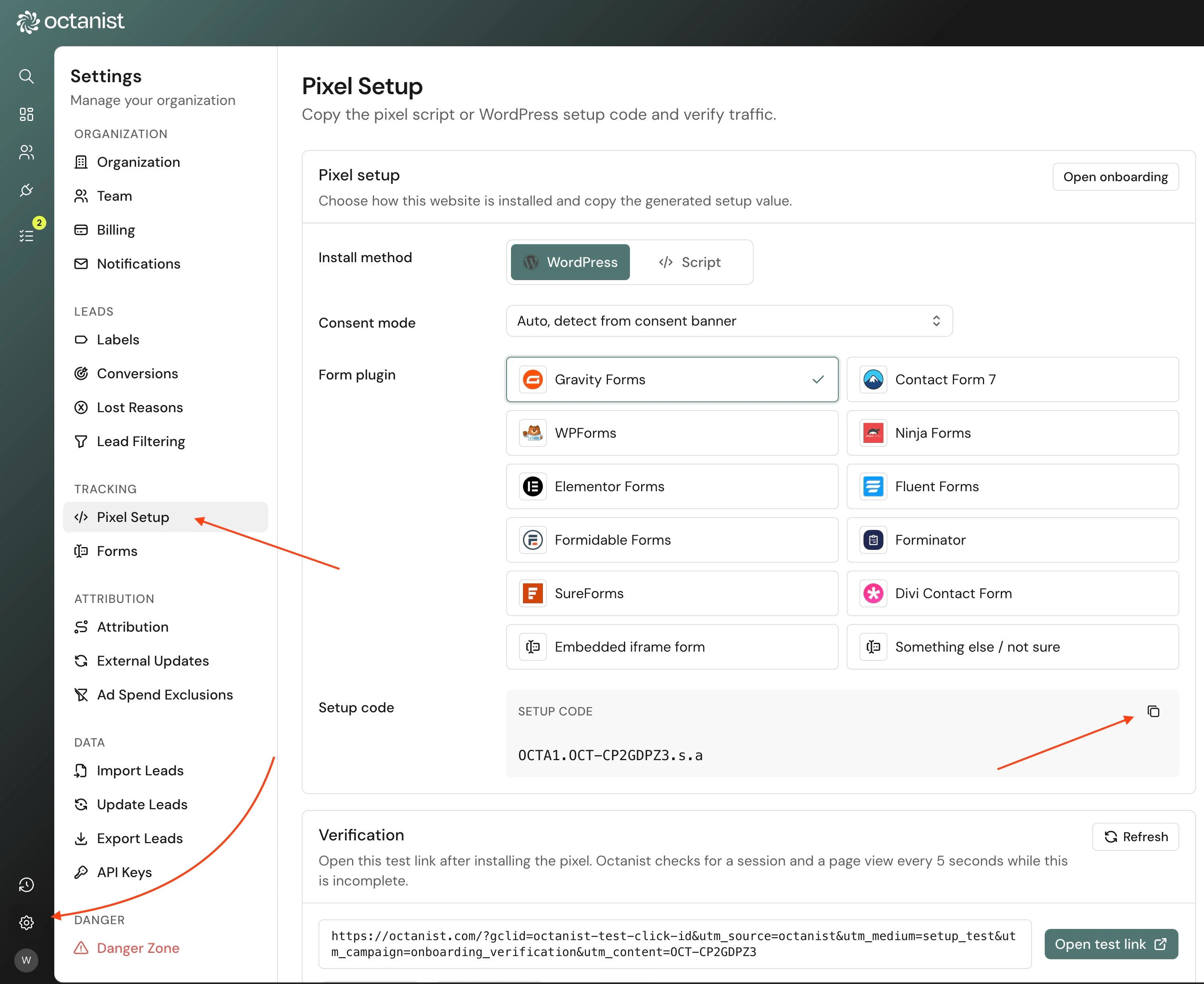
  1. In your Octanist account dashboard, navigate to Settings > Organization.
  2. Under Organization, copy your Octanist ID — we will need this later. WordPress Octanist ID
  3. Copy the Octanist ID. WordPress Octanist ID

Initial Configuration

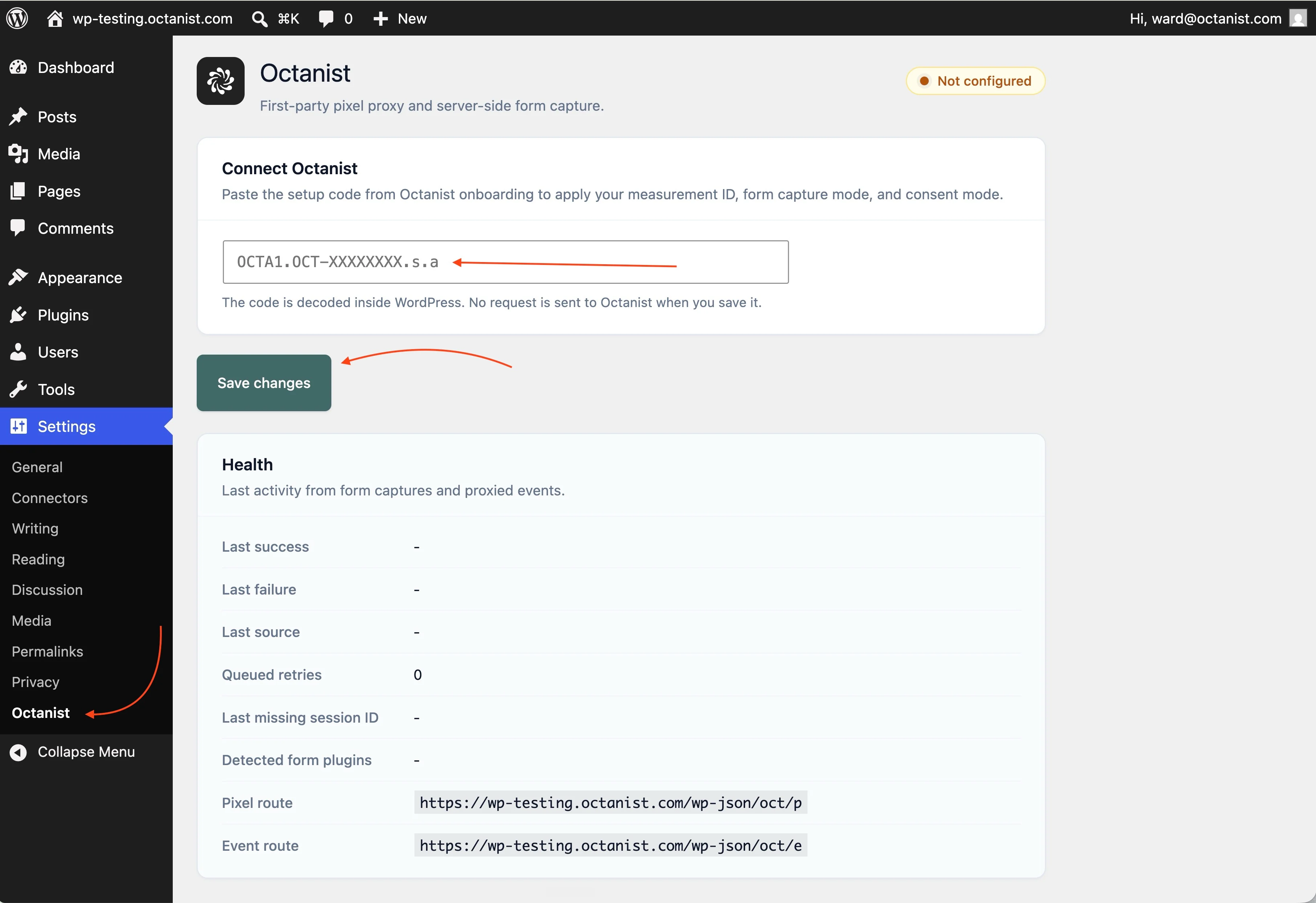
  1. Once activated, go to Settings > Octanist in your WordPress dashboard. WordPress Plugin Settings
  2. Enter your Octanist ID (copied in the previous step). WordPress Octanist ID Input
  3. Click Save Changes. WordPress Save Changes
The plugin is now active, but you will need to configure field mappings for proper data collection.

Field Mappings

Field tracking can be complex depending on your form setup and field naming conventions. Our support team is ready to help you configure field mappings correctly. Contact us at support@octanist.com for assistance.

Understanding Field Mapping

Different form plugins use different technical names for their fields. For example, a “Full Name” field might be named your-name, full_name, or text-123 in the code. Field mapping tells the Octanist plugin which of your form’s field names correspond to standard data fields in Octanist.

Configuration Steps

In the Field Mappings section of the plugin settings:
  1. Name Field: Enter the exact name attribute of fields containing user names.
  2. Email Field: Enter the field name for email addresses.
  3. Phone Field: Enter the field name for phone numbers.
  4. Custom Field: Map any additional fields you want to capture.
Click + Add Field to map multiple field names to the same data type. This is useful when you have different forms using different field names for the same purpose.
WordPress Field Mappings

Finding Field Names

The most reliable way to find field names is using your browser’s developer tools:
  1. Open the page with your form in a new browser tab.
  2. Right-click directly on the form field you want to map.
  3. Select Inspect from the context menu.
  4. Look for the name attribute in the highlighted HTML code. It will look something like this:
WordPress Field Name
  1. Copy the value inside the quotes (e.g., name="your-name" → use your-name).
WordPress Field Name Example HTML:
<input
  type="text"
  name="your-name"
  value=""
  size="40"
  class="wpcf7-form-control"
  placeholder="Your Name"
/>
You would use your-name in your field mapping.
This can be a complex process. Contact us at support@octanist.com for assistance. We would be happy to help you configure field mappings correctly.

Handling Multiple Fields

Combining First and Last Name:
  • Form has fields: first-name and last-name
  • In Name Fields mapping: Add both first-name and last-name
  • The plugin automatically combines them when forms are submitted.
Different Forms with Different Names:
  • Contact form uses: contact-name
  • Quote form uses: quote-name
  • In Name Fields mapping: Add both field names.
  • The plugin treats both as “Name” data.

Advanced Settings

Data Transmission Options

  • Send data to Octanist: Master switch to enable/disable data sending to the Octanist API.
  • Send data to (GTM) Datalayer: Push form data to Google Tag Manager’s dataLayer.
When GTM integration is enabled, data is pushed with this structure:
{
  "event": "submit_lead_form",
  "user_data": {
    "email": "user@example.com",
    "phone_number": "+1234567890",
    "company_name": "John Doe",
    "custom": "Custom field data"
  }
}

Debug Mode

Enable Debug Mode to print diagnostic information to your browser’s developer console. This helps troubleshoot tracking issues but should only be enabled when necessary.

Testing & Validation

  1. Fill out and submit a test form on your website.
  2. Check your Octanist dashboard for the new lead data.
  3. If using Debug Mode, check the browser console for “Octanist Debug” messages.
  4. Verify that field mappings are working correctly.

Troubleshooting

Forms Not Being Tracked

  • Verify the Octanist ID is entered correctly.
  • Ensure “Send data to Octanist” is enabled.
  • Confirm the plugin is activated.
  • Check if your form plugin is in the compatibility table.
  • For unsupported forms, add the octanist-form CSS class to the <form> element.
  • Enable Debug Mode to see console messages.
  • Field names must match exactly (case-sensitive).
  • Use browser inspection to verify field names.
  • Check for typos in the field mapping configuration.

Data Appears Incorrect

  • Combined fields: Multiple fields mapped to the same type are separated by a pipe (|) symbol.
  • Missing data: Verify all required fields are properly mapped.
  • Wrong values: Double-check field name mapping using browser inspection.
If you are experiencing persistent issues with field mapping or data collection, don’t hesitate to contact our support team at support@octanist.com. We are here to help you get your tracking set up correctly.

Next Steps

Your WordPress integration is now active! To complete your conversion tracking setup:
  1. Test thoroughly: Submit several test forms to verify data collection.
  2. Set up outgoing integrations: Connect Octanist to your advertising platforms.
  3. Monitor data flow: Check your Octanist dashboard regularly for incoming leads.
For setting up outgoing integrations, refer to our Outgoing Integrations documentation.