

This guide is for the GTM DataLayer setup. It is still supported and is useful when your website already pushes lead data into the dataLayer. If you only want to install the Octanist pixel through GTM, use GTM Pixel.
The GTM DataLayer endpoint returns Octanist’s internal lead UUID, but does not accept an external lead ID. If you need to submit an order number, quotation number, or another customer-owned identifier, use form mapping or the authenticated Create Lead API.
Table of Contents
- Setup Video
- Getting the Octanist ID
- Prepare the Website
- Set Up Google Tag Manager
- Optional
- Octanist - Outgoing Integrations
Setup Video
Need help setting up Octanist? Watch our setup video. For the most up-to-date implementation guide, please follow the written guide below.1. Getting the Octanist ID
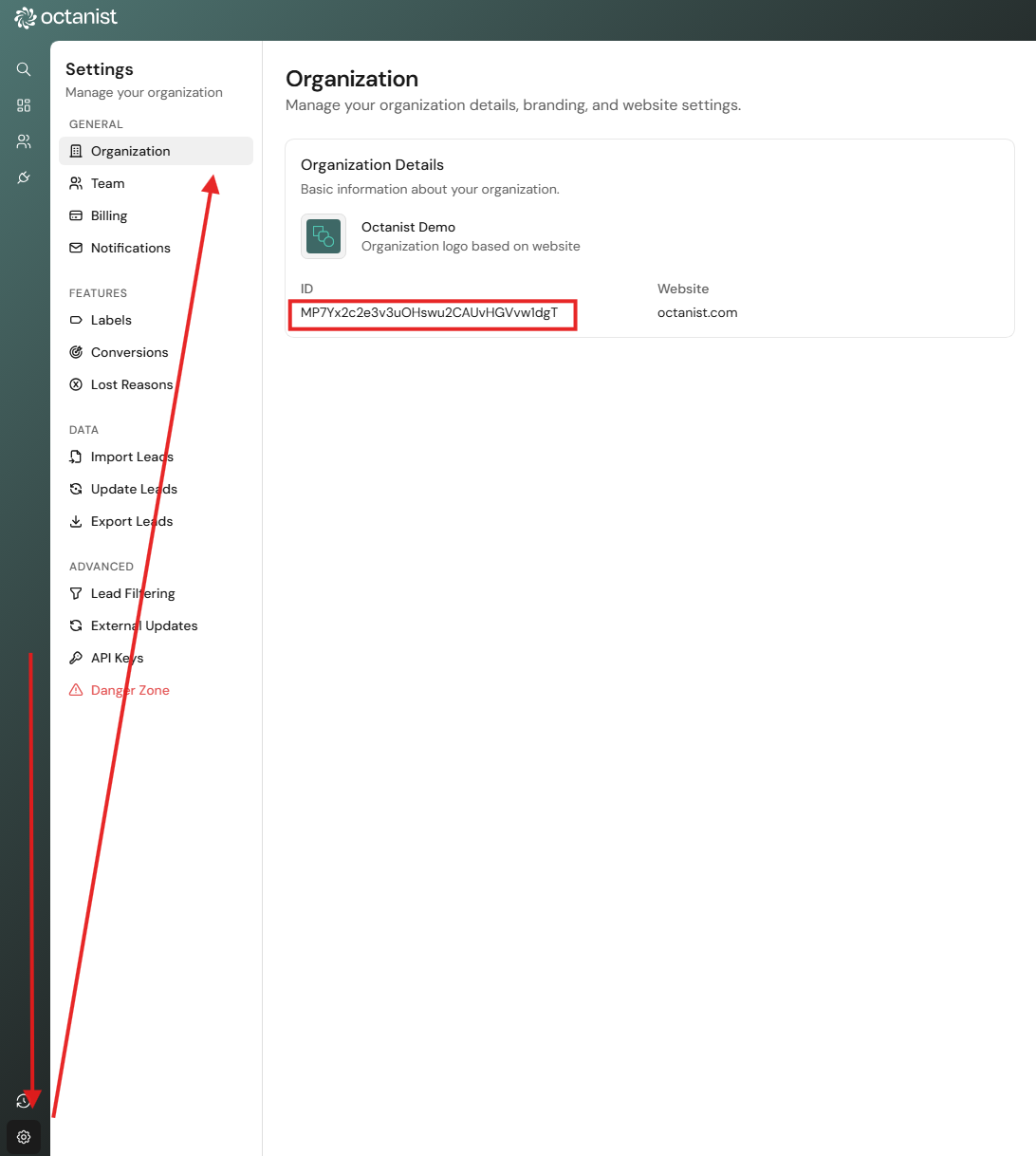
- Navigate within Octanist to Settings > Organization.
-
Within your Organization Settings, copy the Octanist ID. Save it for now because we will need it later.
2. Prepare the Website (+ email to web developer)
- To send lead data to Octanist, the data must be available on the website. We highly recommend using a dataLayer push event to ensure consistency and robust measurement.
- Ensure the lead data is placed in the dataLayer. Ask a developer to implement the following code to activate the dataLayer push after a lead form is submitted:
Dear [WEBDEVELOPER],We are currently in the process of setting up Octanist, a tool that helps us determine the true value of the leads coming through our website. To make this work and send data effectively to Octanist, we need to ensure the data is pushed to the dataLayer. This will allow us to capture the necessary information using Google Tag Manager and send it to Octanist. Therefore, we kindly request adding the following code to the backend of our forms:Please let us know once this is in place and if you need any assistance.Kind regards, [YOUR DETAILS]
3. Set Up Google Tag Manager
3.1 Create a Workspace
- Click on Default Workspace.
- Click on the + sign in the upper right corner to create a new workspace.
- Give the workspace a name (e.g., Octanist Setup).
- Click on Save.
3.2 Create the DataLayer Variables (it is easier than you think)
If your developer implemented the dataLayer exactly as described in step 2, follow these steps.- Go to the Variables tab.
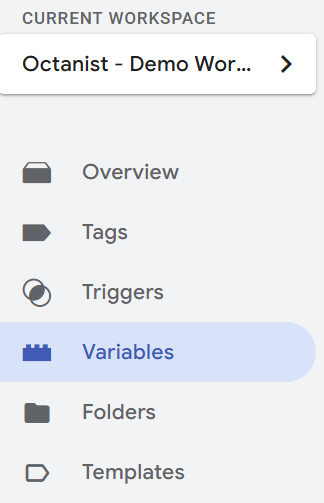
- Navigate to User-Defined Variables. Click New on the right-hand side to create a new variable.
- For email, give it the name: DLV - user_data.email
- Click on Variable Configuration.
- Click on Data Layer Variable (under Page Variables).
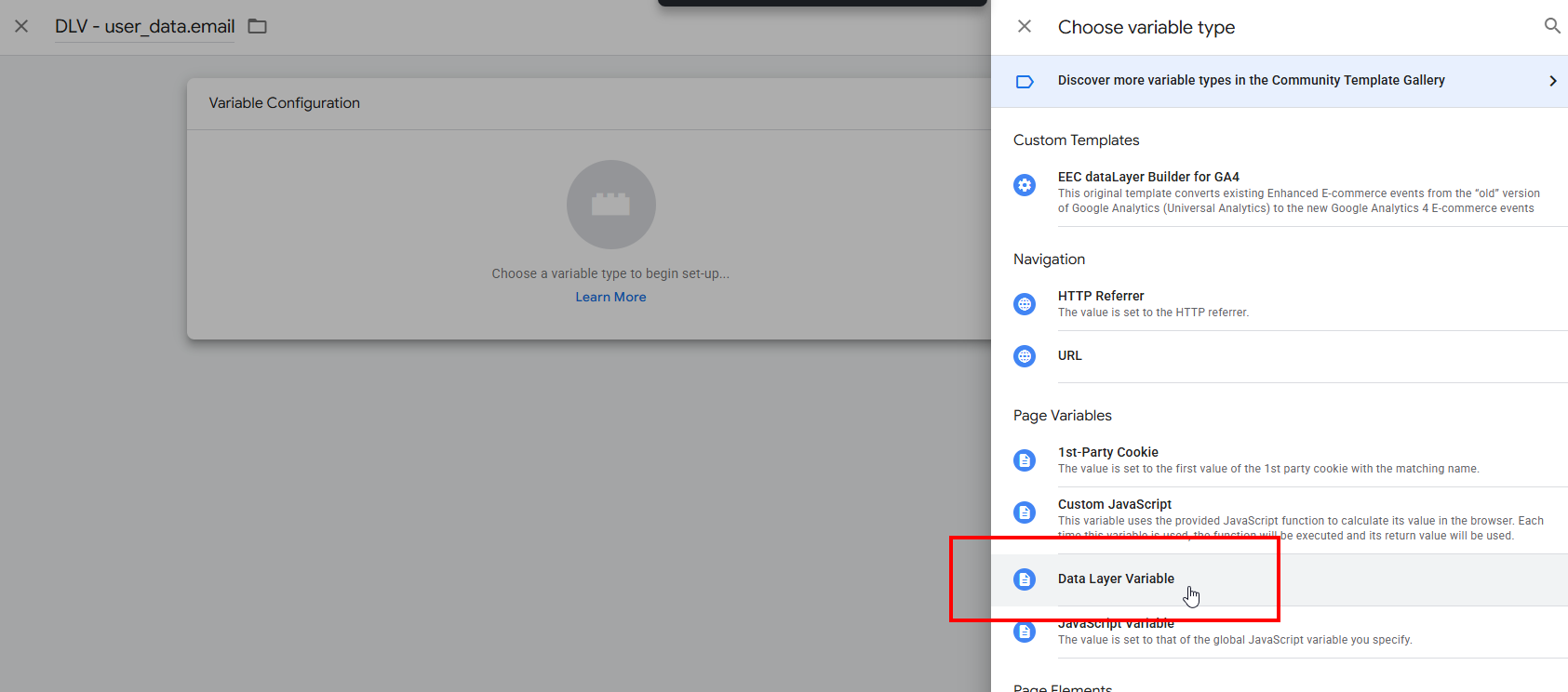
- Fill in Data Layer Variable Name: user_data.email
- Click on Save.
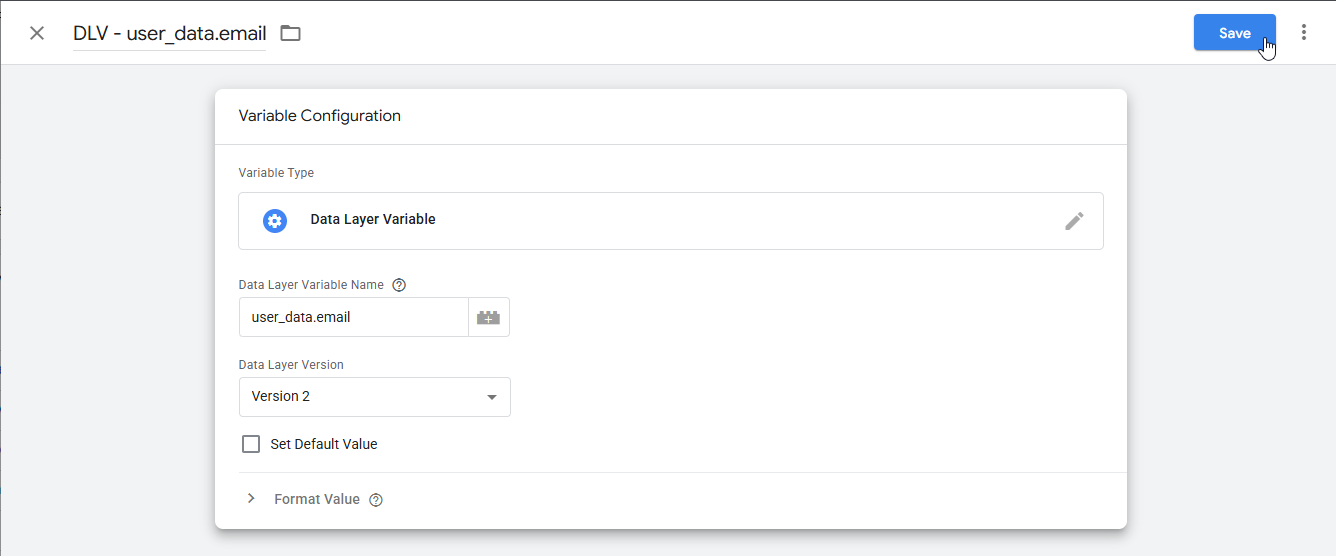
- Repeat these steps to create variables for Name and Phone_number as well:
- DLV - user_data.name
- Data Layer Variable Name: user_data.name
- DLV - user_data.phone_number
- Data Layer Variable Name: user_data.phone_number
- DLV - user_data.name
- The setup should look like this:
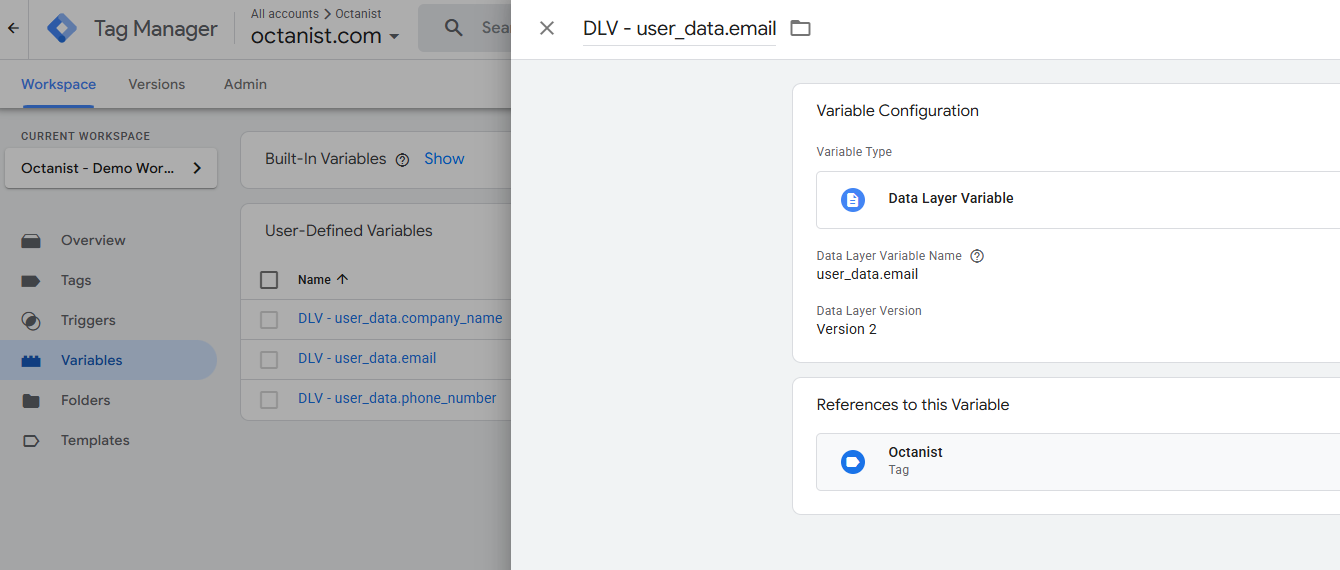
3.3 Create the Custom Event submit_lead_form
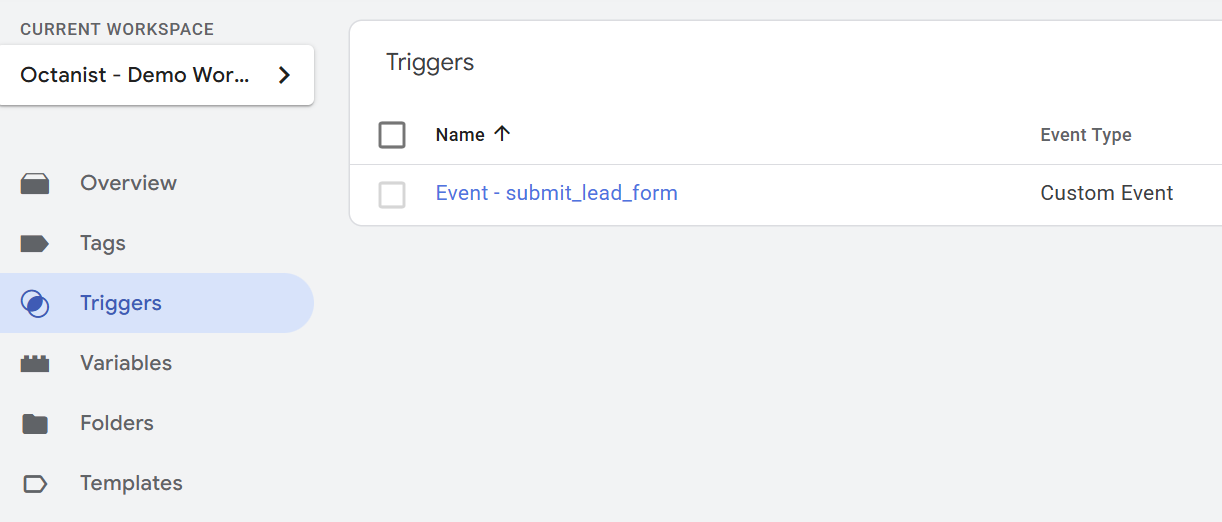
- Go to Triggers on the left-hand side.
- Click on New.
- Give it the name: Event - submit_lead_form
- Click on Trigger Configuration and select Custom Event (under Other).

- Fill in the “Event name” field with submit_lead_form.
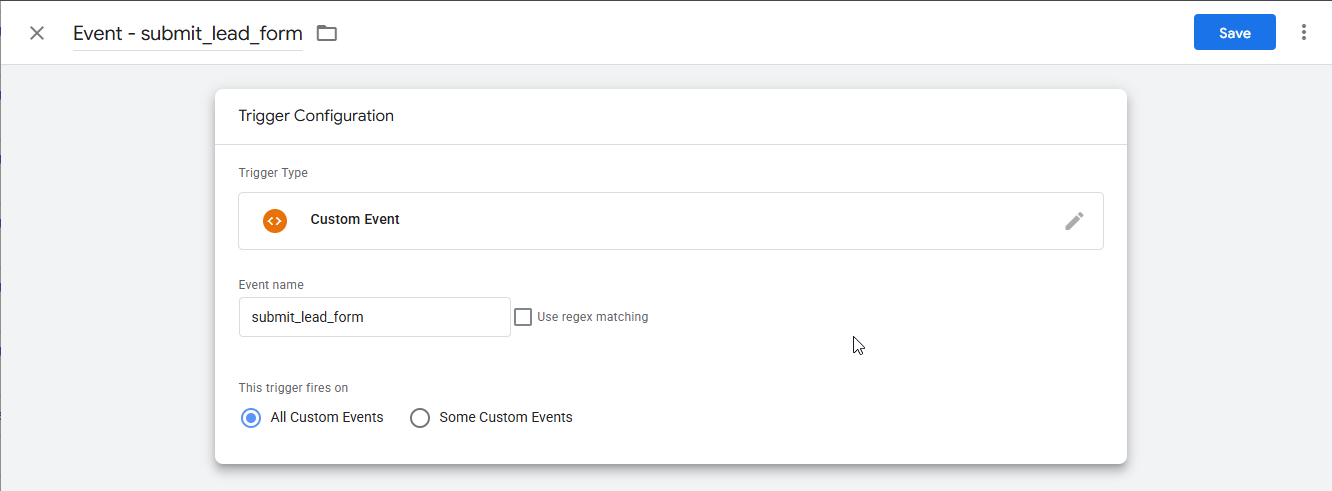
- Leave the remaining settings as they are and click on Save.
3.4 Add the Template
- Go to Templates > Tag Templates > Search Gallery.
- Search for “Octanist” and click on our Google-Verified Tag Template.
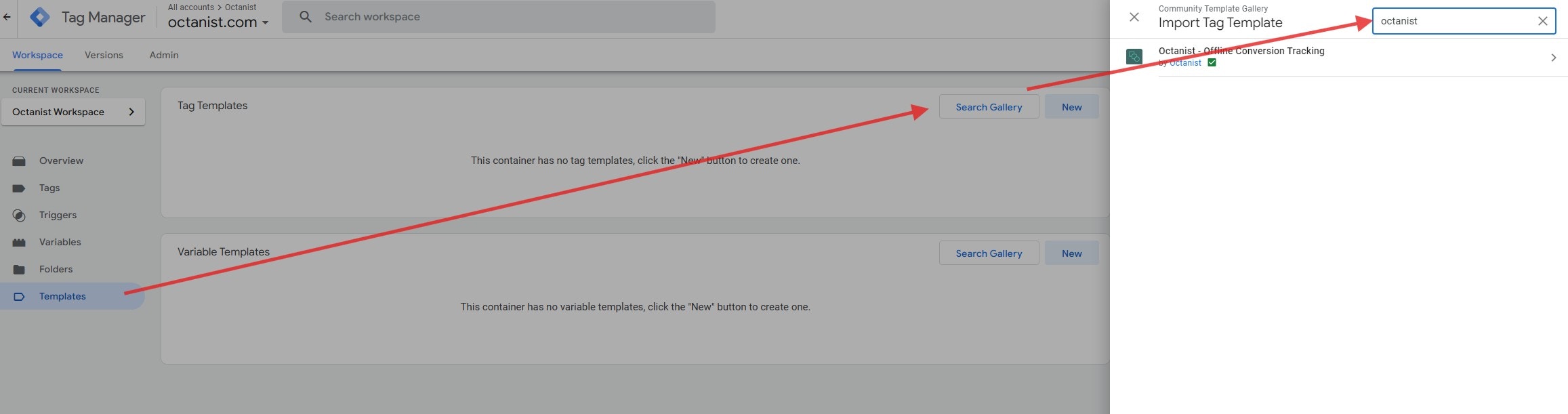
- Click the Add to Workspace button.
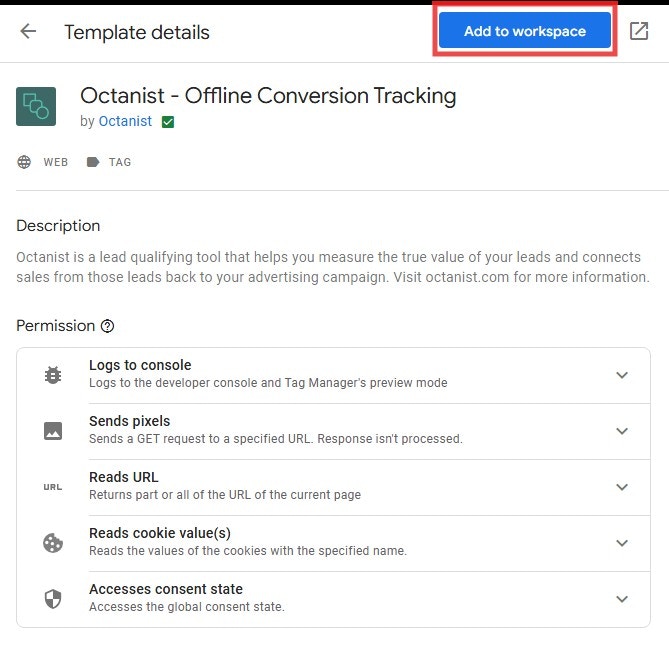
- Confirm and click Add.
3.5 Configure the Tag
- Go to Tags.
- Click New to create a new tag and give it the name: Octanist - Offline Conversion Tracking.
- Click on Tag Configuration and select the tag type: Octanist - Offline Conversion Tracking (GALLERY), under “Custom”.
- Enter your Octanist ID. You saved this at the end of step 1.
- Click the add variable icons and add the Data Layer variables configured in step 3.2. It should look like this:
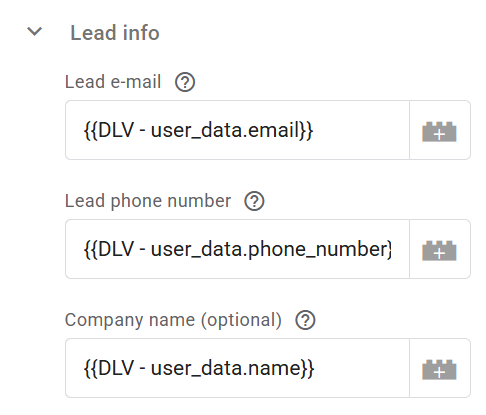
- Set the trigger. Click on Triggering below the Tag Configuration.
- Select the Custom Event for the submit_lead_form trigger created in step 3.3.
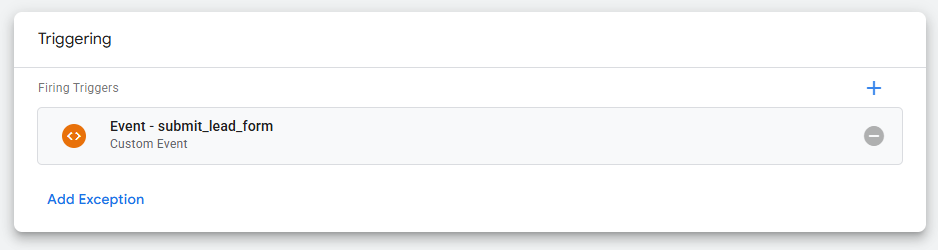
- Leave the remaining settings as they are. Click Save in the upper right corner.
3.6 Test and Publish
-
Test the form using GTM debug mode.
- Click Preview in the upper right corner (next to the Submit button).
- Enter your website’s URL and click Connect.
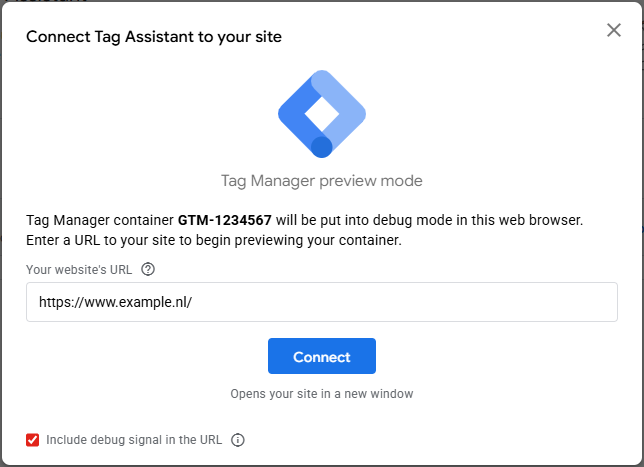
- Your website will open automatically. Go to your lead form, fill in the details, and submit the form.
- Go back to the Tag Assistant [Connected] browser tab and check whether the Octanist tag was triggered. Go to the Open Leads tab in Octanist and refresh the page. Is your test visible?
- If it is not working, please contact support@octanist.com.
- If it was successful, go back to the Tag Assistant browser tab and click the X in the upper left corner to disconnect. Click Stop Debugging.
- You can close this tab now.
-
Publish the container once everything works correctly.
- Click the blue Submit button in the upper right corner (next to the Preview button).
-
Click Publish.
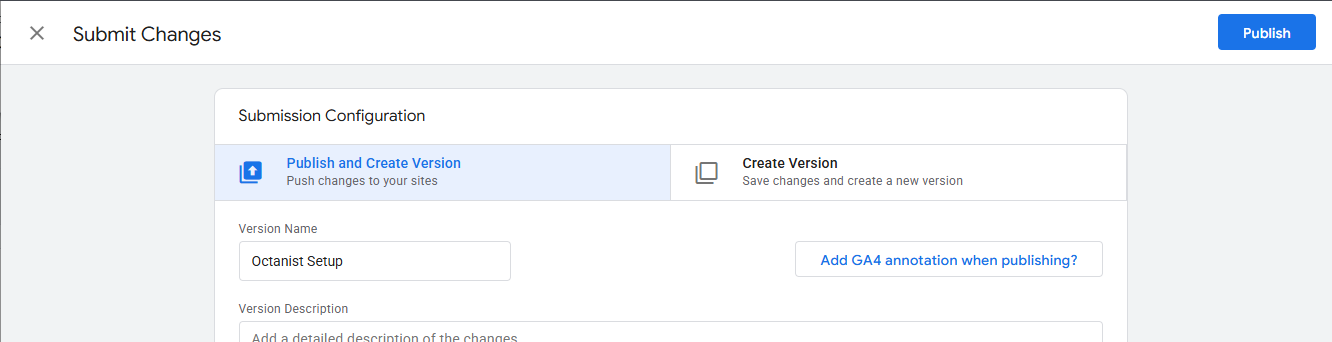
- You are all set!
-
Test on the live website.
- Open an incognito browser.
- Perform a test form submission.
- Check whether your test lead is showing up in Octanist.
4. Optional
4.1 Marketing Campaign Data
- Enter custom UTM parameters saved in a GTM variable.
- You can extract these parameters with the help of your web developer or technical web analyst.
- These parameters will be visible in the dashboard under Source / Medium / Campaign.
4.2 Consent
- By default, Google Consent Mode is used to determine the user’s consent preferences. If you have implemented this, you do not need to change this setting.
- You can also use the Manual Consent Setting, which allows you to pass your own consent parameters. Please return them as
GrantedorDenied, using exactly this format and capitalization. - For more details, refer to our Consent Documentation.
4.3 Custom Domain Delivery
- By default, leave this field blank.
- Here, you can add a custom domain for your Octanist environment. This feature is only available upon request via support@octanist.com.