Table of Contents
- Overview
- How the Measurement Protocol Works
- Setup Instructions
- Additional Reporting in Google Analytics 4
Setup Video
Need help setting up offline conversion tracking for GA4?Watch the video below, it explains all the steps in detail:
1. Overview
The Google Analytics 4 (GA4) integration sends your marked closed, open, and converted leads to Google Analytics 4. This process uses the Google Analytics 4 Measurement Protocol. This server-to-server solution ensures all quantitative lead data is sent to Google Analytics 4 and tied to specific channels. No personal or client data is sent to Google Analytics 4.2. How the Measurement Protocol Works
- “Won” Leads: Whenever a lead is marked as “Won,” the event is sent to Google Analytics 4 along with corresponding parameters (e.g. the value and currency).
- “Open” Leads: When a value is added or updated for an “Open” Lead, the event is sent to Google Analytics 4. The content of the note is passed as the parameter
lead_status. - “Lost” Leads: If a lead does not convert and is marked as “Lost,” the event is sent. The parameter
unconvert_lead_reasoncontains the reason for the lost lead, based on the note content.
3. Setup Instructions
-
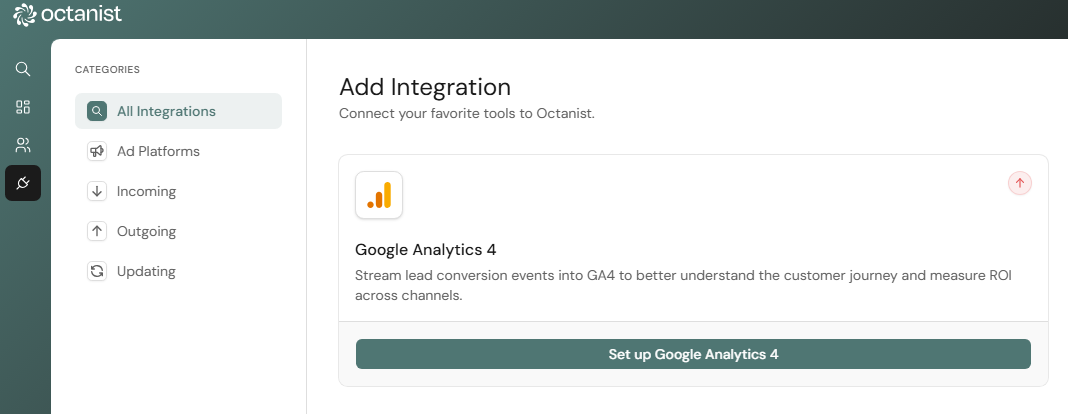
In your Octanist account, go to Integrations > Search for “Google Analytics 4”.
-
Add the integration by clicking Add Integration.
-
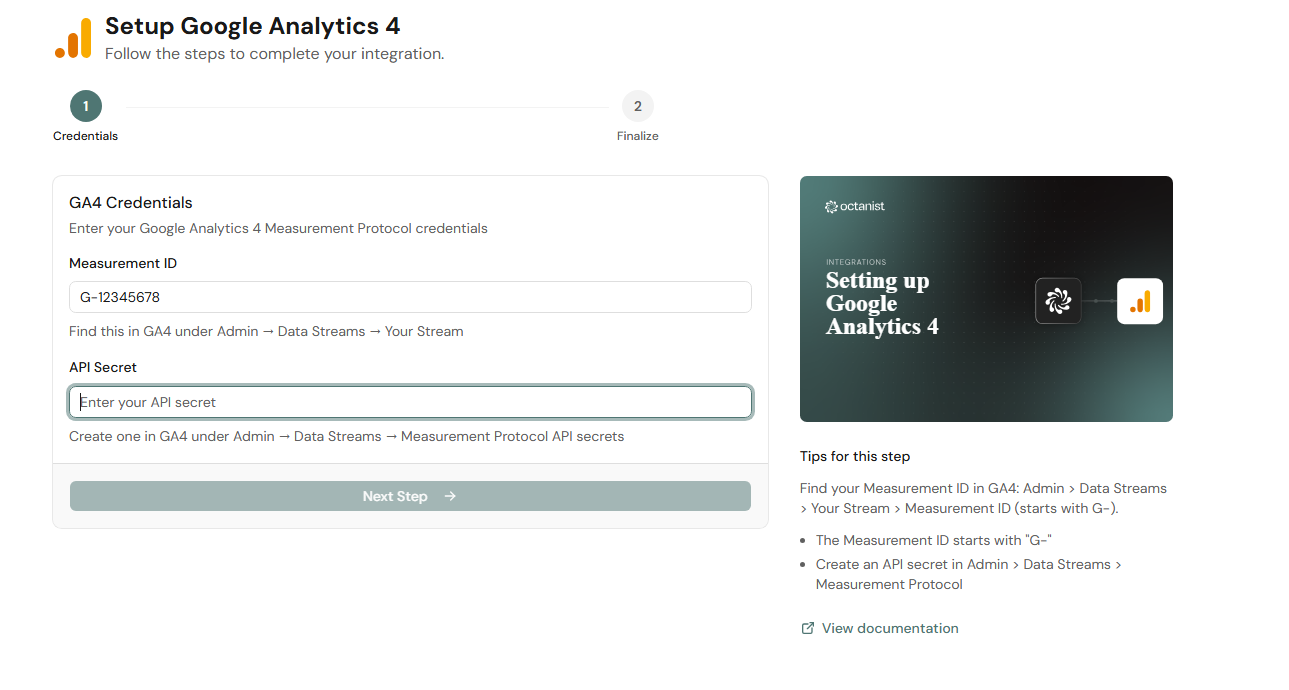
Enter your GA4 Measurement ID.
-
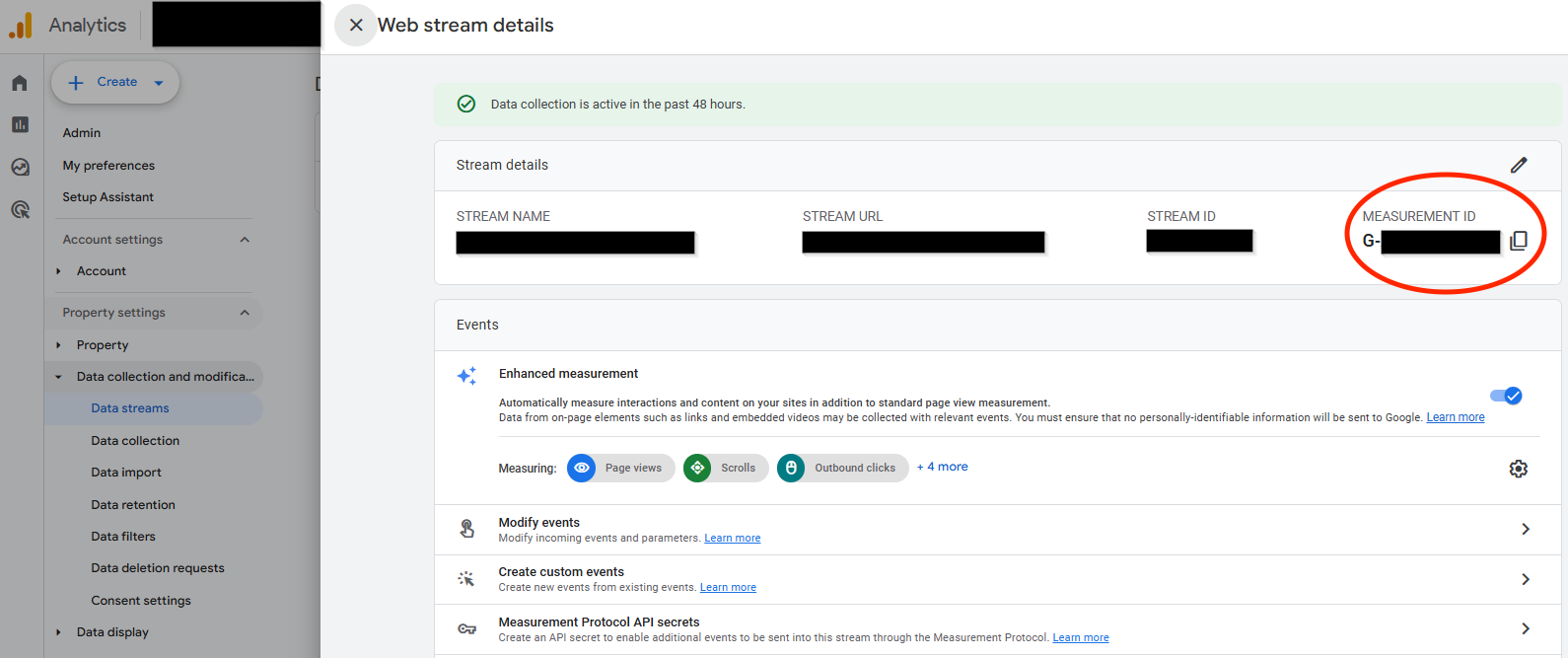
This can be found in your GA4 account under Data Streams. See Google’s guide for details.
-
This can be found in your GA4 account under Data Streams. See Google’s guide for details.
-
Enter your GA4 API Key:
- In your GA4 Data Stream, click Measurement Protocol API Secrets (you must have administrator access).
- If required, click Review Terms and then I Acknowledge after reading the User Data Collection Acknowledgment.
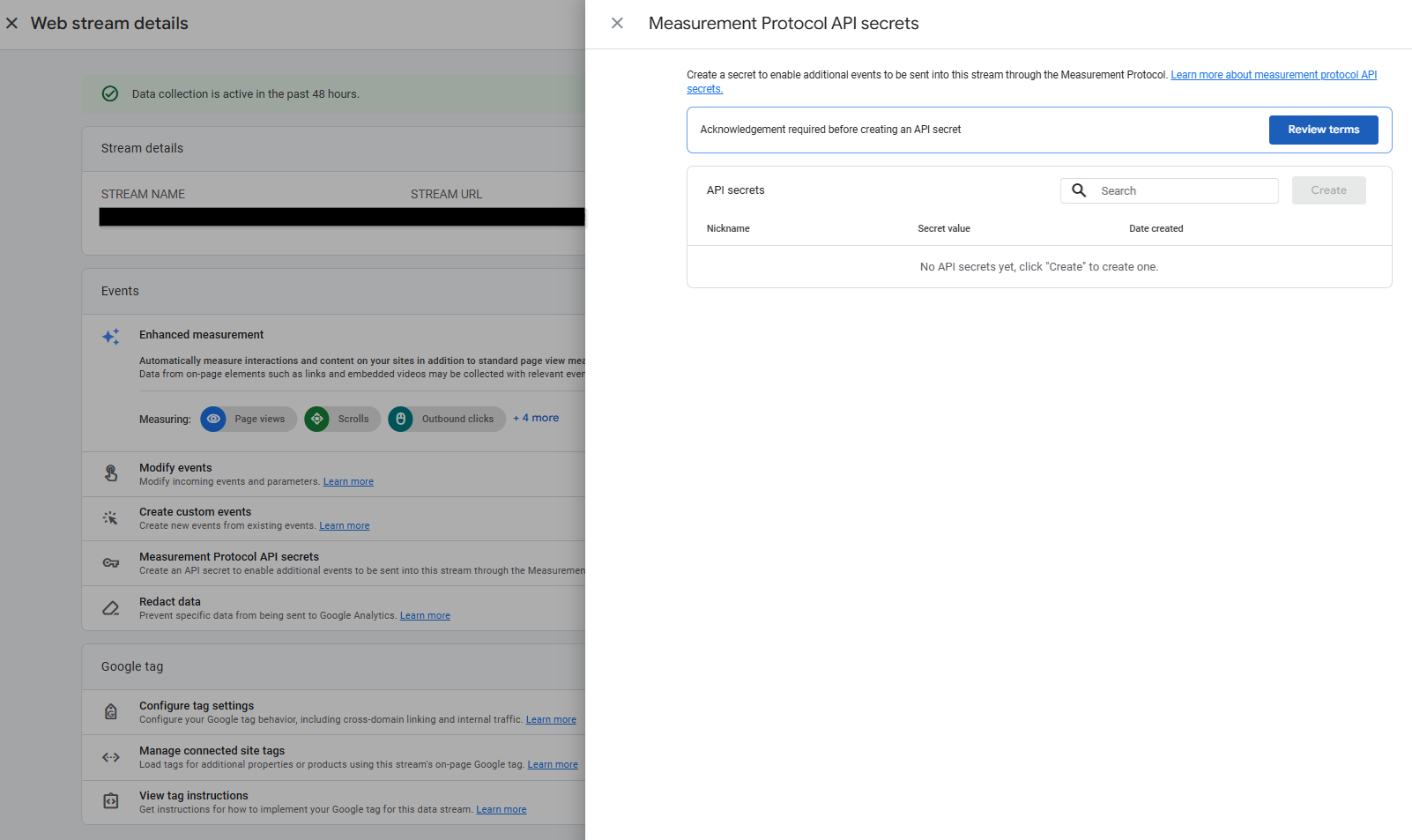
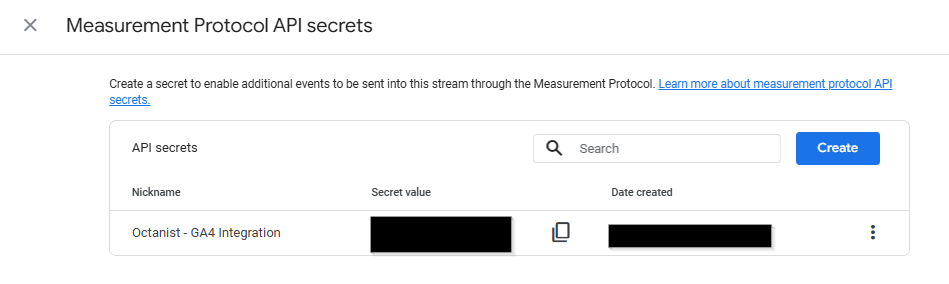
- Create a key and give it a clear name (e.g., Octanist - GA4 Integration).
- Click Create Google Analytics 4 Integration.
- Qualified =
working_lead - Won =
close_convert_lead - Lost =
close_unconvert_lead
4. Additional Reporting in Google Analytics 4
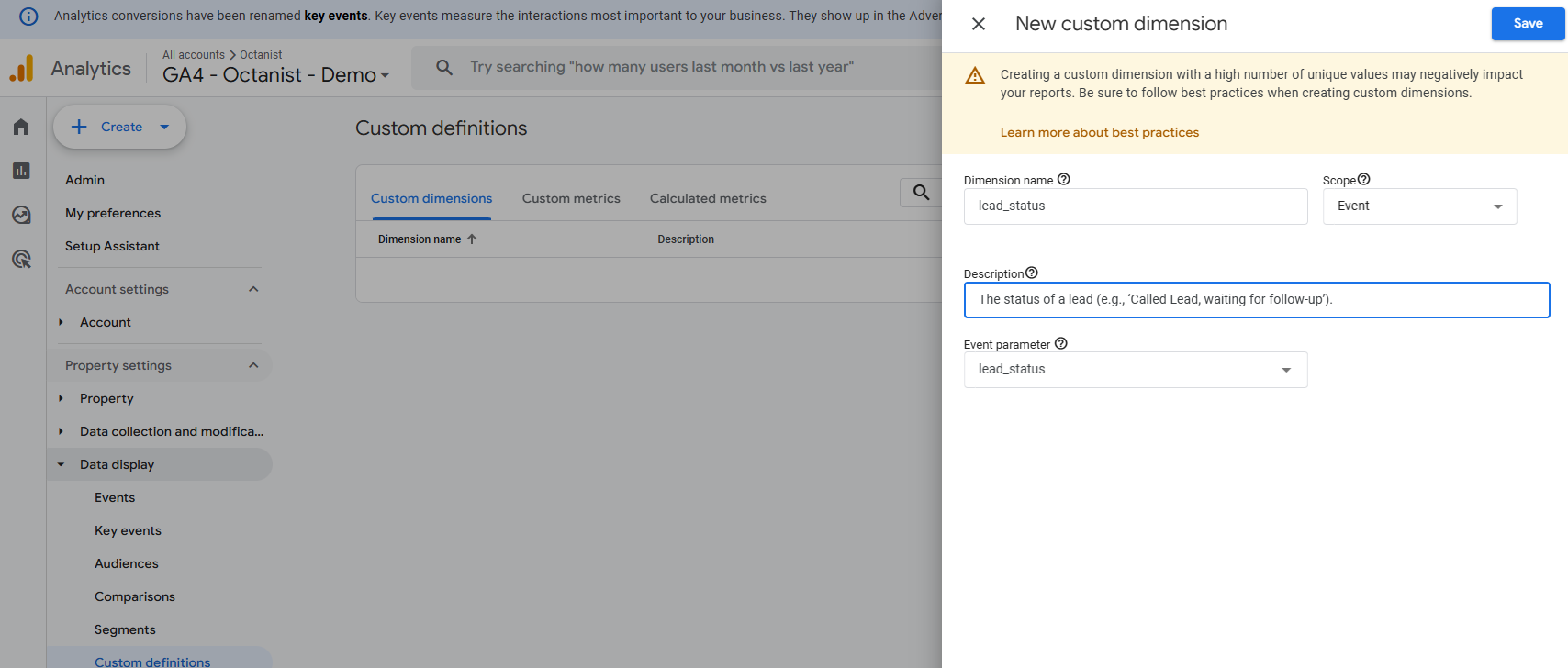
Add the custom dimensionslead_status and unconvert_lead_reason to view the text values of your notes entered in Octanist.
Enter the custom dimensions as follows:
- Dimension Name: The name of the dimension (e.g.,
lead_status; you can name this as you prefer). - Description: A description of the custom dimension (e.g., “The status of a lead (e.g., ‘Called lead, waiting for follow-up’).”).
- Event Parameter: This must be
lead_statusorunconvert_lead_reasonfor Octanist Insights.
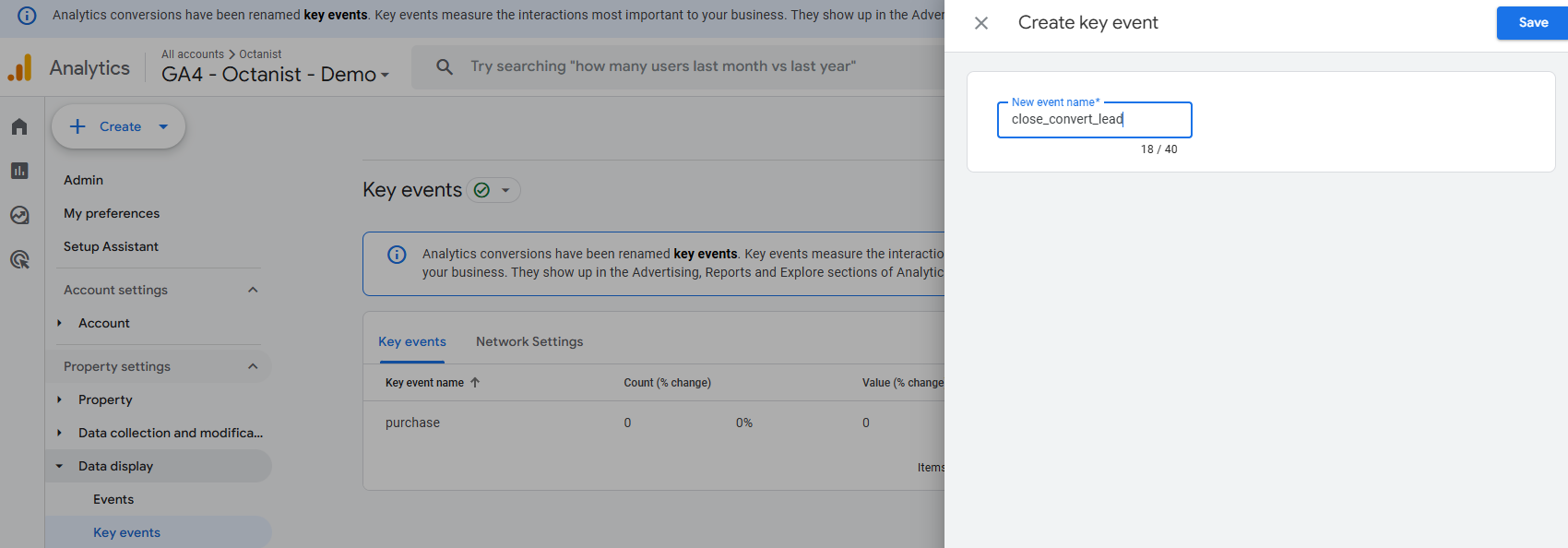
close_convert_lead event as a Key Event (Conversion) in GA4. This will help you better understand the user journey and simplify reporting.